Courses
Courses are the core training content in Aimee.ai. Each course defines an AI-powered conversational simulation that learners will complete.
Accessible to: Trainers, Workspace Owners, Admins
Course list
Navigate to Content Library in the sidebar to see all courses in the workspace on the Courses tab. For the full lifecycle view (drafts, versions, duplicating, templates, purchased courses), see Course Management.
Each course row shows:
- Title and description
- Status - Draft or Published
- Version label (e.g., v1.0)
- Last updated date
Use the search bar to filter courses by title, the status filter to show only drafts or published courses, and the tag filter bar to narrow by topic.
Sample courses
Every new workspace starts with three short sample courses on the Courses tab, tagged Getting Started:
- Welcome to Aimee: Your First Course - what a course is made of, and how it reaches a learner.
- Connect ChatGPT to Aimee - setting up the ChatGPT connection, and what that access covers.
- Interactive Blocks Tour - every interactive block type, side by side.
They are ordinary courses, not read-only samples: you can open them, edit them, publish them, assign them, or delete them like anything else you build.
They are also written to be copied. Every slide carries speaker notes explaining how that block was built and what to change, and each course ends with a slide pointing you at Duplicate. If you are about to build your first course, duplicating one of these is usually faster than starting from a blank page.
Deleting them is permanent - they are not restored automatically. A workspace owner can put them back at any time with Add Sample Courses in the Content Library header.
If a sample course is still in the workspace, Add Sample Courses asks what to do with it before anything changes. Choose Keep Mine to leave it exactly as it is, or Replace to swap it for a fresh copy. Replace deletes the course you have now, along with any edits you made to it, and it cannot be undone.
Creating a course
- Open the Courses tab in the Content Library.
- Click New Course. The course wizard opens and asks how you want to start.
- Choose a starting point and click Next:
- Generate with AI - enter a title, click Next, and answer a few questions. Aimee drafts slides, questions, and narration for you.
- Import from a file - upload a PDF, PowerPoint, Word, Markdown or SCORM file, and give a title, tags and prerequisites. Aimee builds a draft that stays close to the file: see Keeping the file faithful below. If your workspace owner has turned Native-block course import off, this option won't appear.
- Start with a blank course - enter a title and click Create course. An empty editor opens, and you build the content yourself. If you enter no title, the course name is "Untitled course", and you can change it on the Overview tab.
The new course opens in the Course Editor as a draft.
When you choose Generate with AI, one of the steps asks how you want to brief Aimee. Alongside defining what's in and out of scope, or pasting freeform notes, you can choose Upload reference files to hand Aimee your own source material - a policy document, a slide deck, or a procedure. Upload up to five files (PDF, Word, PowerPoint, plain text, or Markdown; 25 MB in total). Aimee reads them and shows you a short, editable summary you can adjust before generating, so the course is grounded in your material. If your workspace owner has turned this option off, it won't appear.
If you already have the whole course planned out - a document that lists every module, every screen, and what each one should say - choose Follow this outline instead. Upload the one document (PDF, Word, PowerPoint, plain text, or Markdown), and Aimee reads its structure and builds the course from it screen for screen, using your own wording rather than rewriting or summarising it. Before anything is generated, you'll see the modules and screens Aimee found and approve them - if the structure doesn't look right, upload the document again after adjusting it, or switch to one of the other briefing options. This option covers plans of up to 20 modules and 250 screens in total; larger plans need to be split into more than one course. If your workspace owner has turned this option off, it won't appear.
Before Aimee writes the full course, it pauses on Review the proposed outline and shows what it intends to build - one row per slide, each with a title, a one-line purpose, and the kind of activity it will become (Regular, Roleplay, Matching, Acknowledgement, and so on). Edit any row, change an activity type, drag rows to reorder them, remove ones you don't want, or add your own. When it looks right, click Approve and generate. If it's far off, click Regenerate outline and say what should change - for example "fewer concept slides, add a roleplay near the end". Cancel stops the run before any of the course is generated.
When generation finishes, Aimee shows a summary panel confirming the course was saved as a draft. If anything did not match the outline you approved, it is listed there rather than left for you to discover in the editor:
- A slide the outline asked for that was never built.
- A slide built as a different kind of activity than the one you approved.
- A slide that became an end-of-course Knowledge Check question. Only a question that the plan marks as a final assessment question goes there. Other knowledge checks stay in their module as a quiz.
- An image or a piece of narration that could not be generated.
The panel is colour-coded so you can see how the run went at a glance: green when everything came through as approved, amber when there are notes to read, and red when an image or narration failed. None of these stop the course being saved - the draft is always there to open and fix in the editor.
Keeping the files you upload
If your workspace has the Knowledge Base turned on, the upload step also offers Also keep these files in your knowledge base, ticked by default. Leave it ticked and the documents you just uploaded stay in your Knowledge library rather than being discarded once the summary is written - so the next course, roleplay, or question to Ask Aimee can use them without you uploading them a second time. They count towards your workspace's storage allowance like any other knowledge document.
Each file tells you what happened to it next to its name: Added to your knowledge base, Already in your knowledge base (you'd uploaded the same file before, so nothing is duplicated), or the reason it couldn't be added - for example if you've reached your storage limit. Your summary is produced either way; a problem keeping the file never costs you the summary.
Untick the box and the files behave as they always have: read once, then discarded. If your workspace doesn't use the Knowledge Base, the option doesn't appear and files are always discarded.
Generate from your Knowledge library instead
If the material already lives in your Knowledge library, you can ground the course on it directly instead of uploading it again - Aimee retrieves the relevant passages, cites the source on each slide, and can keep the course up to date as the source changes. See Building a Course from Knowledge.
Start from a template
If you've already saved reusable templates, open the Templates tab of the Content Library, open the template, and click Save as new course - see Course Management.
Course Editor
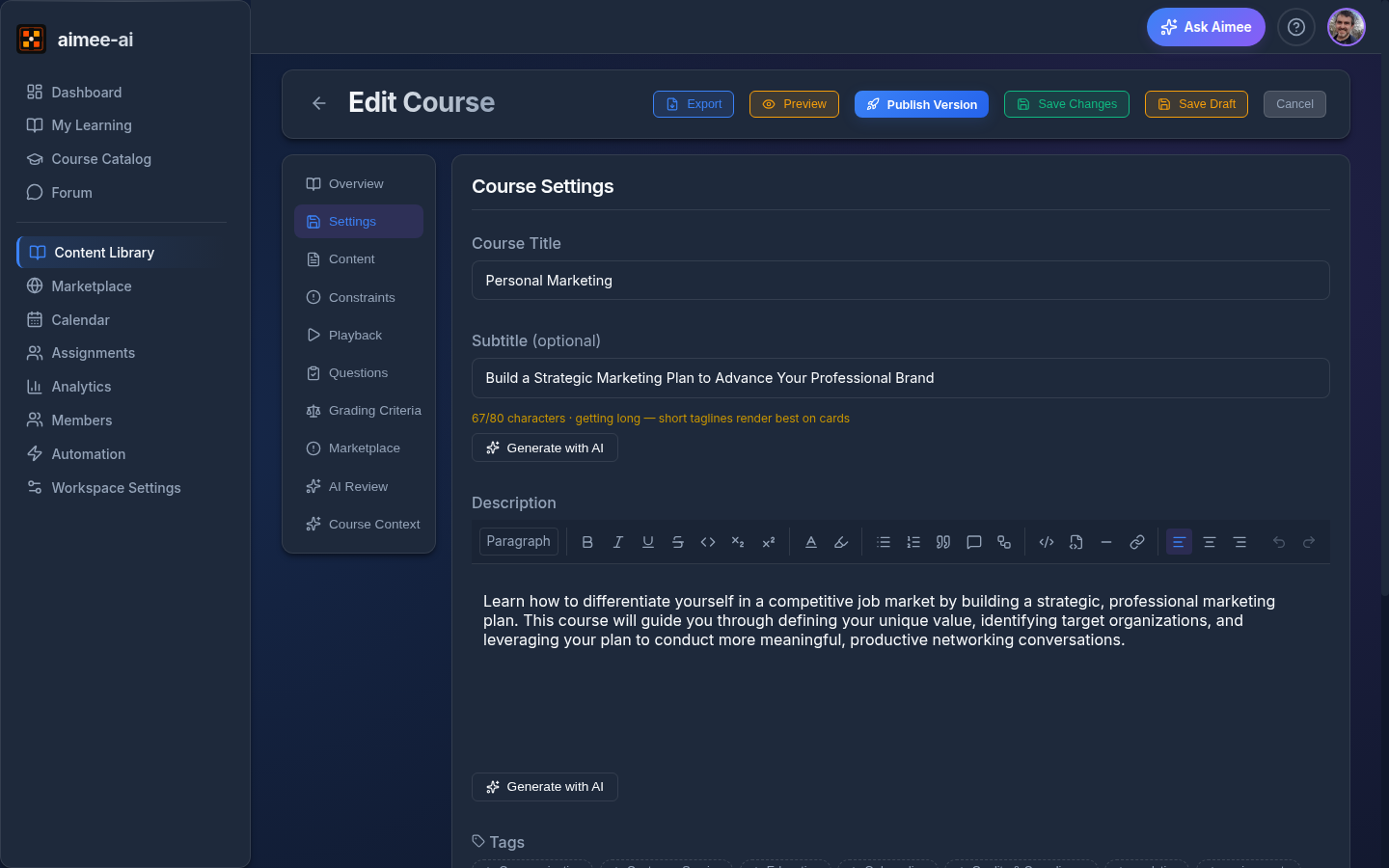
Click a course row to open the Course Editor. Every per-course setting is grouped into a row of tabs at the top of the page:
| Tab | What it's for |
|---|---|
| Overview | Course title, description, tags, and default narration voice - the at-a-glance card. |
| Settings | Learner brief, scoring settings, and the underlying runtime configuration the AI uses - see Basic information, Learner Brief, Runtime Configuration, and Scoring settings below. |
| Content | Build the slides, roleplays, quizzes, matching, acknowledgement, resources, and other blocks. Most of your authoring time lives here - see Course Content & Voice Narration. |
| Constraints | Pre-publish gates the course must pass before it can be published - for example, "course must contain at least one block" or "every quiz block has a correct answer marked". The tab lists what's still outstanding so you know exactly what to fix. |
| Playback | Controls how the learner experiences the course at launch - autoplay defaults, narration locks, and whether the workspace's Branding Intro is included before this course. See Playback below. |
| Questions | Configures the Knowledge Check that runs at the end of the course - number of questions, difficulty, and how the AI samples from the course content. Each question has an Explanation field. The learner sees the explanation with the result. |
| Marketplace | List the course on the Marketplace, set its price, or unpublish it. |
| Audit | Shows who changed the course, and when. See Audit log below. |
A Recovery tab also appears here, but only when an AI generation or import has failed and a block needs your attention to retry or repair. On a healthy course it stays hidden.
The day-to-day flow lives in Content and Settings. The other tabs come into play at publish time or when something needs course-correcting.
Basic information
- Title - the course name
- Subtitle - an optional one-line tagline (up to 80 characters) shown under the title on the Library, Catalog, Learning Path, and Marketplace surfaces. Use it to communicate the audience or value of the course at a glance. Leave blank if you don't need one.
- Description - internal description (not shown to learners)
- Default Narration Voice - the default voice used for AI narration across this course's content blocks
Course colours
The Course colours section in the Settings tab sets the colours of the slides in this course.
- Inherit - the course uses the workspace colours. Your workspace owner sets them in Workspace Settings > Appearance.
- Custom - the course uses its own 6 colours: Primary, Secondary, Accent, Warning, Surface and Text. It can also set 2 optional colours: Correct answers and Activity background. A preview shows how a slide looks.
The course colours also set the slide titles, the filled callout panels and the circled number lists. A slide title uses the primary colour when it is easy to read on the surface colour. If not, the title uses the text colour. The preview in each block editor shows the course colours, so you see what the learner sees.
Click Save colours to apply your choice. Aimee uses the course colours when it writes or regenerates slides and when it makes images.
When you import a PowerPoint, Word or PDF file, Aimee can find the colours of the file. They show as Colours from the imported file. Click Apply to use them for the course, or Dismiss to ignore them.
Note
If the text colour is hard to read on the surface colour or on the activity background, a warning shows. Choose a darker text colour or a lighter background.
A course that you lease from the Marketplace keeps the colours of its publisher, and you can't change them.
Course Content & Voice Narration
The Course Content tab lets you build a structured set of blocks the learner progresses through before or during the simulation. Blocks are grouped into modules (chapters) so larger courses scan as a clear outline rather than a long flat list - see Modules below for how to create, rename, and reorder them.
Use the Import Content menu to turn a whole file into course blocks. The menu accepts PDF, Markdown (.md / .markdown), PowerPoint (.pptx) and Word (.docx) files. Every format goes through the same steps, so the same content gives the same kind of course, whatever the file type:
- Aimee reads the file with AI and writes it as course blocks. All of the text in the file stays. A long section can be split over more than one slide.
- Interactions that are already in the file become real blocks. A question with answer options becomes a knowledge check, a list of tasks to tick off becomes a checklist, and a pairing task becomes a matching block.
- Aimee adds no slide, no interaction, no question and no image that the file does not already have.
- Questions from a final test in the file go to the course's question pool for the final assessment.
- Images in the file go to the workspace image library, so you can swap or re-use them. An image of a PowerPoint slide stays on the slide with the same number, also when the AI leaves it out, and it keeps the alt text of the file. An image that 3 slides or more show, such as a logo, goes to the library 1 time. Remote images in a Markdown file stay as links. The import does not make new AI images.
- The import keeps bold, italic, underline, superscript and subscript text. The import does not keep the audio or the narration of a PowerPoint slide. Aimee tells you which slides have audio before the import starts.
- PowerPoint charts become editable Chart blocks. Speaker notes become the narration script of the slide, and the import does not change their text. If the import divides a slide into 2 or more slides, the notes are on the first of them. A video in a slide becomes a Media block after the slide, and the slide keeps its text and its images. A slide with 2 videos gives 2 Media blocks. An online YouTube video becomes a YouTube block, or a link when the slide also has text.
- A row or a column of PowerPoint arrows or chevrons with text becomes a Flowchart block, with 1 step for each shape.
- A row of 2 to 6 PowerPoint chevrons, arrows or circles with a caption under each one becomes a Flowchart block that shows the steps in a row. The caption is the text of the step. A row of more than 6 steps stays a vertical flowchart. A short line of text above the row goes in the intro of the flowchart. Text below the row goes in a content slide after it.
- A grid of filled PowerPoint cards, a stack of layers, or a list of numbered rows becomes a Boxed list block. A grid of more than 3 columns wraps into 3 columns. Each box keeps the colour of its card when the card has a theme colour or a clear hue. A pale card fill becomes the soft tone of that colour. A white or very light card keeps the default box.
- A PowerPoint slide with the Section Header layout, and 1 short line under its title, becomes a Section block. The line is the subtitle of the section. A title-only divider slide also becomes a Section block.
- A grid of PowerPoint shapes, with 3 or more rows and 3 or more columns of 1 line each, becomes a table in a content slide. A row of shapes just above the grid is the header row.
- The import keeps the fill colour of a PowerPoint table cell and the shading of a Word table cell. A pale fill becomes the soft tone of the colour.
- A PowerPoint slide with a large figure and a caption beside a card of bold title and detail pairs becomes a Boxed list block. Each pair is 1 box. The figure, the caption and the heading of the card go in Text above the boxes.
- A short line of text above or below a grid of cards goes in Text above the boxes or Text below the boxes. A longer text stays a content slide.
- A PowerPoint slide that has a grid of cards and a row of steps becomes a Boxed list block and a Flowchart block, in the order of the slide. A line of text just above the row is the title of the flowchart.
- A PowerPoint slide becomes a Flowchart or a Boxed list block only when the block can hold all the text of the slide. If the slide also has an image or other text, it stays a content slide.
- PowerPoint slides come in the order that the deck shows them. The import skips a hidden slide, and the cost preview gives the count of hidden slides. The import cannot read an equation, an embedded object, ink or a chart of a newer type, and it does not keep merged table cells. The cost preview names each slide that has such content, so examine those slides after the import. If the deck has 2 sections or more, each section becomes a module.
- A PowerPoint bullet list stays a list, with its sub-levels. A numbered list keeps its numbers. A line break in a paragraph stays a line break.
- The footer, the date and the slide number of a PowerPoint slide stay out of the course.
- If the file has a clear colour scheme, Aimee offers it to you (see below).
You see a cost preview before the import runs.
Keeping the file faithful
After Aimee builds the draft, a second AI pass checks it against the file. This pass finds text, structure, interactions, images, colours and settings that the draft lost, changed or added. If it finds a gap, Aimee repairs the draft once and runs the check again, and keeps the version with fewer gaps. The report shows the score for each of the 6 parts and lists each finding.
When the import ends, you see this report in the course wizard and in the Import Content panel. Below the report, a list of warnings tells you what the import could not bring in, such as images that did not attach. Each line gives a reason and a count. While Aimee writes the course, the panel shows a count such as "Block 12 of 108".
You can open the report again later. On the Audit tab, select View report on the row of the import (see Audit log).
This check runs for a PDF, PowerPoint, Word or Markdown file, from Import from a file in the course wizard or the Import Content menu here. A file can be 250 MB at most. For a file above 100 MB, Aimee tells you that a large file uses more storage and that its import can cost more. Aimee tells you the limit before the upload starts if your file is larger. A SCORM file runs its own existing import instead (see Importing a SCORM package), so it has no AI step and no second review.
If your course already has content, Aimee asks whether to append the new file at the end or to replace the content of earlier imports. A replace deletes only the blocks and the pool questions that an earlier import made. Blocks and questions that you made yourself stay. Aimee adds the new content first and deletes the earlier import last. If the import fails or you cancel it, your course stays as it was.
Workspaces with native-block import turned off
A workspace owner can turn off Native-block course import in Workspace Settings > Features. Then PDF and Markdown files come in as plain editable slides, and PowerPoint and Word files come in as 1 block for each slide or heading, with no cost preview. Import from a file does not appear in the course wizard either.
Or add blocks by hand from the Add Block menu. The menu groups the block types by purpose. Slide stays at the top. Click a group to open it. Only 1 group stays open at a time.
| Group | Blocks |
|---|---|
| Present & Explain | Accordion, Boxed List, Chart, Flip Cards, Flowchart, Section divider, Stepper |
| Media & Files | Image, Video, YouTube, Resource |
| Practice & Assessment | Checklist, Matching, Quiz, Roleplay, Scenario |
| Learner Input | Acknowledgement, Feedback, Upload File |
These blocks are available:
- Accordion - a collapsible "click each row to expand" block - useful for FAQs, step-by-step instructions, or layered explanations the learner can reveal at their own pace.
- Acknowledgement - ask the learner to type their name to confirm they have read a policy.
- Boxed List - a read-only list of items, each shown in its own coloured box, with no order or sequence implied. Use it for a set of responsibilities, principles, or "things to remember" that read as peers rather than a numbered sequence.
- Chart - a pie, bar, or line chart over a small set of values - useful for proportions, comparisons, or trends. PowerPoint charts you import are turned into editable chart blocks automatically.
- Checklist - a list of statements the learner works through. Each item is either a tick box or a True / False pair. Mark an item required to hold the Next button until the learner gives the expected answer.
- Feedback - ask the learner for free-text feedback at a specific point in the course (after a module, on completion, etc.).
- Flip Cards - a grid of cards the learner clicks to flip over and reveal the back. Use it for term/definition pairs, prompts and answers, or short reveals.
- Matching - click-to-place exercise: pair terms with definitions, order steps, or sort into categories.
- Media - embed a video or audio clip (YouTube, uploaded video, image).
- Quiz - knowledge check with one or more questions.
- Resource - downloadable take-away files (policy PDFs, job aids, templates, checklists).
- Roleplay - open-ended AI-driven roleplay the learner works through in conversation.
- Scenario - a branching story. The learner reads a situation and picks a choice, and each choice leads to a different step. There is no score. See Scenarios.
- Stepper - a procedure or a history that the learner reads one step at a time with Next step and Previous step. There is no score. See Steppers.
- Slide - rich-text slide with optional images and voice narration. The rich-text toolbar also includes a code snippet button for inserting a syntax-highlighted code block with a language tag and copy-to-clipboard affordance - handy for technical training. Use the Size dropdown (next to the paragraph/heading style) to make selected text Small, Large, or X-Large - it works on any run of text, including a few words inside a bullet list, so you can emphasise a phrase without turning it into a heading; Normal clears the size. When the cursor is inside a list, a list-marker button appears in the toolbar so you can change that list's bullets or numbering: bulleted lists can use Disc, Circle, Square, Triangle, Arrow, or Check markers, and numbered lists can use Decimal (1.), Lower alpha (a.), Lower roman (i.), or Circled (each number in a filled circle in the course primary colour). The style applies to the whole list, so one list can use check-marks while another on the same slide uses arrows. The size, along with any text colour or highlight you apply, shows the same way to learners. Slides can use a One column layout (the default), Two columns, or Three columns. On a multi-column slide two extra toolbar buttons appear. Insert column break ends the current column and starts the next one, so you decide exactly where the split falls. Insert row break ends the current row: everything above it spans the full slide width, and the next row starts fresh. That's how you put shared set-up text across the top and a side-by-side comparison underneath it, instead of squeezing the introduction into the first column. A row with no column break in it spans the full width; a row can hold up to three columns. The Callout button adds a boxed note. Info, Warning, Tip and Note use a light tint. Primary panel, Secondary panel and Accent panel fill the box with a course colour, with white text and a star icon. Use a panel for 1 key message on a slide. A panel that is the only content of its column fills the full height of the column. Images, charts, code snippets, and callouts all sit inside whichever column you put them in. On phones and other narrow screens each row's columns stack one above the other so the slide stays legible.
When the cursor is inside a list on a slide, the list-marker button opens a picker for that list's bullet or numbering style:
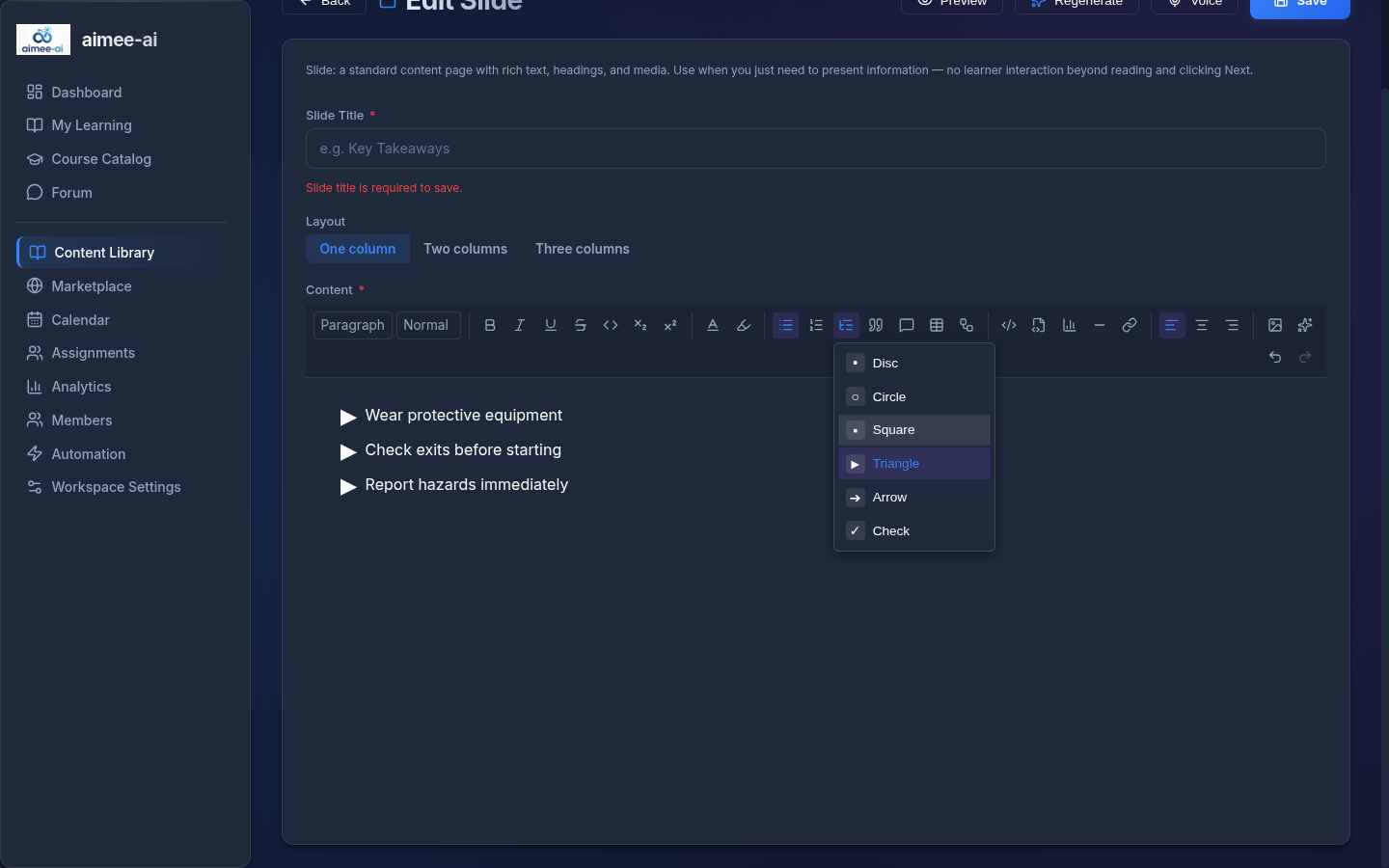
The picker has more options:
- Icon list - each item shows a small white icon in a filled circle. An Item icon button then appears in the toolbar. Put the cursor in an item and pick 1 of 24 icons, such as a hand, a phone or a check mark. Use the default dot removes the icon from the item.
- List colour - for an icon list or a Circled list, pick Primary, Secondary, Accent, Warning or Success for the circles. Success is the colour of a correct answer. The colours come from the course colours.
- Columns - split a long list of short items into 2 columns or 3 columns. 1 column puts the list back in 1 column.
The Callout button also has 5 light panels with no icon. Grey panel groups a heading and a list in a light grey box. Light primary panel, Light secondary panel and Light accent panel show a key message on a light tint of a course colour. Light warning panel shows a "Do not" card on a light tint of the warning colour. A panel can hold paragraphs, headings and lists. A Grey panel can also have a title bar. Put the cursor in the panel, open the Callout menu and select a title bar colour: primary, secondary, accent, warning or success. The first heading of the panel then shows as a coloured bar. Select No title bar to remove it.
Templates lose the two-column flag
Two-column slides round-trip through duplicate-course, but the template export → re-ingest path currently flattens them back to one-column. If you regenerate a template, recreate the two-column layout in the new course.
Browse uploaded files
Click Browse Files in the Content tab toolbar to see every file uploaded into this course - PDFs, PowerPoints, Word documents, Markdown files, images, and the audio files generated for voice narration. You can download or delete any file, and choose which PDF should be treated as the course's source.
Duplicate a block
Each block has a copy icon beside the trash icon. Click it to drop an independent copy of that block immediately after the original - handy when you want a quiz, slide, or roleplay with the same shape but different wording. Media, voice audio, and (for resource blocks) attached files are all copied; editing the duplicate never changes the original.
Colour in blocks and slides
You can give colour to a whole block, to a table, to a callout and to the items of some blocks. Colour is always optional.
The colour of a whole block. Every block can have a background colour. Use one of these 2 buttons:
- Click Background in the header of the block editor, beside Change type.
- In a slide, click Background colour of this slide in the rich-text toolbar, beside the text colour and the highlight.
The menu shows a row of soft tones and a row of solid colours. You can also choose Custom to pick any colour, or No colour to remove it. The editing area shows the colour, so you see what the learner sees.
The colour of a table. Put the cursor in a table. A small Table options button appears at the top right of the table. The table button in the toolbar opens the same options. The menu shows only the options that fit your selection: the cursor, 1 cell, a block of cells, 1 row or more rows, 1 column or more columns, or the whole table.
- Select the row, the cell or the column that you want to colour.
- Open Table options. If the cursor is in the table, choose Row, Cell or Column at the top of the colour part of the menu.
- Click a soft tone or a solid colour. You can also use Custom, or click No colour to remove the colour.
A solid cell colour wins over the colour of its row. A soft tone on a cell in a solid row shows the row colour under it, so use a soft tone for a cell only in a row with no colour or a soft row. A row that you add later has no colour.
The colour of a callout. Put the cursor in a callout and click the Callout options button at its top right. The menu has the same colours as the table menu.
The colour of an item. The editors of the Boxed list, Accordion, Flip cards, Stepper and Flowchart blocks give each item an optional colour. Choose it with the colour swatches of the item. The default keeps the colour of the course theme.
Do not use colour alone
A person who cannot see a colour does not get its meaning. Also say the meaning in text. For example, if a table row is red for a high risk, write High in the risk column.
Changing a block to a different type
You do not have to rebuild a block when you pick the wrong type. Each block has a Change type icon in its row on the Content board, and every block editor has a Change type button in its header. Click it to see the types this block can become.
A block can only change into a type that holds the same kind of content:
- Text and list blocks - Slide, Accordion, Flip cards, Stepper, Boxed list, Flowchart, Section, and Acknowledgement - all change into each other.
- Media blocks - Video, Image, and YouTube - change into each other, and into any text or list block. The media comes with them: an Image block becomes a Slide with that image in the body, and a Video or YouTube block becomes a Slide with the video in the body.
- Charts become any text or list block. A Slide or an Acknowledgement keeps the chart itself. The other types have no place for it, so the categories become text instead.
- Question blocks - Quiz, Matching, Checklist, and Upload file - change into each other.
A text or list block does not change into a media block, because a media block has nowhere to put the text. A Slide that holds only media is the exception. When the body of a Slide holds 1 image from the media library and no text, the menu also lists Image. A Slide that holds only 1 library video lists Video, and a Slide that holds only 1 YouTube video lists YouTube. The Slide title becomes the block title, and the alt text of the image or the caption of the video becomes the description.
Roleplay, Scenario, Resource, and Feedback blocks do not change type at all.
Aimee moves across everything the new type can hold - the title, the entries, the media, the speaker notes, and the narration script you wrote. Some things have nowhere to go: a Boxed list has no gating rule, a Section keeps only the title, and a Video file means nothing to a Quiz. Aimee tells you exactly what it will discard and asks you to confirm before it makes the change.
When a Slide with a list becomes a Boxed list, each top-level item of the first list becomes 1 box. Bold text at the start of an item becomes the title of the box. The text, the images and the videos above the list go to Text above the boxes. The content below the list goes to Text below the boxes. When you change the Boxed list back to a Slide, Aimee writes the text above, the list and the text below in the same order. A numbered list stays a numbered list.
When an Image or Video block becomes a text block, Aimee adds the file to your workspace media library so the new block can show it. You can then use the same file on other slides.
After the change Aimee opens the new type's editor, so you can see the result and fix it straight away. The block keeps its place in the module, and learners keep their course progress.
A signed acknowledgement cannot change type
Once a learner signs an Acknowledgement block, that signature is your compliance record. Aimee refuses to change the block's type, because that would delete the signatures. Duplicate the block and change the copy instead.
Undo a type change
You can undo a type change until you publish the course. Open Change type on the block and choose Undo type change, the first entry in the menu. Aimee asks you to confirm.
- The block returns to the type, the content and the media that it had before the type change.
- If you changed the type of the block more than 1 time, the block returns to the type that it had before the first change.
- The edits that you made to the block after the type change are lost.
- The AI narration of the earlier type returns only if you made no new narration after the type change. If you made new narration, generate the narration again after the undo.
- If the media of the block went to the media library at the type change, the block gets its own copy of the file. Aimee refuses the undo when the workspace has no storage space for that copy.
- A type change in the branding intro has no undo, and the confirm dialog tells you so.
Aimee keeps the files and the learner answers of the earlier type while you can undo. When you publish the course, the type change becomes final. Aimee then deletes the files and the learner answers that the block no longer uses, and Undo type change leaves the menu. If you discard the draft, the block also returns to its published type.
Moving between blocks while editing
Every block editor has a Prev / Next control in its header, with a counter showing where you are in the current module (for example, Block 3 of 6) and the module's name underneath. Use it to work straight through a module without returning to the Content tab between blocks.
Next on a module's last block carries you into the first block of the next module, and the module name in the header changes so you can see you've crossed a chapter boundary. On the very first and very last block of the course, the matching arrow is greyed out.
If you have unsaved edits when you move, Aimee asks what to do:
- Save & continue - saves this block, then opens the next one.
- Discard - moves on without saving. If the block was one you had just added and never saved, it's removed rather than left behind empty.
- Keep editing - stays where you are.
When a block isn't complete enough to save - a slide with no title, an accordion with no title - Save & continue is unavailable and the prompt tells you what's missing. Discard and Keep editing still work, so you're never stuck on a block you'd rather abandon.
The same prompt appears if you click Back to course, refresh, or close the tab with unsaved edits.
Modules
Modules are the chapters of your course. Each block belongs to exactly one module. The Content tab lays modules out as a board - each module is a column, side by side, with its blocks stacked inside it - so you can see several chapters at once and drag blocks between them instead of scrolling one long list. When there are more columns than fit on screen, the board scrolls sideways. Every course starts with a single default module called Course content - you can rename it like any other module, but it can't be deleted, so a course always has somewhere for its blocks to live.
Authoring. From the Content tab:
- Click + Module to add a new column. Click a module title to rename it inline.
- Drag a module's grip handle sideways to reorder the columns.
- Drag a block by its grip handle into another column to move it across chapters; drop on a module header to insert it at the top of that module.
- Use the Add to dropdown next to Add Block to choose which module a new block lands in, so it appears in the right column straight away instead of at the end of the course. (It appears once a course has more than one module.)
- Open a module's kebab menu and choose Delete module to remove a module - its blocks are moved to the end of the Course content module so nothing is lost.
- An empty module is allowed, so you can lay out a chapter skeleton before importing the content for it.
- To move several blocks at once, tick the checkbox on each block (or Select all), then click Move to in the toolbar that appears and pick the destination module - the selected blocks land at the end of that module, keeping their order. You can also drag any one of the selected blocks and the whole selection moves together.
- On a narrow screen the board falls back to a single stacked column so it stays easy to use.
What the learner sees. When learners open the Contents panel from the top-left of the course player, lessons are grouped under their module names as numbered chapters, with a completion tick beside each lesson they've finished.
Estimated course time
Every course has a target time, and the editor keeps a running estimate of how long the course takes. The default target is 60 minutes. The estimate helps you check that the course is the length you plan. Learners do not see the target, but the course list shows them an estimated time for each course and module.
The Course Content header shows a chip such as About 45 min of 60 min. Each module header also shows the time of the blocks in that module. The estimate changes when you add, delete, move or convert a block.
Aimee uses a time range for each block type, and the estimate uses the middle of the range. These are the default ranges:
| Block | Time |
|---|---|
| Slide | 30 to 40 seconds |
| Interactive slide (accordion, flip card, chart, flowchart, boxed list, upload) | 45 to 90 seconds |
| Image or PDF page | 30 to 40 seconds |
| Video or YouTube | 2 to 3 minutes |
| Quiz | 2 to 3 minutes |
| Roleplay | 4 to 5 minutes |
| Matching | 1 to 2 minutes |
| Checklist, resource, feedback | 30 to 60 seconds |
| Acknowledgement | 10 to 20 seconds |
| Section divider | 0 seconds |
Change the target or the ranges for one course. Click the chip and change the Target time (5 to 480 minutes). You can also change the low and high seconds of any block type. The change applies to this course only. Click Reset on a row to go back to the workspace value.
Change the ranges for the whole workspace. A workspace owner or admin opens Workspace Settings, then the General tab, then Course time rules.
The warning is soft. When a change takes the estimate over the target, a message tells you and the chip turns to the warning colour. You can dismiss the message and keep working. The chip stays in the warning colour until the estimate is at or under the target. The check also appears in the readiness panel as a warning. It never stops you from adding blocks or publishing.
Note
A leased course shows the estimate but you cannot change its target.
Resource Blocks
A resource block lets you attach one or more downloadable files alongside the lesson - policy PDFs, SOPs, spreadsheets, job aids, templates, checklists. Each file in the block gets its own label shown to the learner (e.g. "Policy PDF", "Signing template", "Onboarding checklist"), so related artefacts can live together in one block instead of a separate block per file.
Authoring. Click Add Block and choose Resource, then:
- (Optional) Give the block a title and description - context shown above the file list.
- Click Add files to pick one or more files. You can add up to 20 files per block.
- Set a label for each file (optional; defaults to the filename).
- Remove a file with the trash icon; replace the entire set by removing and re-adding.
File types accepted: PDF, Word, Excel, PowerPoint, CSV, TXT, ZIP. Uploads that exceed the workspace file-size cap are rejected, and file types outside the allowlist are refused at save time - not just in the picker.
What the learner sees. Each file renders as its own download card: a file-type icon, the label (or filename as a fallback), the filename and size, and a Download button that triggers the browser's save-as dialog using the original filename.
Resources are optional
Resource blocks are informational, not assessments - downloading is not a prerequisite for course completion. Use them for reference material that learners may want to keep after the course.
ZIPs are trusted at upload time
Files are stored as-is; there's no virus scan. Only upload materials you have authored or vetted.
Matching Blocks
Matching blocks are interactive click-to-place activities for assessment shapes a multiple-choice quiz can't capture naturally. The learner clicks an item in the bank, then clicks the target slot where it belongs. One block, three modes:
- Pair terms with definitions - e.g. match each ISO 27001 control to the risk it mitigates.
- Order steps - e.g. put the incident-response steps in the correct sequence.
- Sort into categories - e.g. sort each attribute into PII / Sensitive PII / Non-PII.
Authoring. Click Add Block and choose Matching, then:
- Pick the mode (pairs, ordering, or categories).
- Fill in a title and optional instructions shown above the activity.
- Add at least two items:
- For pairs, each item has a left (term) and right (definition).
- For ordering, each item has a label; the order you enter is the correct order.
- For categories, add at least two categories first, then tag each item with its correct category.
- Optionally tick Allow partial credit and set a pass fraction (e.g. 0.75 means 75% of items must be in the right place).
Labels typed in one mode carry over if you switch modes, so you can prototype the wording and pick the shape that fits best.
Not for high-stakes assessment
Matching blocks are scored in the learner's browser (same as Knowledge Check quizzes on a slide). A motivated learner can inspect the page to see the correct answer before submitting. This is fine for practice-style inline assessment; for certification-grade testing, use a dedicated assessment workflow.
Accordion Blocks
An accordion block stacks two to eight collapsible sections the learner expands at their own pace. Use it for reference content the learner browses rather than reads top-to-bottom - definitions, pillars, FAQ-style lists, or "here are the five things you need to know" layouts.
Authoring. Click Add Block and choose Accordion. The Accordion Editor opens. A guide at the top shows the 2 parts of the work. A list on the left shows Accordion setup and each section. The panel on the right shows the row that you select.
- In Accordion setup, write the title (required). You can also write an intro, which the learner sees above the sections.
- Select a section in the list and write its title and its text. The text can hold lists, links, bold and italic text, code and images.
- Click Add section for each more section. An accordion holds 2 to 8 sections.
- To change the order, drag a row of the list, or use the up and down buttons of the open section.
- To remove a section, click the trash icon of the open section. The editor asks you to confirm if the section has a title or text.
- In Accordion setup, select The learner must open every section before Next if the learner must read all the sections.
Each section also has an optional Section colour. See Colour in blocks and slides.
The list shows what each section needs: Needs a title or No text yet. A list of problems above the columns shows the same items. Click a problem to open its section.
You can save an accordion before its sections are complete. You cannot publish the course until each section has a title and text. The publish check gives you a link to the Accordion Editor.
What the learner sees. The first section is open. The other sections show only their titles. The learner clicks a title to open or close a section. Many sections can be open at the same time, so the learner can compare 2 sections. A tick shows each section that the learner opened. If the learner must open every section, a line above the sections shows the count, for example "2 of 5 sections opened".
Flip Card Blocks
A flip card block is a grid of two to six cards the learner clicks to reveal the back. Use it for term-and-definition pairs, prompts and answers, or any short front/back reveal you'd otherwise put on a paper flashcard.
Authoring. Click Add Block and choose Flip Cards, then:
- Give the block a title (required) and an optional intro.
- Add at least two cards. Each card has a short front title and a rich-text back body, plus an optional image from the workspace image library shown on the front.
- Drag to reorder; click the trash icon to remove. You can have up to six cards per block.
- Choose a gating option:
- None - the learner can advance freely.
- All flipped - the learner must flip every card at least once before continuing.
What the learner sees. The cards lay out in a responsive grid - one column on a phone, two or three on a laptop. Clicking a card flips it over; clicking again flips it back. Front-card images stay visible alongside the title.
Each card has an optional Card colour. See Colour in blocks and slides.
Boxed List Blocks
A boxed list shows a vertical set of items, each in its own coloured container box. There's no numbering or sequence - the boxes read as a set of peers, which makes it the right choice for a list of responsibilities, principles, key points, or "things to remember" where order doesn't matter. It's read-only: learners look at it, they don't interact with it.
Authoring. Click Add Block and choose Boxed List, then:
- Give the block a title (for example, "Key Responsibilities").
- Add at least one item. Each item has an optional title (shown in bold at the top of the box) and a body - the body is what the box must contain to be saved. Use Add Item for more; drag the grip handle to reorder.
- Pick a box colour per item, or use Apply colour to all to set every box at once. The choices are a theme default, the 4 course colours (Course primary, Course secondary, Course accent and Course warning), and the fixed colours Blue, Teal, Green, Amber, Red, Purple, and Gray. A course colour box follows the course colours, so it changes when the colours change. The choices also include a soft tone of each colour. See Colour in blocks and slides.
- Use Text above the boxes and Text below the boxes for content that is not a box, such as an introduction, an image or a closing note. Both are optional. Each one has the same text tools as the body of a box.
- Click Preview to see the boxes laid out as a learner would before saving.
What the learner sees. The title, then the text above the boxes, then a stack of coloured boxes, one per item, each showing the item's bold title (if you gave it one) and its body text. The text below the boxes comes last.
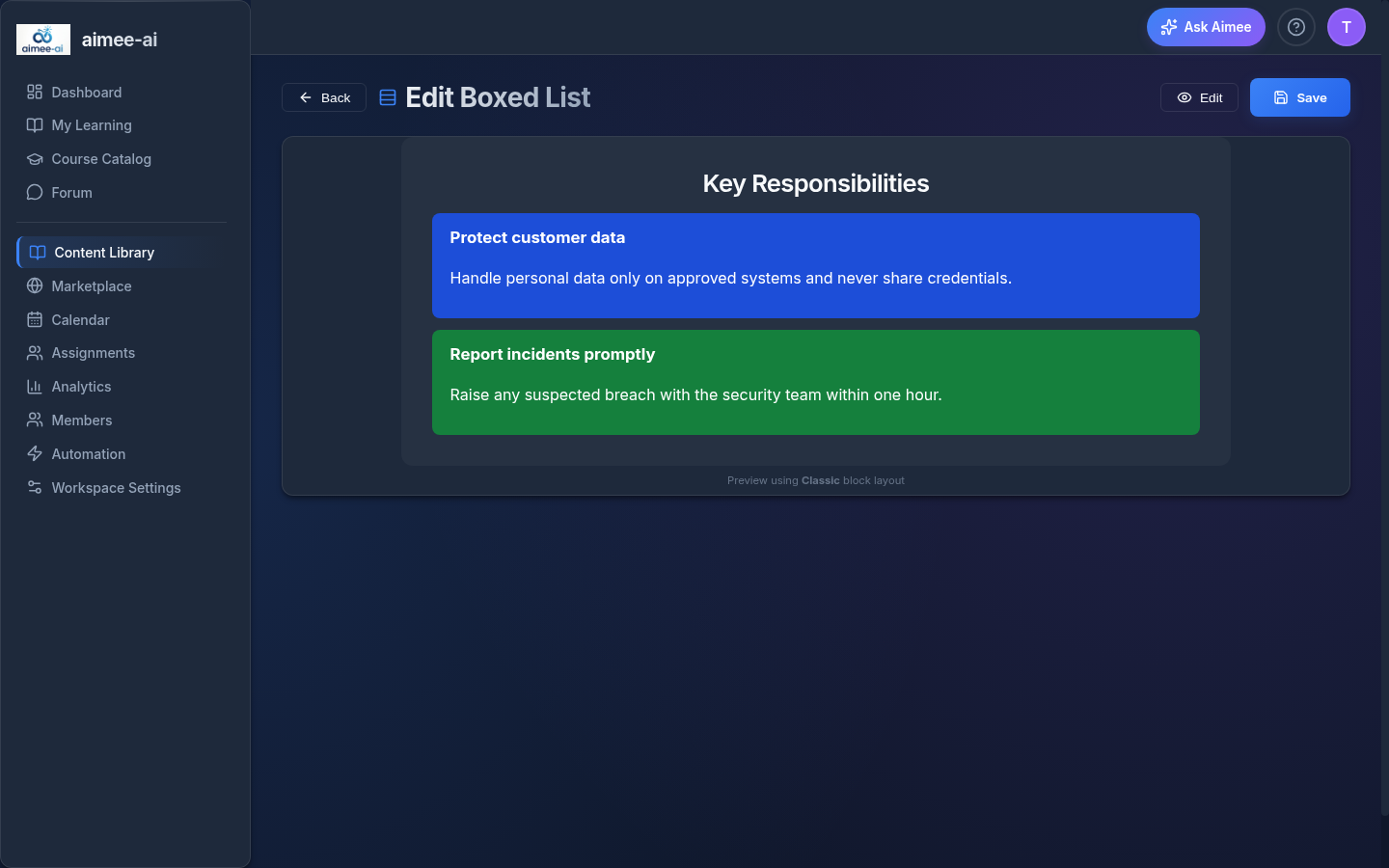
Chart Blocks
A chart block shows a single pie, bar, or line chart over a small set of values. Use it for proportions of a whole (pie), comparisons across categories (bar), or a trend across an ordered axis (line). Charts you import from PowerPoint become editable chart blocks automatically.
Authoring. Click Add Block and choose Chart, then:
- Give the block a title (required).
- Choose a chart type - pie, bar, or line.
- Edit the data as a grid of categories (the labels) and one or more series (the value columns). A pie chart uses the first series only. Add or remove categories and series with the buttons in the grid; leave a value blank for a missing data point.
- Use Preview to see the chart as a learner would before saving.
What the learner sees. The finished chart, drawn with the course colours first, then a fixed colour palette. Keep charts small - around three to eight categories read most clearly; for exact figures the learner must read off precisely, a table on a content slide is better.
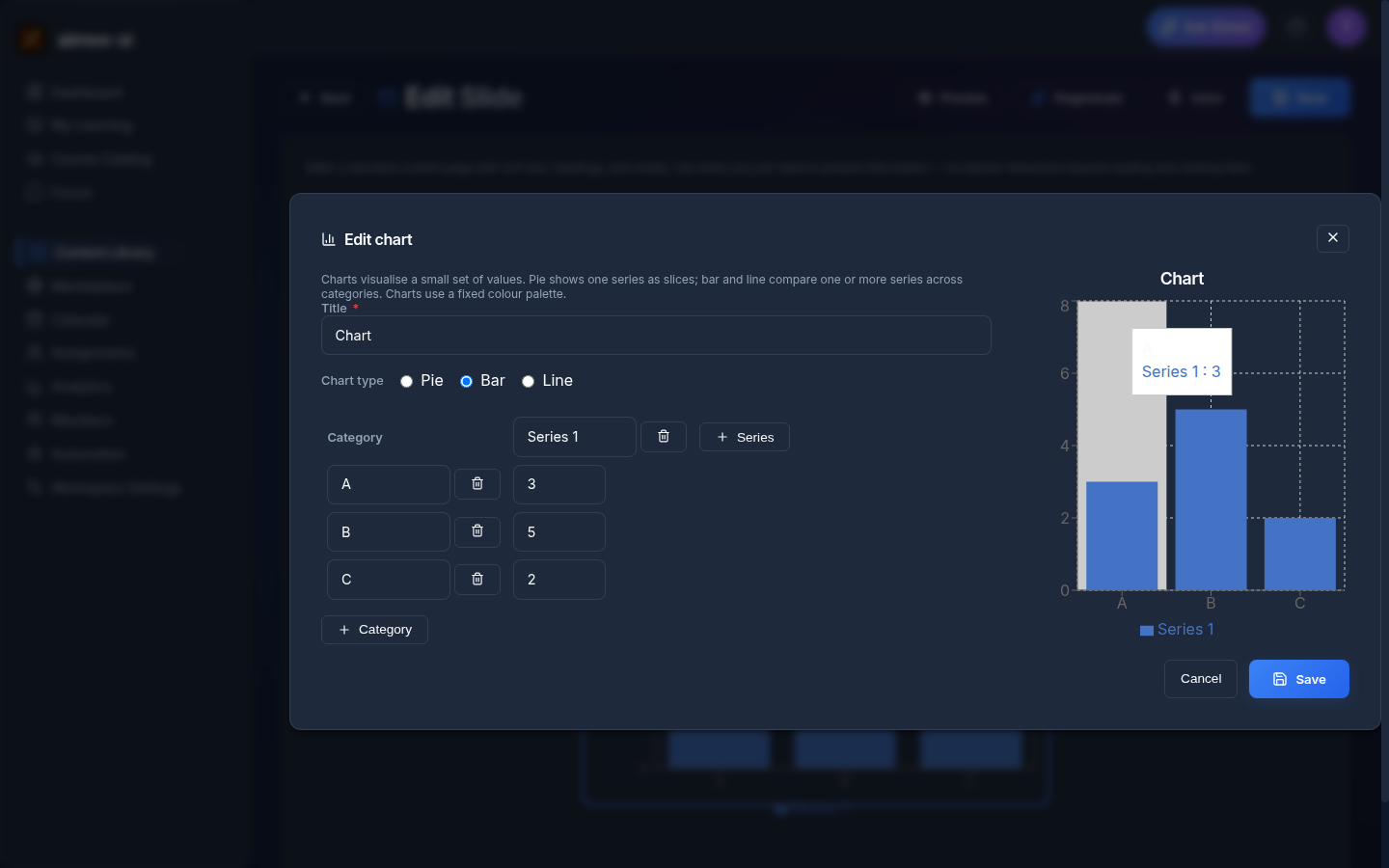
Charts inside a content slide. You can also place a chart within a content slide, alongside text and other elements, instead of giving it a slide of its own. In the content editor's toolbar, click the chart button to drop in a chart; click the chart, then the pencil, to open an editor where you choose the chart type and edit the data - the same options as a standalone chart block. This is the right choice when the chart supports a point you're making in the surrounding text; a standalone chart block is better when the chart is the whole slide. Charts imported from PowerPoint that share a slide with other content come in this way automatically.
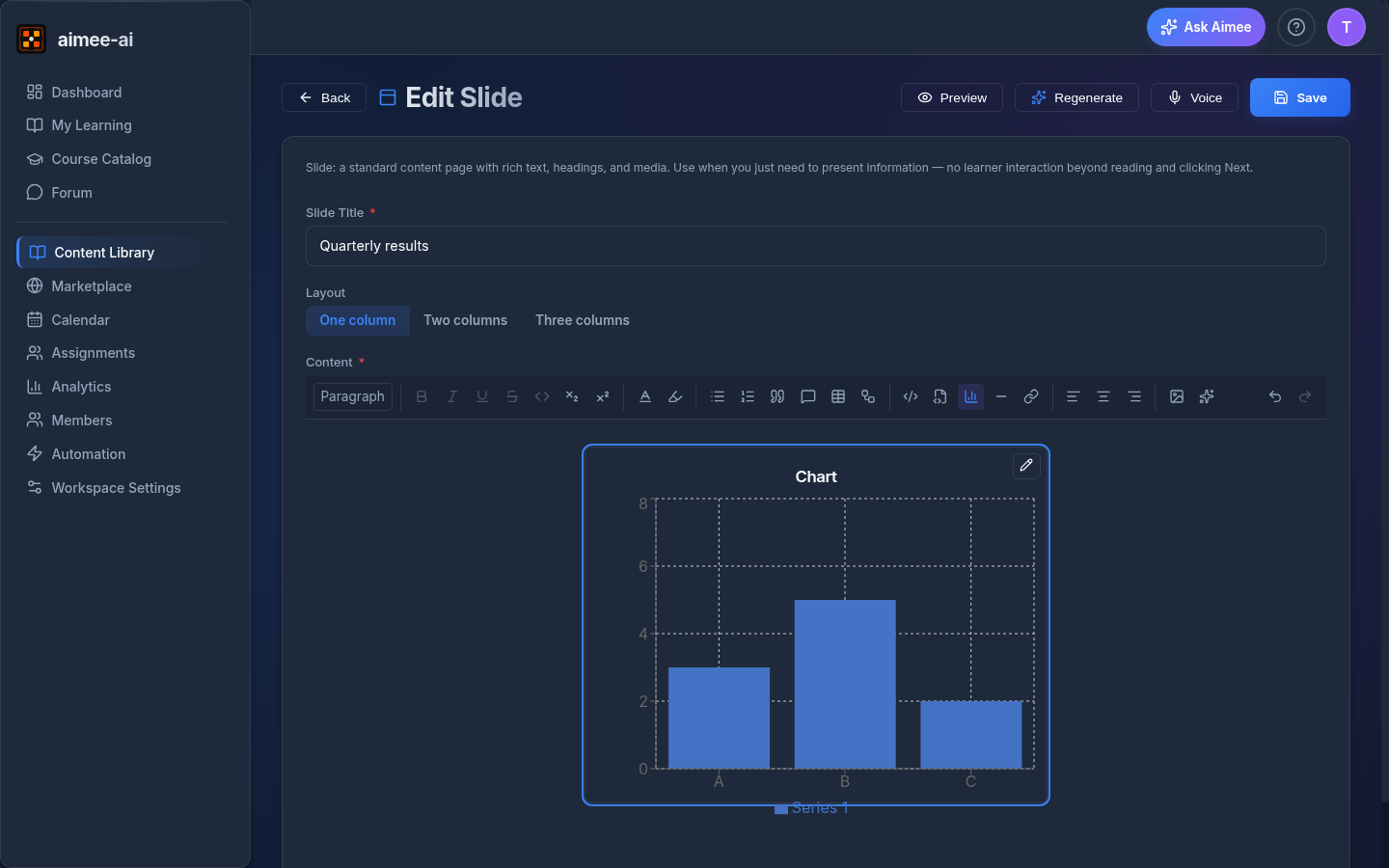
Clicking the pencil opens the Edit chart editor, where you pick the chart type and edit the categories and series alongside a live preview:
Videos inside a content slide. You can place a video within a content slide, alongside text and other elements, instead of giving it a slide of its own. In the content editor's toolbar, click the video button, then choose where the video comes from:
- YouTube URL - paste a YouTube link. The learner plays it in place; the video stays hosted by YouTube and is subject to its availability and ads.
- Library - pick a video already uploaded to this workspace, or drag in a new one (.mp4, .mov, .webm, up to 500MB). A video you upload is added to the workspace video library and can be reused on any slide in any course in the workspace, so you only upload it once.
Add an optional caption to show a line of text under the player. Click the video, then the pencil, to change the source or the caption later.
This is the right choice when the video supports a point you're making in the surrounding text; a standalone Video or YouTube block is better when the video is the whole slide.
A video on a slide of its own. A Video block uses the same workspace video library. In the Video editor, click Choose from workspace library to pick a video that is already in the workspace, or to upload a new one. You can also drag a file onto the editor. Aimee adds that file to the library (.mp4, .mov, .webm, up to 500MB), so you can use it again on other slides without a second upload.
Managing workspace videos. Videos you upload are listed under Settings → Media → Videos, alongside the workspace image library. Each video shows its size, who uploaded it, and how many slides use it. Deleting a video moves it to the workspace trash. A Workspace Owner or an Admin can restore it from Settings → Media → Trash for 30 days. After 30 days, Aimee deletes it permanently.
You cannot delete a video that a slide still uses. When you click delete, Aimee lists each course and slide that uses the video. Click a row to open that slide, then remove or replace the video there. When no slide uses the video, you can delete it. A slide in a course that is in the trash also counts. Restore that course and remove the video, or delete the course permanently.
A Workspace Owner or an Admin can delete a video that is still in use. Each slide that used it then shows a Removed video notice in place of the player. A course with a Video block that used it cannot be published again until you change or remove that block.
Resizing blocks in a content slide. Charts, callouts, flow diagrams, code snippets, and videos placed inside a content slide can be resized. Select the block and drag the handles on its edges and corners to make it larger or smaller in either direction; the size you choose is saved with the slide and is what the learner sees. Blocks have a sensible minimum and maximum size, and a block that you size wider than the slide column is automatically capped to fit, so a resized block never overflows the slide. A block you never resize keeps its standard size.
Positioning blocks with text wrap. The same blocks - charts, callouts, flow diagrams, code snippets, and videos - can be floated so the slide text wraps around them. Select the block and use the float buttons that appear in the toolbar: float left (text wraps down the right side), float right (text wraps down the left side), centre (the block is centred on its own line with no wrap), or clear (the block returns to a normal full-width row). A floated block uses the width you've given it by resizing, or a comfortable default width that leaves room for the text to wrap. The position is saved with the slide and is exactly what the learner sees. Inside a two- or three-column slide a floated block wraps the text within its own column, so it never spills into a neighbouring column.
Feedback Blocks
A feedback block collects short reactions from the learner at a point you choose - typically at the end of the course. Each course can have at most one feedback block; the Add Block menu hides the entry once one is already in the course.
Authoring. Click Add Block and choose Feedback, then optionally give the block a title (e.g. "How did this course land?"). The questions themselves are fixed so responses are comparable across every course in the workspace:
- What was the most useful thing you took from this course?
- What did not land for you, or what would you change?
- How likely are you to apply what you learned this week? (1-5)
What the learner sees. The block renders the three questions in a short form; once submitted, the form switches to a read-only confirmation so the learner can't double-submit. Responses are stored against the course version so trainers can review feedback for each release.
Feedback is not assessed
Feedback responses don't contribute to scoring or completion - they're for course improvement, not learner evaluation.
Acknowledgement Blocks
An acknowledgement block asks the learner to read a piece of content and attest that they have read and understood it. It is the right choice for compliance training - ISO, GDPR, HIPAA, internal policies - where you need a signed, dated record that a learner saw the exact wording of a policy.
Authoring. Click Add Block and choose Acknowledgement, then fill in:
- Title (optional) - e.g. "Information Security Policy".
- Text the learner must acknowledge - the full wording of the policy, written in the rich-text editor.
- Require learner to type their full name - leave this on for compliance training; the typed name is stored on the attestation record.
- Button label (optional) - defaults to "I acknowledge".
What the learner sees. The block shows the policy text, a checkbox ("I have read and understood the above"), a name field (if required), and an I acknowledge button that only enables once both inputs are filled. Once submitted, the block switches into a read-only banner showing when they acknowledged it and what name they typed.
What is recorded. Each acknowledgement stores the learner, the slide, the course version, the timestamp, the typed name, and a hash of the exact text the learner saw. Because the hash is frozen at submission, later edits to the block text cannot rewrite history - auditors can verify what wording was actually attested.
Editing an acknowledged block. If you edit the policy text, the course version bumps. Learners who already acknowledged the previous version will be asked to acknowledge the new wording the next time they enter the course.
Checklist Blocks
A checklist block gives the learner a list of statements to work through. Each item is either a tick item, which the learner ticks to confirm, or a True / False item, which the learner answers. Use it for a pre-flight check, a set of safety steps a learner confirms one by one, or a quick true-or-false self-check after a module.
Authoring. Click Add Block and choose Checklist, then fill in:
- Title (optional) - e.g. "Pre-Shift Safety Checks".
- Instruction to learner (optional) - rich text above the list, telling the learner what to confirm.
- Items - 2 to 20 statements, each up to 200 characters. Use the arrows to reorder an item and the bin to delete it. Each item then carries its own controls:
- Answer - Tick box or True / false.
- Expected answer - on a True / false item, whether True or False is correct.
- Required to move on - a required item holds the Next button until the learner gives the expected answer. A checklist with no required items never blocks the learner, so you can use it as an optional self-check.
- Hint (optional, up to 200 characters) - shown under the item when the learner picks the other answer. If you leave it empty, the learner sees a default message.
- Wording - change what the learner reads beside each answer: the tick label (default Done) and the two choice labels (defaults True and False), up to 40 characters each.
- Layout - One column (the default), Two columns or Three columns, the same setting a slide takes. The prompt splits on the column breaks you insert and the item list flows into the same number of columns. Reach for 2 columns once a checklist runs past about 8 items.
What the learner sees. The block shows the prompt, a progress line ("2 of 5 required items complete."), and the items. A required item carries an asterisk. When the learner picks the other answer on a True / False item, the item is marked and your hint appears under it. The learner can change an answer at any time while the assignment is open, so a wrong answer is never a dead end.
Gating. The Next button stays disabled until every required item holds its expected answer. The gate applies in the course view only.
What is recorded. Each answer is saved as the learner works, so it survives a reload and a resume. Every answer change also writes an audit entry holding the learner, the slide, the course version, the item, the new value, the timestamp, and a hash of the item wording the learner saw.
Voice Narration
Trainers can add AI-generated voice narration to any content block except plain Video and YouTube blocks, which carry their own audio track.
Per-block narration. Click the microphone icon on a block to open the Voice Narration modal. Write your own script or click Generate with AI to produce one from the block's content. The same modal is also reachable from inside the block's own editor - click the Voice button in the editor header (available in every block editor except Video and YouTube) so you don't have to bounce back to the Content tab. The AI script generator reads from the most recently saved block content, so save first if you want the script to reflect your latest edits. When the slide already has audio in more than one language, the Remove button asks whether you want to remove just the language you currently have selected or remove every language and the script. On the Roleplay Editor, open the Details tab and click Generate voice - the narration is composed from the roleplay's title and description and opens with something like "In this roleplay…". If the roleplay has no description yet, the button shows an inline notice asking you to add one first. Editing a roleplay's title or description clears its audio so the next generation matches the updated text.
Recording or uploading your own voice. If your workspace owner has turned on Recorded voiceovers (Workspace Settings > Features), the Voice Narration modal also shows a Record button and an Upload File button, for any language your workspace has enabled. Record straight from your microphone (up to 10 minutes), or upload a file (mp3, wav, m4a, ogg, or webm, up to 25MB) - either way, a script is optional; you don't need one to record or upload. Whichever you finish most recently is what learners hear immediately. If a slide has both an AI-generated take and a recording for the same language, a small Learners hear: AI / Recorded switch lets you flip between them without losing either one. Click Delete Recording to remove your recording for that language - if an AI-generated version still exists, learners hear that one again.
Bulk narration. Click Generate All Voice in the Content tab toolbar to narrate every content block in the course in one pass - every block type except plain Video and YouTube (which carry their own audio) is included. Each block is narrated from its own content: a boxed list reads its heading and every box's title and body, an accordion or flip card reads each section or card, a chart reads its title and axis labels, and a quiz, matching, or acknowledgement block reads its prompt and content. You can choose Skip existing (only blocks missing audio are processed) or Overwrite (every block is re-generated). Either mode always skips a slide whose learners currently hear a recorded voiceover, so bulk generation never overwrites your own recording. Roleplays that don't have a description yet are reported as failed so you can fill them in and retry. Bulk narration runs in the background - the toolbar shows live progress and you can keep editing the course while it completes; you don't have to keep the tab open.
Per-module narration. To narrate just one module instead of the whole course, click the microphone icon in that module's column header on the Content board. It opens the same modal - with the same Skip existing / Overwrite choice and live progress - but scoped to only the blocks in that module, so you can regenerate a single module after editing it without re-running the rest of the course.
Learner playback. When a block has narration, the course viewer plays it automatically on arrival. Learners can mute from the bottom nav bar, or click the slide content (or press Space while the slide is focused) to pause and resume the voiceover for that slide. Pause resets on every slide change; muting is global for the rest of the session.
AI-generated images
When Aimee generates a course for you (or when you add an image block yourself), slide blocks that still need a picture show an Image needed badge. Click the small image icon on that block to open the Attach image modal, where you can pick from the workspace Library or Upload new. Need an AI-generated picture instead? Generate it from the slide editor (below) and it will appear in the Library on next open.
To generate a fresh image directly from the slide editor, open the slide and click the sparkle icon in the rich-text toolbar - immediately to the right of the Insert image button.

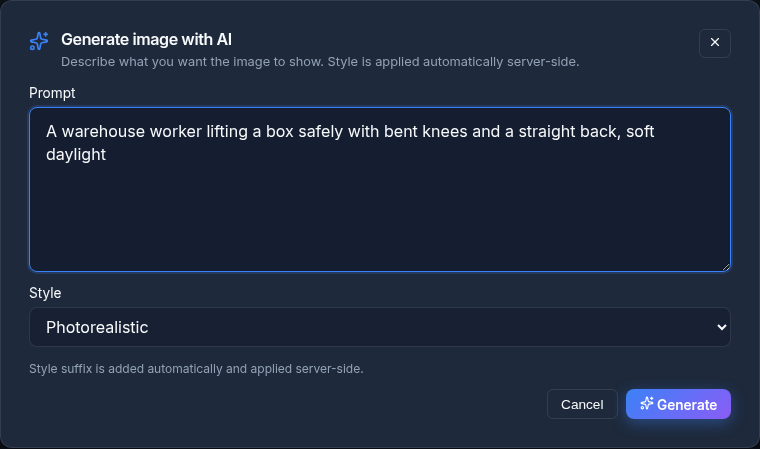
The Generate image with AI modal opens.
- The prompt textarea is seeded with the course description as background context - describe what you want the image to show.
- Pick a style - Photorealistic (default), Illustration, Diagram, or Line art - and submit.
- The preview shows the generated image; click Use this image to insert it at the cursor, or Discard to remove it and try a different prompt. Discarded images are deleted, so they won't litter your image library.
- The image is inserted at the cursor position only - it does not replace any existing slide text. If you have an Image upload required placeholder you want to swap out, delete the placeholder yourself after inserting the image.
Generated images are first-class workspace images: they show up in the Library tab next time you open the image picker, and trainers/admins can manage them on the Course library → Images page.
Learner Brief
The instructions shown to the learner before they launch the simulation. This should explain:
- The situation and context
- Who the learner is playing
- What they need to achieve
- Any constraints or guidelines
Write clear briefs
The learner brief is the only context your trainee gets. Be specific about the course, the learner's role, and success criteria.
Runtime Configuration
A JSON object that configures the AI simulation engine. This may include:
- AI character persona and backstory
- Conversation objectives
- Escalation triggers
- Environmental details
Course-level AI context
On the course Settings tab, the AI context section lets you describe the course in a way that improves AI-generated content across the editor:
- Intended audience - who the course is for ("new hires in their first 30 days", "regional sales managers"). Aimee tailors generated slides, scoring feedback, and AI image prompts to that audience.
- Out of scope - topics the AI should avoid bringing into the course. Useful when the course deliberately leaves something for a different module.
- Prerequisites - what learners are assumed to know already, so generated content doesn't re-explain it.
These fields are read by AI Course Review, the slide regenerate action, and AI image generation, so the suggestions and reviews come back grounded in your course's audience and scope rather than guessing.
Scoring settings
| Setting | Description |
|---|---|
| Retry Limit | Maximum number of attempts (default: 3) |
| Pass Threshold | Minimum score to pass (default: 70%) |
Grading criteria
Grading criteria live on each roleplay - open the roleplay from the Content tab and use its Scoring tab. They define how the AI evaluates the roleplay. See Scoring & Rubrics for full details.
Playback
The Playback tab on the editor rail controls how the course plays for learners.
- Enable Autoplay - when on, the course viewer renders an autoplay toggle in the bottom nav bar beside the mute button. Learners opt in per session; the viewer never auto-starts. Once engaged, the course advances automatically:
- Blocks with narration advance when the voice track ends.
- Passive blocks without narration (slides, images, videos, YouTube, resources) advance on a 30-second fallback timer.
- Interactive blocks (quizzes, roleplays, matching, acknowledgements) always wait for the learner to finish.
- Enable Playback Speed (on by default) - exposes a settings cog in the course viewer's bottom bar. Learners can choose between 0.5× and 2× to slow down or speed up narration. Turn this off for compliance or attestation courses where pacing is part of the training record.
- Both settings are version-scoped - changing them and publishing produces a new version only if the overall content has changed, otherwise it overwrites in place.
Audit log
The Audit tab shows a table of the changes to the course. The newest change is first. Each row shows the time, the person, the change and the type of item.
The table records these changes:
- Course changes - create, publish, settings, tags, trash, restore, copy and import.
- Structure changes - add, delete, move and rename of a module or a slide.
- Slide edits - each save of a slide shows as "Edited the slide". The table does not show the text before and after the edit.
To find a change:
- Type a slide title, a module name or a person in the search box. The search looks at the full history of the course.
- Select a person in the list to see only the changes of that person.
- Scroll down to load older changes. The table loads 50 rows each time.
The row of a file import has a View report button. The button opens the report of that import: the score, the 6 parts, the findings and the warnings. The report keeps the first 100 findings and gives the count of the rest. An import from before this button has no report.
A course that existed before this tab has a short history. The table shows when the course and each version started, and the person shows as System. A row with the text "Detailed history starts here" marks the point where the full record starts.
A leased course shows only the changes that your workspace made, such as the lease.
A deleted course keeps its record
When you delete a course permanently, its rows stay in Workspace Settings → Audit Trail.
Accessible to: Trainers, Workspace Owners, Admins.
Previewing a course
Before you publish, click Preview in the Course Editor to see the course exactly as a learner will. The preview opens the learner viewer pinned to your current draft (or the latest published version if there is no draft).
In preview:
- Every slide, image, video, and downloadable resource renders identically to the learner experience.
- Voice narration plays so you can hear pacing, accents, and pronunciation. Click the slide (or press Space) to pause it - handy when you want to read at your own pace or step away - and click again to resume.
- Quizzes show their questions and options, including which answers are correct, so you can sanity-check the answer key.
- Acknowledgements and matching activities show their wording and items but the submit / drag-drop actions are disabled.
- Roleplay blocks show their title, description, and grounding image; the AI chat is intentionally not started.
- Scenario blocks play as a learner sees them. Nothing you do in the preview is saved.
- Stepper blocks play as a learner sees them. Aimee does not save your place in the preview.
A persistent banner across the top reminds you you're in preview. Click Exit Preview to return to the editor.
Fixing a slide from inside the preview
When you spot something that needs changing, click Edit this slide in the preview banner. It opens that slide in its own editor - no need to exit the preview and hunt for the slide on the content board. The editor then shows a Back to preview control, which brings you back to the slide you were looking at so you can carry on reviewing from the same place.
On anything that isn't a slide - a quiz, a roleplay, a matching activity, a resource list - the same button reads Edit this block.
Two kinds of slide can't be edited this way, and the button is greyed out with the reason on hover:
- Branding intro slides, which belong to your workspace's branding intro rather than to this course. Edit them from Workspace Settings → Branding Intro.
- A handful of older slide types that have no editor of their own.
The button doesn't appear at all on courses you've acquired from the marketplace - that content is owned by the publisher and is read-only on your side.
Checking the completion questions
The preview ends with a Completion questions step. Click Next on the last slide to open it. You can also click Completion questions at the bottom of the Contents list.
The step shows what the learner gets when they complete the course. At the top, it shows the quiz mode, the number of questions, the pass mark and the number of attempts. Below that, it shows 1 of these:
- Custom questions: each question, with the correct answers marked and the explanation that the learner sees with the result. You cannot answer the questions in the preview.
- AI-generated questions: a note that AI writes the questions when the learner completes the course. The preview cannot show them.
- Custom questions, but none are saved: a note that learners get AI-generated questions instead.
- No quiz, or completion is not required: a note that the learner finishes the course after the last slide.
Click Edit questions to open the Questions tab of the course editor. The preview shows saved questions only, so save your changes before you open the preview.
On a course from the marketplace, the step shows the quiz settings only. The publisher owns the questions.
Preview leaves no trace
Preview never starts a real session, never bills against AI usage, and doesn't appear in the workspace activity log. Use it as often as you like.
Accessible to: Trainers and Workspace Owners. Other roles don't see the Preview button, and direct links into the preview URL bounce them back to the catalog.
Publishing a course
Before you can publish, the course must have at least one tag in the Settings tab. Tags are how learners find your course in the catalog and how the workspace organises content - see Workspace Settings → Tags for managing the tag list.
Pre-publish readiness panel
When you click Publish, Aimee runs a quick readiness check on the course and shows the result in a panel before the version is created. The panel groups its findings into two buckets:
- Blockers - things that must be fixed before publication is allowed. Typical blockers are empty slides, missing roleplay descriptions, or media blocks without a file attached. Each blocker is a deep-link - click it to jump straight to the offending block.
- Warnings - things that are likely but not certain mistakes (a slide with no voice narration where every other slide has one, an image badge still showing Image needed, or an estimated course time over the target time). Warnings don't block publication; you can publish with a confirmation if you really mean to.
If the course has no tags yet, that's reported as a blocker and clicking it bounces you to the Settings tab so you can add at least one.
Once the readiness check is clean (or you've confirmed past the warnings):
- Enter a version label (e.g., "v1.0", "v2.0-beta").
- Confirm the publication.
Published versions are immutable
Once published, a course version cannot be edited. To make changes, create a new version. This ensures learners who were assigned a specific version always see the same content.
Related
- Course Management - drafts, versions, duplicating, templates, Content Library
- Marketplace - publishing your course for other workspaces, or leasing theirs
- Assignments - assigning published courses
- Scoring & Rubrics - rubric configuration
- Trainer role guide - full trainer workflow