Dashboard
The Dashboard is the first screen you see after logging in. It greets you by first name ("Welcome back, Sam"; a learner with no course yet sees "Welcome, Sam") and shows the panels that are most relevant to your role. The layout differs for learners, reviewers, and trainer-or-above; the sections below describe each.
Accessible to: All roles
What you see depends on your role
The Dashboard tailors itself to who's looking at it:
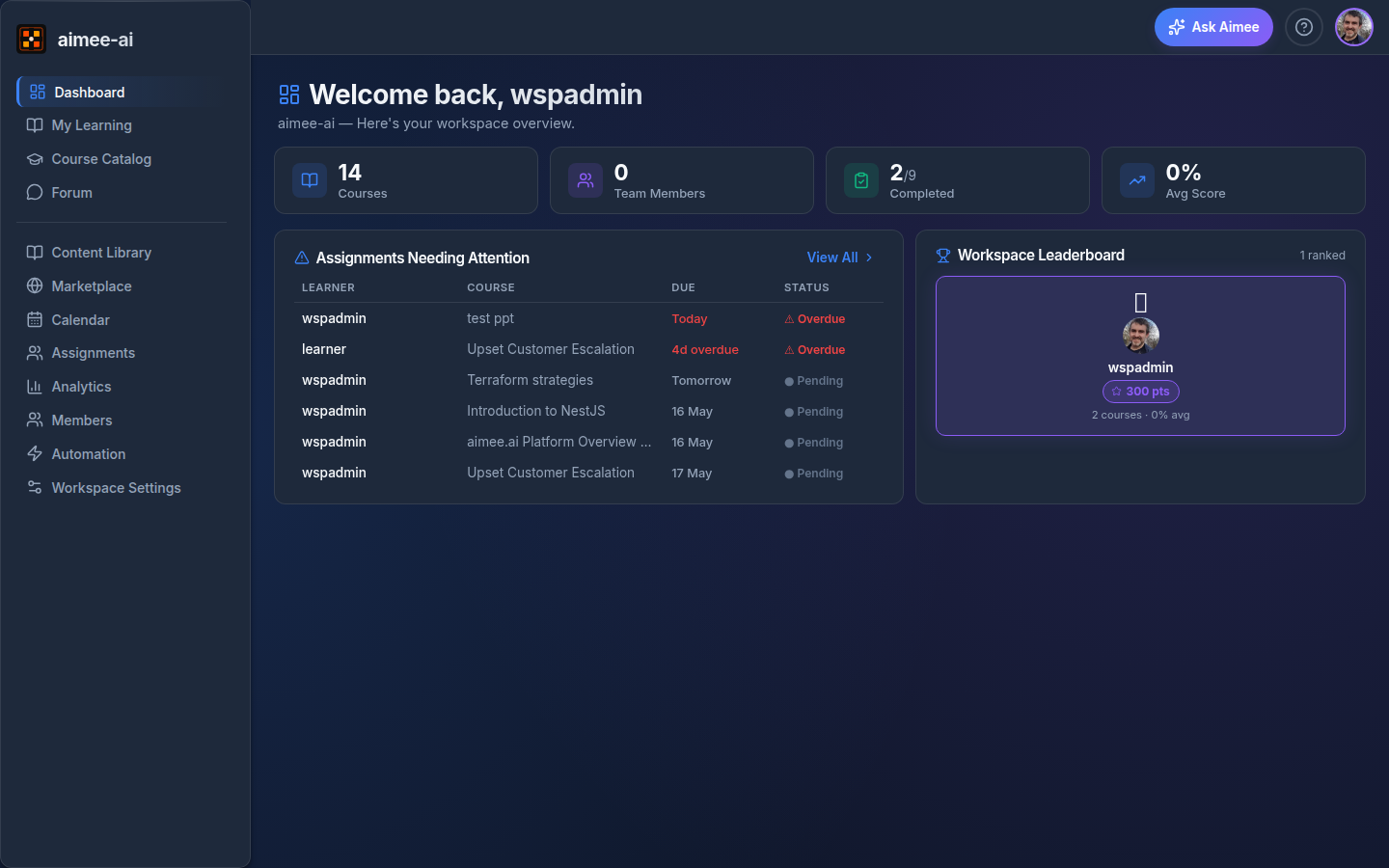
- Trainers, Workspace Owners, and Admins see the management view - workspace-wide metrics, panels for assignments and learner activity that need their attention, and an at-a-glance leaderboard.
- Learners see a personal view focused on their own assignments, completions, and where they sit on the workspace leaderboard.
- Reviewers see assignment-centric panels similar to the management view, scoped to the work they're reviewing.
Management view (Trainer / Workspace Owner / Admin)
Set up your first course
When your workspace has no assignment yet, a Set up your first course card shows at the top of the page. It lists 3 steps: add a course in Content Library, invite a learner in Members and assign the course in Assignments, then read the results in Analytics. The card goes away when the workspace has its first assignment.
Workspace stat cards
Three summary cards across the top:
| Card | What it shows |
|---|---|
| Team Members | Number of people in your workspace. |
| Completed | A "completed / total" count of assignments your workspace has finished. |
| Avg Score | Average score across all completed sessions in your workspace. |
Assignments Needing Attention
A panel listing assignments that are overdue, abandoned, or otherwise stuck. Each row links straight to the assignment so you can chase it up.
Workspace Leaderboard
A top-three podium of the highest-performing learners by completed-courses-and-average-score, followed by ranks 4-10 in a compact table. Each row shows the learner's name, the number of courses they've completed, and their average score.
Course Updates Available
When you've published a newer version of a course and some learners are still on an older one, this panel appears. Each row shows the course, the affected learner, the version they're on, and the latest version available.
- Click Switch to latest on a row to move that learner to the newest version.
- Click Switch all (N) at the top of the panel to move every listed learner in one action.
Learners who have already completed a course aren't listed - their records stay on the version they completed. See Course Management for the full picture.
Open forum threads (Workspace Owners only)
A panel listing recent unresolved threads from the workspace Forum, so the owner can jump in and reply or close them out. Each row links straight to the thread. See Forum for how threads, replies, and resolved status work. This panel is only visible to Workspace Owners.
Course requests
When a learner finds a course in the Marketplace they'd like access to, they send a request from the listing. Each request opens a private thread in the workspace Course Requests forum group - visible only to the learner and the Workspace Owner - pre-filled with the course and whether the learner wants it for themselves or their team. These requests appear in the owner's forum panel above, where the owner can reply and decide whether to acquire the course. See Forum for how these private request threads work.
Learner view
Personal stat cards
| Card | What it shows |
|---|---|
| Completed | How many of your assigned courses you've finished. |
| Avg Score | The average score across your completed courses. |
My Training Portal
A prominent banner linking to My Learning so you can jump straight into your assignments.
My Assignments
A compact list of your in-progress and assigned courses with a launch / resume action on each row. The full list (with filters and the Completed & Debriefs tab) lives on My Learning.
Your Standing and the Leaderboard
A small Your Standing card shows your rank in the workspace, alongside a workspace leaderboard so you can see where you sit relative to other learners. Both are based on completed courses and average score.
Newer-version available
If your trainer has published a newer version of a course you've already started, that course shows up here so you can opt in to the latest version.
Reviewer view
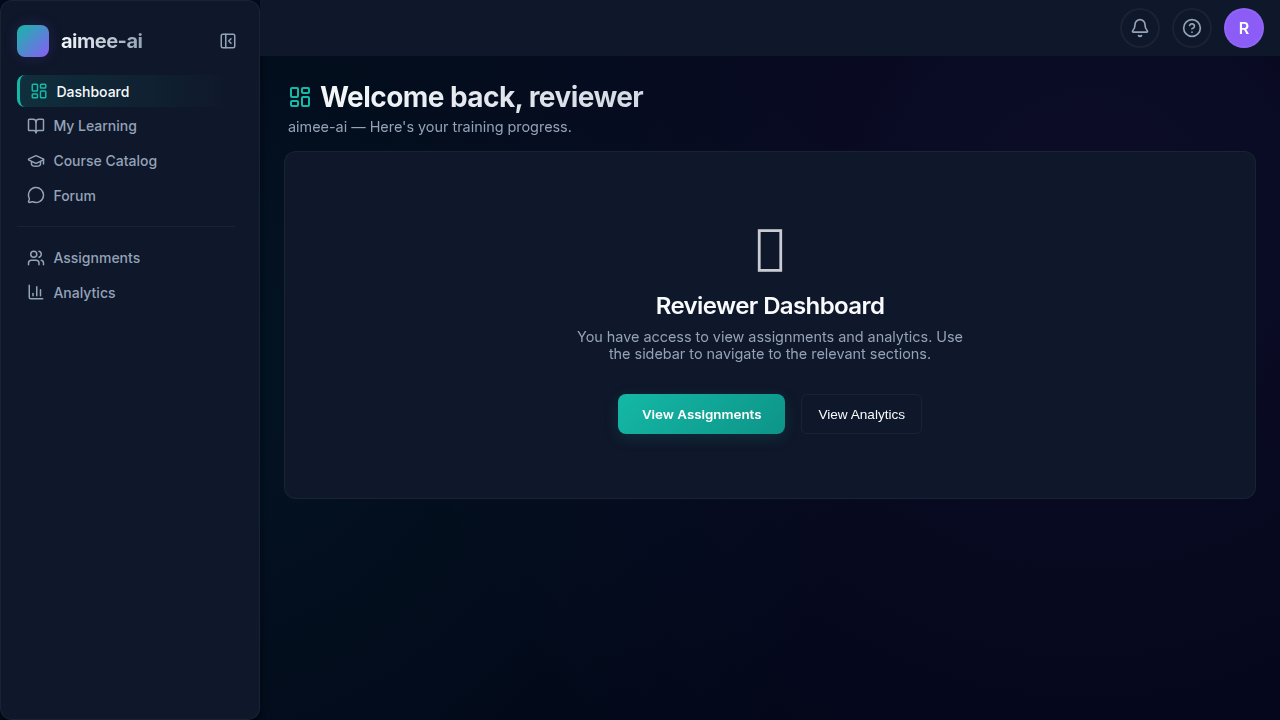
Reviewers see a focused welcome panel pointing to the two sections they use most. The panel has two action buttons:
- View Assignments - goes to the Assignments page where you can find completed sessions waiting for your review, inspect score reports, and override grades.
- View Analytics - goes to Analytics where you can see the full evidence queue, outstanding sessions, and the activity feed.
The sidebar also shows My Learning and Course Catalog - reviewers can self-enrol in courses the same as any other member, and their own assignments appear in My Learning exactly as they do for learners.