Learner Portal
The Learner Portal is where learners access their assigned training simulations, launch sessions, and review their results.
Accessible to: Learners (and Trainers/Owners with their own assignments)
Accessing the portal
- Click My Training Portal on the Dashboard
- Or click My Learning in the sidebar
Pending assignments
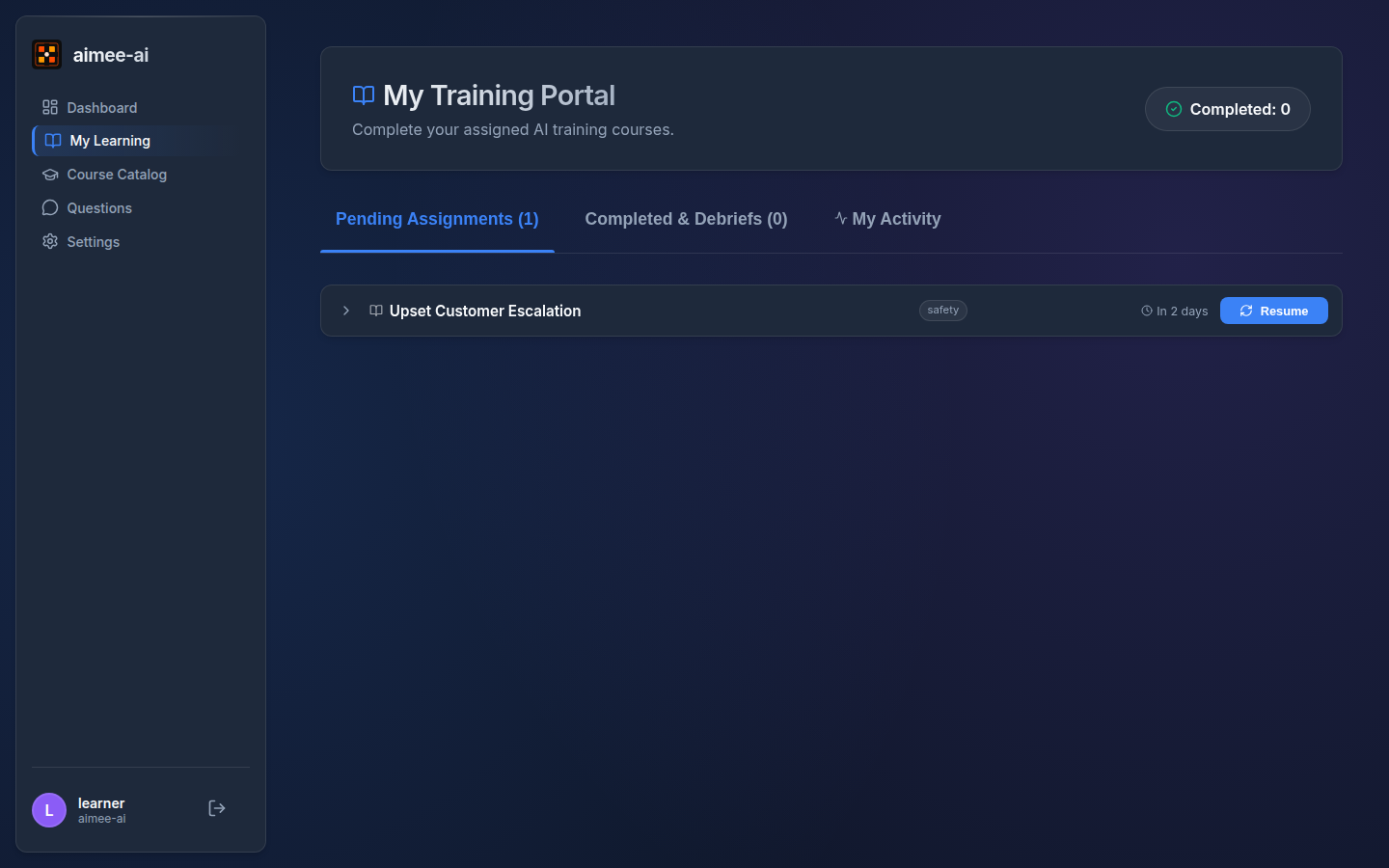
The Pending Assignments tab displays every course assigned to you that you haven't completed yet, shown as a compact list. Each row shows:
- Course title and - if the course is part of a learning path - the path name and step number.
- Assigned date.
- Attempts remaining - a small "X/N" badge showing how many launches you have left on this assignment (default cap is three). The number turns red and the Launch button changes to "No attempts left" once you've used them all.
- Due date chip - shows Overdue, Today, Tomorrow, In N days, or No due date.
- Launch button (or Resume if you've started the course before).
- If the trainer has published a newer version of a course you've already started, a new version indicator appears on the row; click it to upgrade to the latest version.
- If the course is locked behind another step in a learning path, the row shows a lock indicator instead of the Launch button - complete the earlier step first.
What if I run out of attempts?
If you reach the cap, the Launch button is disabled and the course player shows a friendly "You've used all your attempts" message instead of an error. Ask your trainer - they can grant you another full round of attempts (your previous transcripts and feedback stay in the assignment).
Rows are sorted so the most urgent assignments are at the top: dated assignments come before undated ones, earliest due date first, and courses that belong to the same learning path stay grouped together in their path order.
What if I have no assignments yet?
If no course has ever been assigned to you, the Pending Assignments tab shows a welcome message instead of a list. It tells you that you have no course yet. Ask your trainer to assign one, or enroll in one from the Course Catalog. Click Browse the Course Catalog to find a course and enroll yourself. The Dashboard shows the same message, with a Go to My Learning button and a Browse the Course Catalog link.
The message goes away as soon as you have a course. If you have finished every course, you see "You're all caught up" instead.
Below the welcome message, a Your first course in 3 steps card lists the steps: choose a course, select Launch, and read your score and feedback in the debrief. The card also shows above your list while you have courses but have not launched one yet. It goes away after you launch your first course.
Launching a Course
- Find an assignment with status Assigned or In Progress
- Click Launch Course
- The Course Presentation viewer opens, displaying the first course block.
- If the trainer added Voice Narration, it will automatically start playing. You can use the global Mute/Unmute toggle in the top navigation bar to control playback.
- Use the navigation bar at the bottom of the course area to advance through the slides and multimedia blocks.
Navigating the course
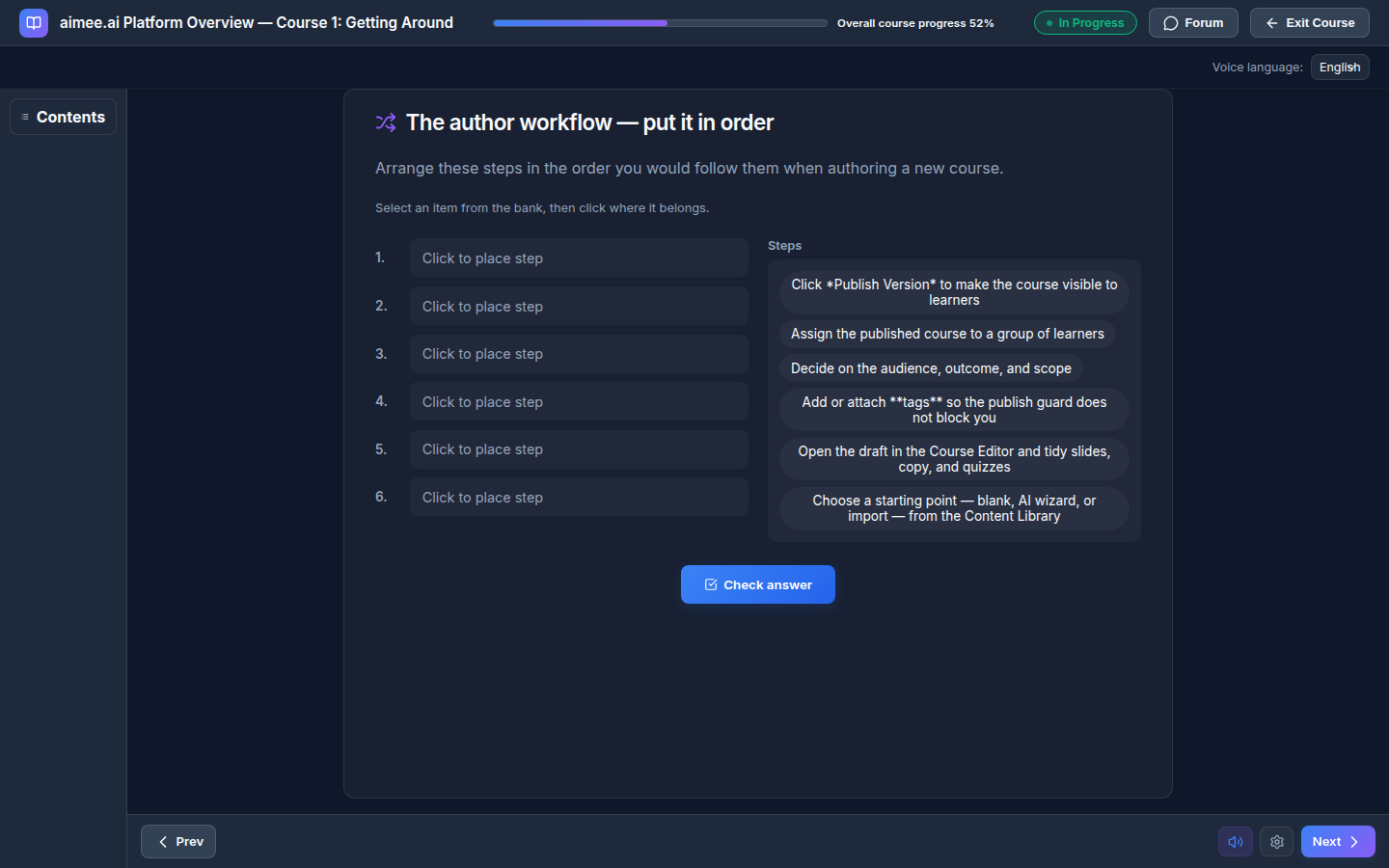
Contents panel. In the top-left corner, beside the course title, is a Contents tab. It starts collapsed; click it to slide open a panel listing the course lessons, grouped under their numbered chapters. Each lesson shows a tick once you've finished it, the lesson title, and what kind of content it is (for example "Video" or "Quiz - 3 questions"). The lesson you're on is highlighted. Click any lesson to jump straight to it - you can always jump back to lessons you've seen, and forward as long as you've cleared any quiz or interactive block in between. Click the X to close the panel. On a phone the panel slides over the lesson and closes itself once you pick a lesson.
The navigation bar at the bottom of the course area stays visible the whole time - even if you scroll down a long slide. From left to right it shows:
- Prev - go back one slide.
- Next - advance to the next slide.
- Mute / unmute narration - appears when the course has voice narration.
- Autoplay - appears when the trainer has enabled autoplay on the course. Starts OFF by default; click once to let the course advance itself through narration, videos, and passive slides. Quizzes, roleplays, matching, and acknowledgements still wait for you.
- Settings (cog) - opens a small menu with a Playback speed option. Pick anything from 0.5× to 2× to slow down or speed up narration. Speed resets to 1× every time you open the course afresh. The cog is hidden on courses where the trainer has locked pacing.
Knowing where you are
Two progress indicators tell you how far you've moved through the course:
- Overall course progress sits in the top bar, between the course title and the Exit Course button. It fills as you advance from one slide to the next and shows the percentage you've reached (e.g. "Overall course progress 42%").
- Slide narration progress is a thin fill that appears just above the bottom navigation bar whenever the current slide has voice narration. It tracks how much of the voiceover has played and resets each time you move to a new narrated slide. It hides on slides without narration and while narration is muted.
Pause narration with a click
While a slide is narrating, click anywhere on the slide content to pause the voiceover. The page dims around the slide, the slide stays bright, and a small "Paused. Click to continue" pill appears just above the bottom bar. Click the slide again (or press Space while the slide is focused) to resume from where the narrator left off.
Click-to-pause works on slide and image blocks. PDF pages, videos, YouTube clips, and interactive blocks (quiz, roleplay, matching, acknowledgement) keep their own click behaviour. Pause is per-slide - moving to the next slide always starts narration fresh - and is separate from Mute, which silences narration for the rest of the course.
The top of the course area shows the course title and two actions: Complete Course / Finish & Exit (to finish the course) and Close (to save your place and come back later).
Progress Gates
If a block contains a Knowledge Check (quiz), you must answer it correctly before Next becomes available.
When you check the answer to a quiz or a matching activity, the slide shows an explanation if the trainer wrote one.
Resource Blocks
Some courses include a Resource block - a list of downloadable files the trainer wants you to keep. Each file has a label explaining what it is (e.g. "Policy PDF", "Signing template"). Click Download on any file to save it to your device - the browser will use the original filename.
Resources are reference material, not assessments - you don't need to download every file to finish the course, but they're there if you want them.
Matching Blocks
Some courses include a Matching activity - a drag-and-drop style interaction that checks your understanding of how things pair up, what order they go in, or which group they belong to. There are three shapes:
- Pair terms with definitions - match each term on the left to its definition on the right.
- Order steps - arrange the steps into the correct sequence.
- Sort into categories - place each item into the right category.
To play: click or tap an item in the bank to pick it up, then click or tap the slot where it belongs. The interaction works with a mouse, on touchscreens, and with the keyboard (Tab to move focus, Enter or Space to pick up and place). When every slot is filled, click Check answer. Correct placements turn green and incorrect ones turn red - click Try again to reshuffle and have another go.
Acknowledgement Blocks
Some courses include Acknowledgement blocks - a short piece of text (usually a policy or a set of rules) that you must confirm you have read and understood. You will see:
- The policy text.
- A checkbox: "I have read and understood the above".
- A field to type your full name (on most acknowledgement blocks).
- An I acknowledge button, which enables once you tick the box and enter your name.
When you click I acknowledge, the system records the date, your name, and a hash of the exact wording you saw. This creates an auditable record for compliance. Once you have acknowledged, the block shows a confirmation banner and you do not need to acknowledge it again unless the trainer updates the wording.
Checklist Blocks
Some courses include Checklist blocks - a list of statements you work through. Each item is one of two kinds:
- A tick box you tick to confirm the statement.
- A True / False pair, where you pick the answer you think is correct.
An item marked with an asterisk is required. The Next button stays disabled until every required item holds the answer the trainer expects, and a line above the list tells you how many are still open. If you pick the other answer on a required True / False item, the item is marked and a hint appears under it. You can change any answer while the course is open, and your answers are saved as you go, so you can leave the course and come back to it.
Interacting with the AI Chat
Most courses include an interactive chat component alongside the course material:
- Use the Chat panel to talk to the AI persona.
- You can type your responses in the text area, or use the Microphone icon to dictate your answer using speech-to-text.
- The AI will evaluate your responses based on the current context or provide assistance with the material.
Authorization
Only you can launch courses assigned to you. Other users (even workspace owners) cannot start your assignments.
Voice in roleplays
Roleplay blocks let you reply in character either by typing or by pressing Start Roleplay to talk out loud with the AI counterpart.
- The first time you press Start Roleplay, your browser asks for microphone access - click Allow so the roleplay can hear you.
- If you accidentally block access, you'll see a Connection error. Click the browser's address-bar site-permissions icon, switch Microphone back to Allow, then press Try again in the roleplay panel.
- Switching between typing and talking out loud restarts the roleplay from the beginning, so pick one mode and stick with it for that roleplay.
- Microphone access only applies to the current site and browser - you may be asked again on a new device or after clearing site permissions.
Resuming a course
If you've started a course but didn't finish, your progress is saved:
- Find the assignment showing Resume Course (with a refresh icon)
- Click Resume Course
- The course reopens at the first lesson you haven't finished yet - not the very beginning - so you carry on from where you stopped without scrubbing forward by hand. If your workspace shows a short welcome slide at the start of every course, that slide is skipped on resume; you only see it on your very first visit.
The ticks in the Contents panel show everything you've already completed, and the overall progress bar in the top bar reflects how far you'd reached.
Progress saved automatically
Click Close at any time to save your progress. Your place and session state are preserved, and you'll land back on the first unfinished lesson next time you open the course.
Completing a course
To complete a course, you must pass a Knowledge Check quiz:
- Click Complete Course in the top bar.
- The chat panel opens and the AI asks you a short set of multiple-choice questions (typically three; the exact count is set by your trainer). You answer each one A, B, C, or D.
- The AI evaluates your performance:
- Passed (at or above the pass threshold that your trainer set, 70% by default): The course is automatically marked complete.
- Needs Review (below the pass threshold): You can review the material and try again.
- The results show each question. If the trainer wrote an explanation for a question, it shows below that question.
Knowledge Check
The quiz questions are generated from the course material. They test your understanding of key concepts covered in the slides, roleplays, and other blocks.
Awaiting Approval
Some courses need a reviewer to sign off on your completion before it counts. When you finish one of these, it moves to an Awaiting Approval tab rather than straight to Completed & Debriefs.
This tab only appears when you have a course waiting on a reviewer. Most courses don't need sign-off, so you may never see it.
Each row shows:
- Course title and how long ago you submitted it.
- An Awaiting approval marker.
- The learning path the course belongs to, if any. If a path makes you take courses in order, the next course stays locked until this one is approved.
- View Debrief, to see your results while you wait.
There is nothing to do here - you have finished the course. A reviewer checks your completion and you get an email as soon as they have. If your certificate was waiting on the review, the email tells you how to download it.
If a reviewer asks you to take another look, the course reopens and returns to your Pending Assignments tab. The reviewer's note explaining why is on the course's debrief page.
Completed & Debriefs
The Completed & Debriefs tab shows all finished assignments as a compact list. Each row shows:
- Course title and completion date.
- Score as a percentage, with a pass/fail outcome.
- View Full Debrief action.
Completed rows never show in-progress affordances - you won't see new-version indicators or lock icons on this tab, because the assignment is already locked to the version you finished.
Click View Full Debrief to see:
- The complete Conversation Transcript (rendered with formatting) including the knowledge check Q&A.
- Detailed score breakdown per rubric criterion.
- Recommendations for next steps.
Related
- Course Catalog - browse and self-enroll in courses
- Scoring & Rubrics - understanding your score
- Learner role guide - complete learner workflow
- Dashboard - your personal metrics