Marketplace
The Marketplace is where workspaces share finished courses and learning paths with each other. You can browse courses and paths other workspaces have made, bring them into your own workspace for your learners, and - if you're happy to share your own content - publish your courses for other workspaces to use.
Accessible to: Trainers, Workspace Owners, Admins
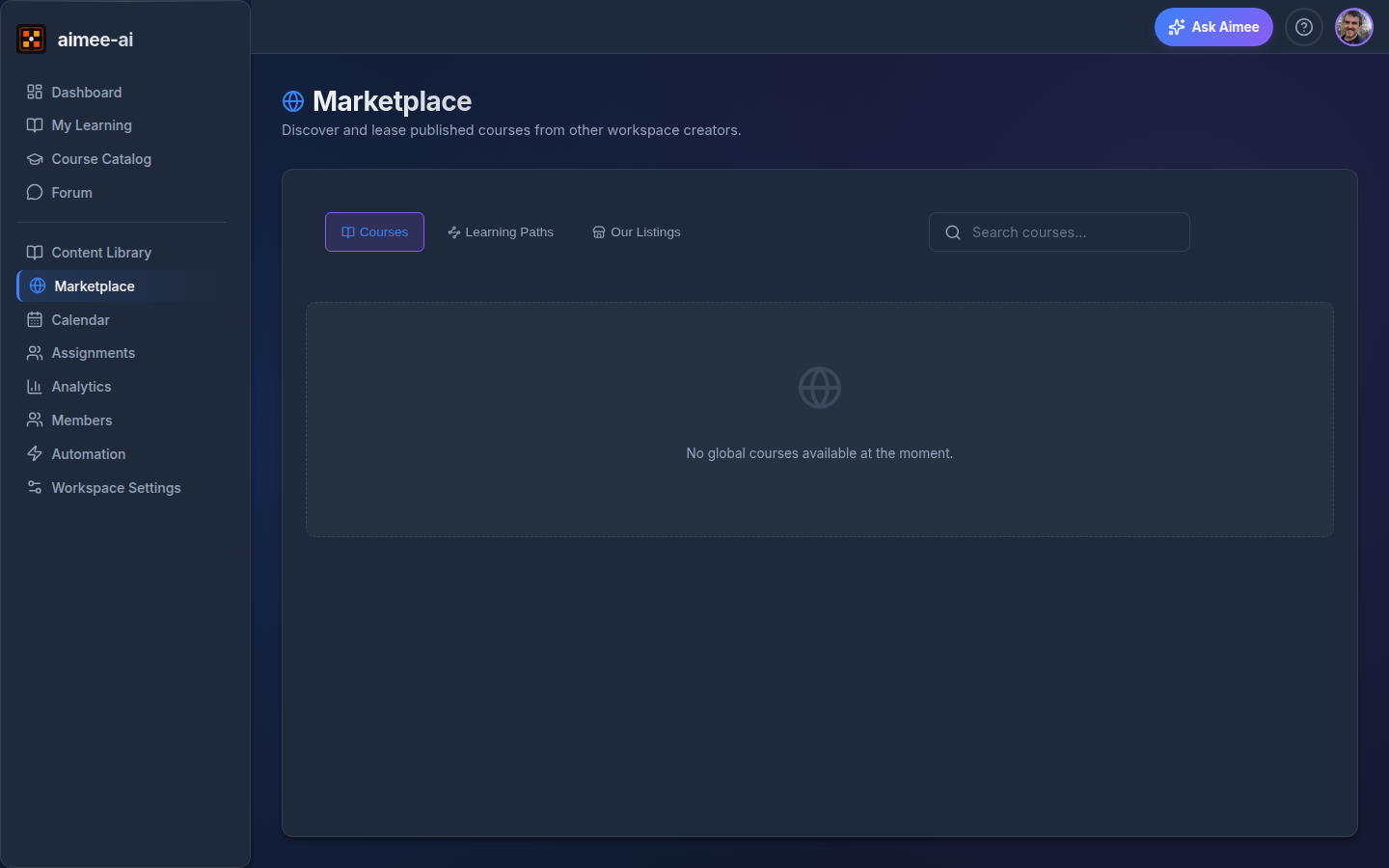
Click Marketplace in the sidebar to open it.
What's on offer
The Marketplace has up to three tabs:
- Courses - individual courses published by other workspaces.
- Learning Paths - curated sequences of courses you can bring in as a single programme.
- Our Listings - the courses your workspace has published to the Marketplace, with their listing status and seat sales to date. Only Workspace Owners and Trainers see this tab.
Each listing shows the title, the workspace that publishes it, a short description, the course or path contents, and its acquisition terms - either a per-seat price shown on the listing, or Free.
The Courses tab has a search box that matches across course titles, the workspace that published them, and their tags, plus a tag filter bar for narrowing by topic. The Learning Paths tab searches by title.
On any listing where your workspace already holds the content, the row's button changes to Already Leased and the in-modal call-to-action becomes Already in your workspace so you don't buy the same thing twice.
Your own listings
If your workspace publishes its own courses, the Our Listings tab gives you a single view of what's live on the Marketplace, what seat sales each listing has, and whether anything is currently unlisted. See Publishing your own courses for how to put a course on the Marketplace.
Getting a course or path into your workspace
Click any listing to open its details. The details view shows:
- A summary of what the course teaches (or, for a path, the ordered list of courses that make it up).
- The curriculum blocks in the course - how many slides, videos, quizzes, and so on.
- The evaluation rubric the course uses.
- The passing threshold learners will need to hit.
- The acquisition terms - Free or a per-seat price shown on the listing.
From the details view you can bring the content into your workspace:
- Free listings - click Add to Workspace Library (for a course) or Acquire Learning Path (for a path). The content appears in your Content Library straight away.
- Paid listings - choose a Bundle Size (how many seats to buy) and click Purchase Checkout. You'll be taken to a secure checkout page to pay. When the payment succeeds, the content lands in your Content Library automatically.
Seats are consumed when you assign
When you buy a paid course or path, the seats you purchased stay in your workspace until you use them. A seat is consumed each time you assign the content to a learner. Your trainers can manage the courses and assign them like any other course - they just can't edit the content.
Where acquired content lives
Everything you acquire from the Marketplace lands on the Purchased tab of your Content Library. From there you can assign it to learners in the usual way. Purchased content is read-only - you don't edit the course, rubric, or learner brief; the workspace that published it maintains the content.
Publishing your own courses
If your workspace is happy to share one of its courses, you can list it on the Marketplace so other workspaces can find and lease it.
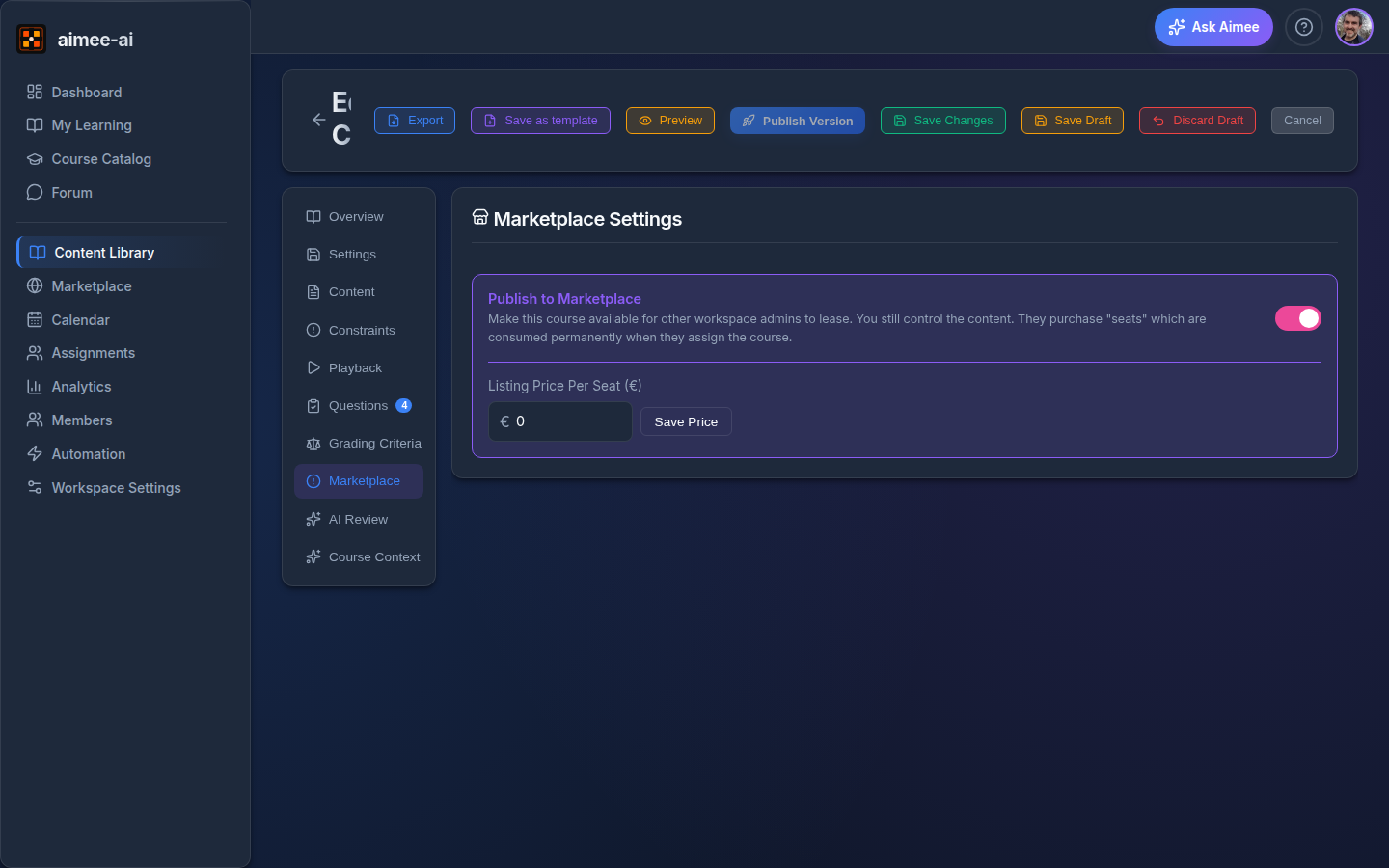
- Open the course you want to publish in the editor.
- Go to the Marketplace tab.
- Turn on Publish to Marketplace.
- Set a Listing Price Per Seat (leave it at the minimum to list the course as Free) and click Save Price.
Once published, the course appears on other workspaces' Marketplace Courses tab. You still own the content - you continue to edit and publish new versions of the course in the usual way, and other workspaces see those updates.
To stop listing a course, return to the course editor's Marketplace tab and turn Publish to Marketplace off. Workspaces that have already acquired the course keep their copy; the course just stops appearing in new searches.
Price the seat, not the cohort
Marketplace pricing is per seat - one seat is used each time the buyer assigns the course to one of their learners. Set the price with a single learner's access in mind, not the full cohort.
Buying in bulk
When you're acquiring a paid listing, you can pick a Bundle Size before you check out - a single seat, or one of the larger bundles offered for cohorts and rolling intakes. The total updates live on the checkout button so you can see exactly what will be charged. Unused seats stay in your workspace until you assign them.
Related
- Course Management - where leased courses live after you acquire them
- Learning Paths - building and assigning the multi-course programmes you can also lease here
- Course Catalog - how learners discover and self-enrol in courses your workspace holds
- Billing & Subscriptions - your workspace's payment methods and invoices