Groups
Groups let you organize learners into cohorts or training batches for efficient bulk assignment.
Accessible to: Trainers, Workspace Owners, Admins (delete: Workspace Owners and Admins only)
Where groups live
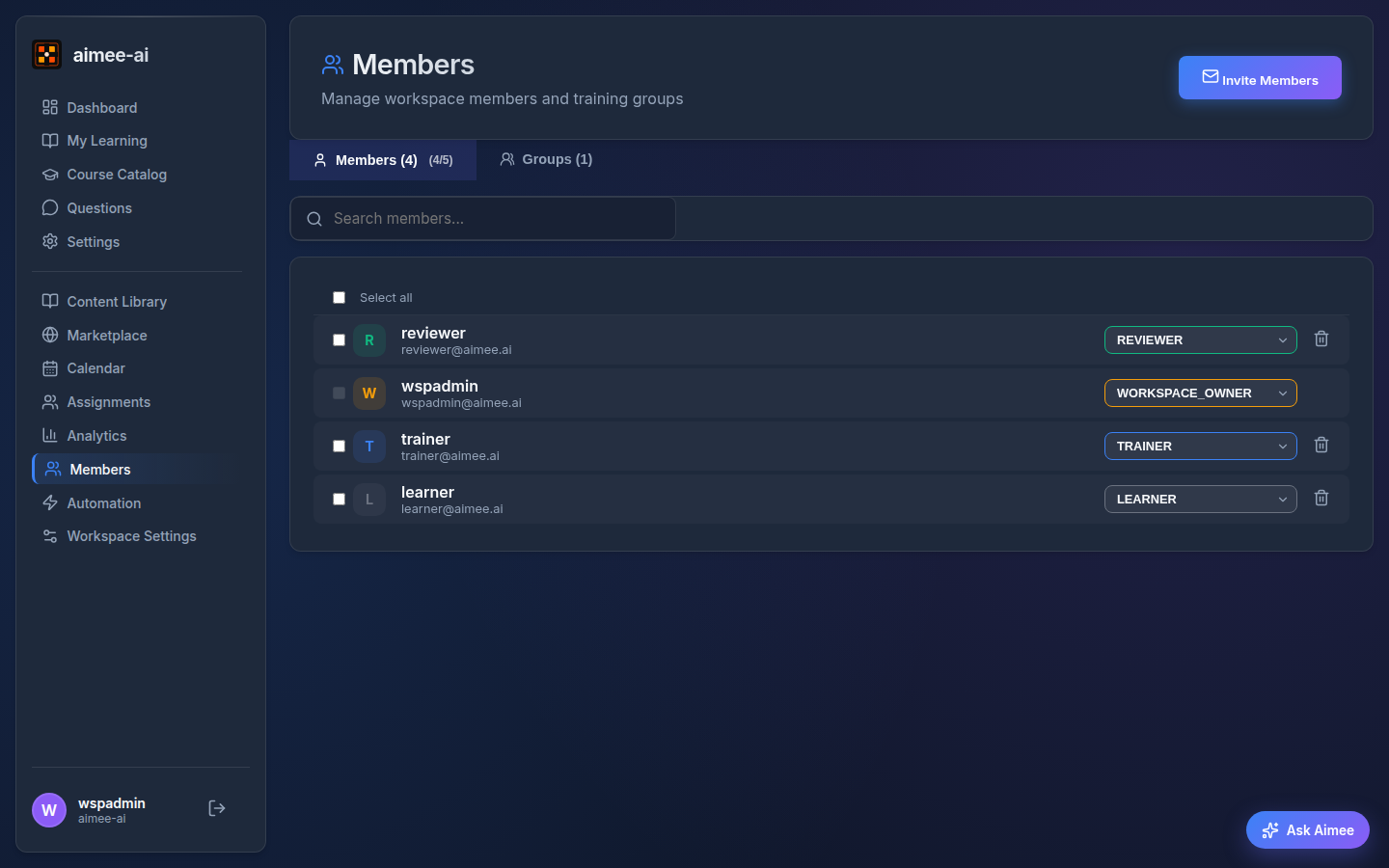
Groups don't have their own sidebar entry. Click Members in the sidebar - the page that opens has two tabs:
- Members - every person in the workspace, with their role and status. This is where you invite, suspend, and re-activate workspace members.
- Groups - the cohort organisation described on the rest of this page.
Switch to the Groups tab to view all groups in the workspace.
Each group row shows:
- Name and description
- Member count badge
- Created date
Click a group to expand it and see its members.
The "Everyone" group
Every workspace has a built-in Everyone group that automatically contains all active workspace members. You cannot edit or delete this group - Aimee keeps it up to date as members join or leave. It's especially useful with Automation course-schedule rules: target Everyone on a recurring schedule to automatically onboard new joiners without having to remember to assign courses by hand.
Creating a group
- Click New Group in the top-right corner
- Enter a name (e.g., "Q2 New Hires", "Sales Team APAC")
- Optionally add a description
- Click Create
Adding members
- Expand a group by clicking on it
- Click Add Member
- Select a user from the dropdown (only workspace members not already in the group are shown)
- Click Add
Add members before assigning
Group assignments create individual assignments for all current members. Add everyone to the group before assigning a course.
Removing members
- Expand the group
- Find the member you want to remove
- Click the red trash icon (🗑️) next to their name
- Confirm the removal
Removing a member from a group does not cancel their existing assignments.
Deleting a group
- Expand the group
- Click the Delete Group button (red)
- Confirm the deletion
Active assignment protection
You cannot delete a group that has active assignments (status: assigned or in progress). Complete or cancel the assignments first.
Delete permission
Only Workspace Owners and Admins can delete groups. Trainers can create groups and manage members but cannot delete them.
Using groups for assignment
Once a group is created and populated:
- Go to Assignments → Assign Learner
- Switch to Group mode
- Select your group from the dropdown
- All group members will receive the assignment
Related
- Assignments - assigning courses to groups