Calendar
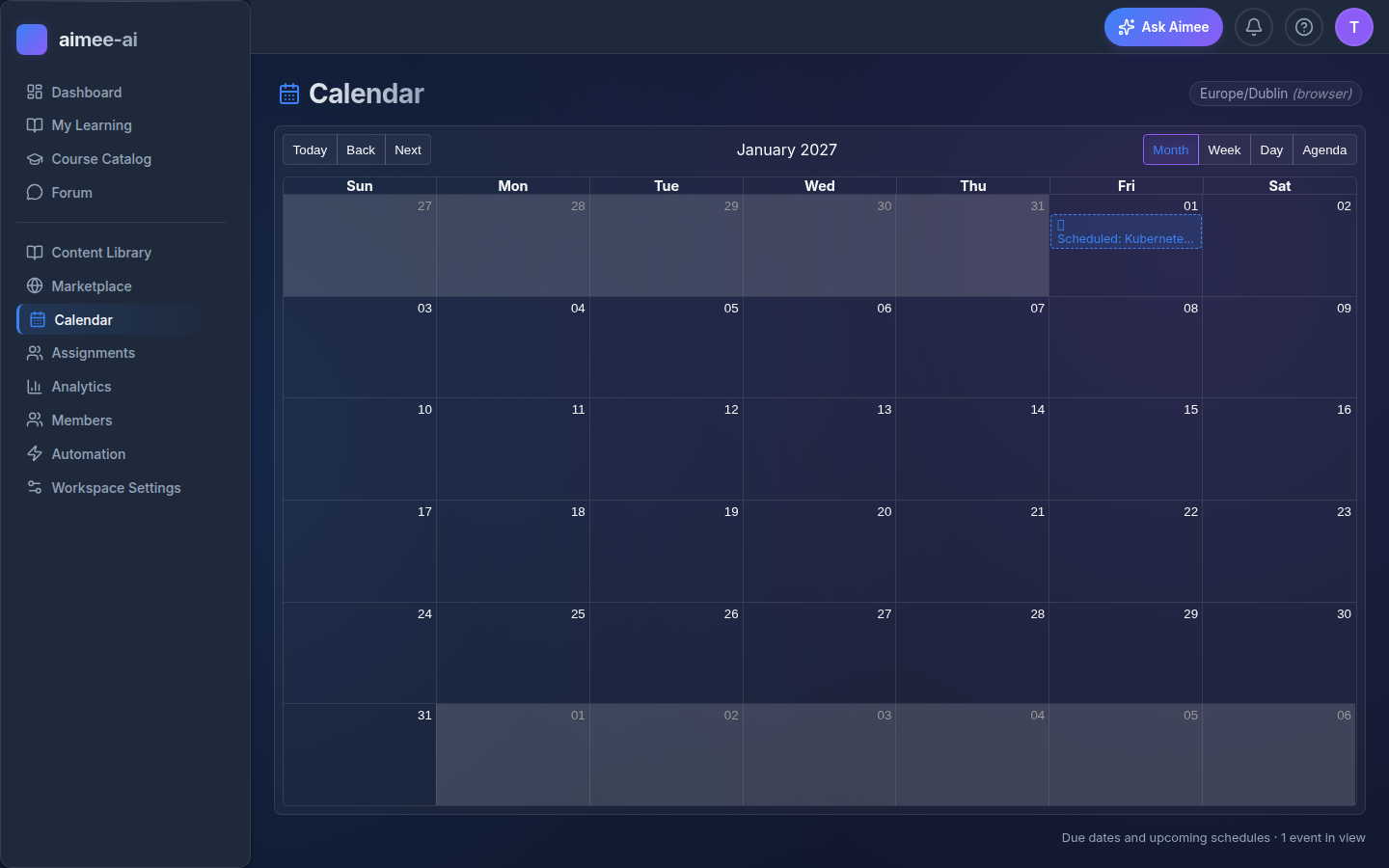
The Calendar shows what is coming up across your workspace - assignment due dates and upcoming course-schedule fires - at a glance, by day, week, month, or as a flat list. It's the fastest way to see what's planned and to spot two events landing on the same day.
Who can see the Calendar
The Calendar is for trainers and workspace owners. Admins, reviewers, and learners do not see it. Sidebar shortcut: Calendar.
What's on the Calendar
Two kinds of event appear:
Assignment due dates
Every assignment with a due date shows up as an event:
- Default - the course title in your workspace's accent colour.
- Overdue - past the due date, not yet completed. Red border, muted background. These are the ones you will want to chase.
- Completed - the learner finished. Muted text with a check glyph so it doesn't dominate the view.
- Abandoned - the assignment was abandoned. Muted italic.
Assignments without a due date don't show up - set a due date when you assign or update an assignment to bring it in.
Upcoming course-schedule fires
Course-schedule rules (set up in Automation) that are scheduled to run appear as separate events. These are fires that have not happened yet - the assignment has not been created - so they look different from real due dates: dashed outline, clock icon, and the accent colour.
The event title shows Scheduled: Course -> Target so you can see at a glance
which course is going where.
Trashed courses, deleted users, and deleted groups are filtered out automatically.
Switching views
Pick from the toolbar at the top of the page:
- Month - the default on desktop. One cell per day; events stack inside the cell.
- Week - five-or-seven-day slice for the current week. Useful when a week has more events than fit in a month cell.
- Day - one column for the focused day. Best when you want to see exactly what's due today.
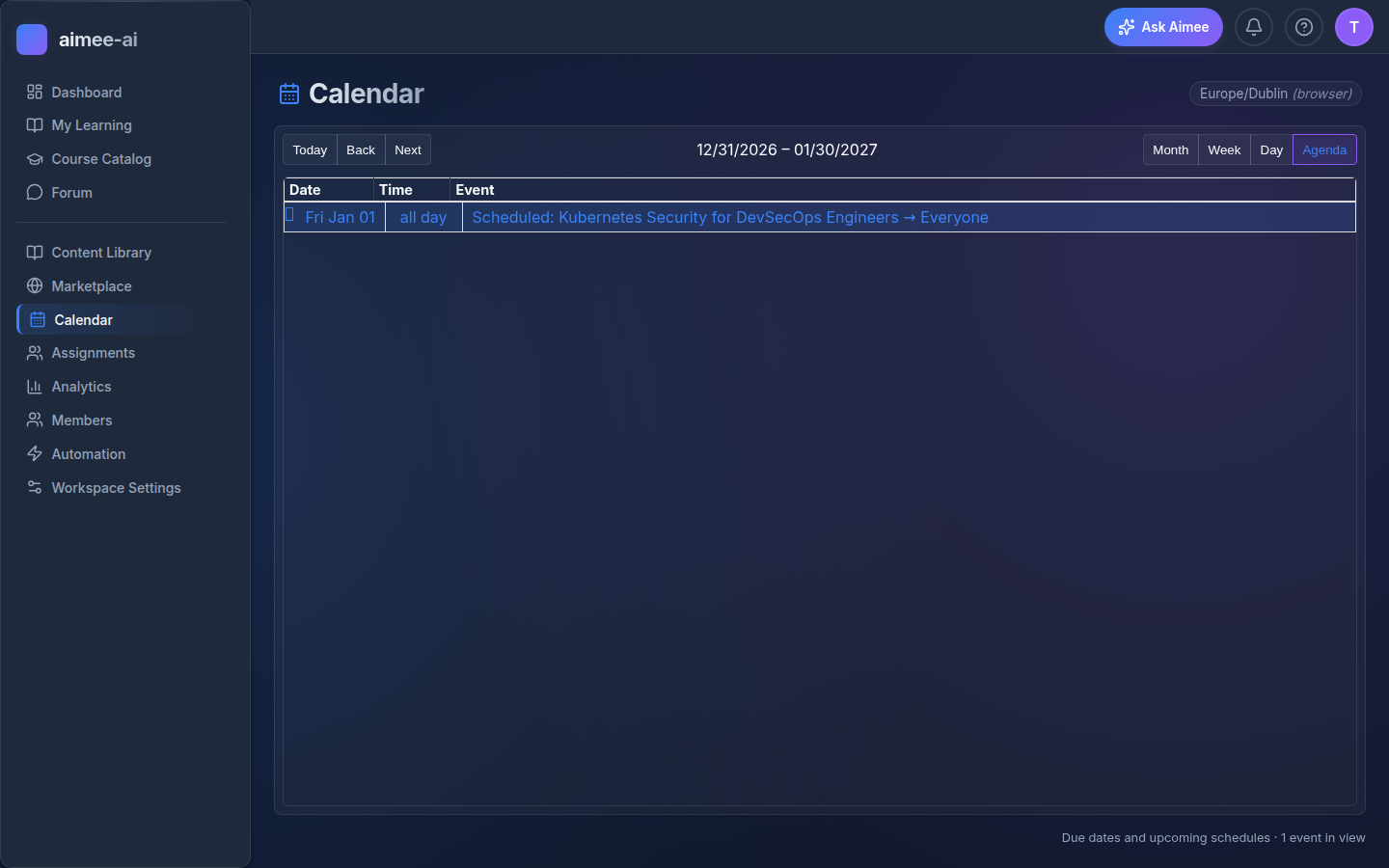
- Agenda - a flat list of upcoming events. Default on phones, because a month grid never reads cleanly at 320 px wide.
Use Today to jump back, and the prev / next arrows to move forward or back. The view choice resets to the default the next time you open the page (it's not persisted yet).
Clicking an event
Assignment events take you to the Assignments page with that row scrolled into view and briefly highlighted. From there you can update status, change the due date, reassign - anything you'd normally do on the Assignments page.
Scheduled-fire events (dashed outline) take you to the Automation page with the originating rule highlighted. From there you can edit the rule, change the date or cadence, or disable it before it fires.
Time zones
Dates and times are rendered in your time zone, not the workspace's.
Set your zone in Profile → Preferences → Time zone:
- Pick any IANA zone from the list (e.g.
Europe/Dublin,America/New_York,Asia/Tokyo). - Or click Use browser time zone to clear the preference and fall back to whatever your current browser is reporting.
The Calendar header shows the time zone it's currently using, and
flags (browser) when no preference is saved so you can tell at a
glance which mode you're in.
If a colleague in another zone sees the same event at a different wall-clock time, that's expected - every viewer reads in their own zone. The underlying due date is shared.
Mobile
On phones (≤ 480 px) the calendar opens in agenda view by default - one event per row, fully readable, no horizontal scroll. You can still switch to month / week / day from the toolbar; the month grid uses tighter cells so it fits, but agenda is the most comfortable read on a small screen.
Current limitations
The Calendar is read-only - you can view what's planned but not drag events to new dates from here. To change an assignment's due date, click its event to go to the Assignments page and edit it from there.
The following are not yet available in the Calendar view:
- Drag-to-reschedule existing assignments to a new date.
- Push or email reminders tied to a due date (see Automation for email reminder rules you can set up today).
- Export to ICS or sync with an external calendar (Google Calendar, Outlook, etc.).
- Filters to narrow the view to a specific group, course, or status.