Automation
Accessible to: Workspace Owners, Admins, Trainers
The Automation section lets workspace owners, admins, and trainers set up rules that run on a schedule without any manual effort. There are currently three types of rule:
- Reminder - emails learners before an assignment's due date.
- Course schedule - automatically assigns a course to a user or group, either once on a future date or on a repeating cadence.
- Course backup - automatically saves a backup of one or more courses to storage, either once on a future date or on a repeating cadence. A single rule can back up a chosen set of courses, and can optionally include courses you add later.
You will find Automation in the left sidebar, between Members and Workspace Settings.
Who can see this section
Automation is shown to workspace owners, admins, and trainers. Reviewers and learners do not see the Automation entry in their sidebar.
The tabs
Rules
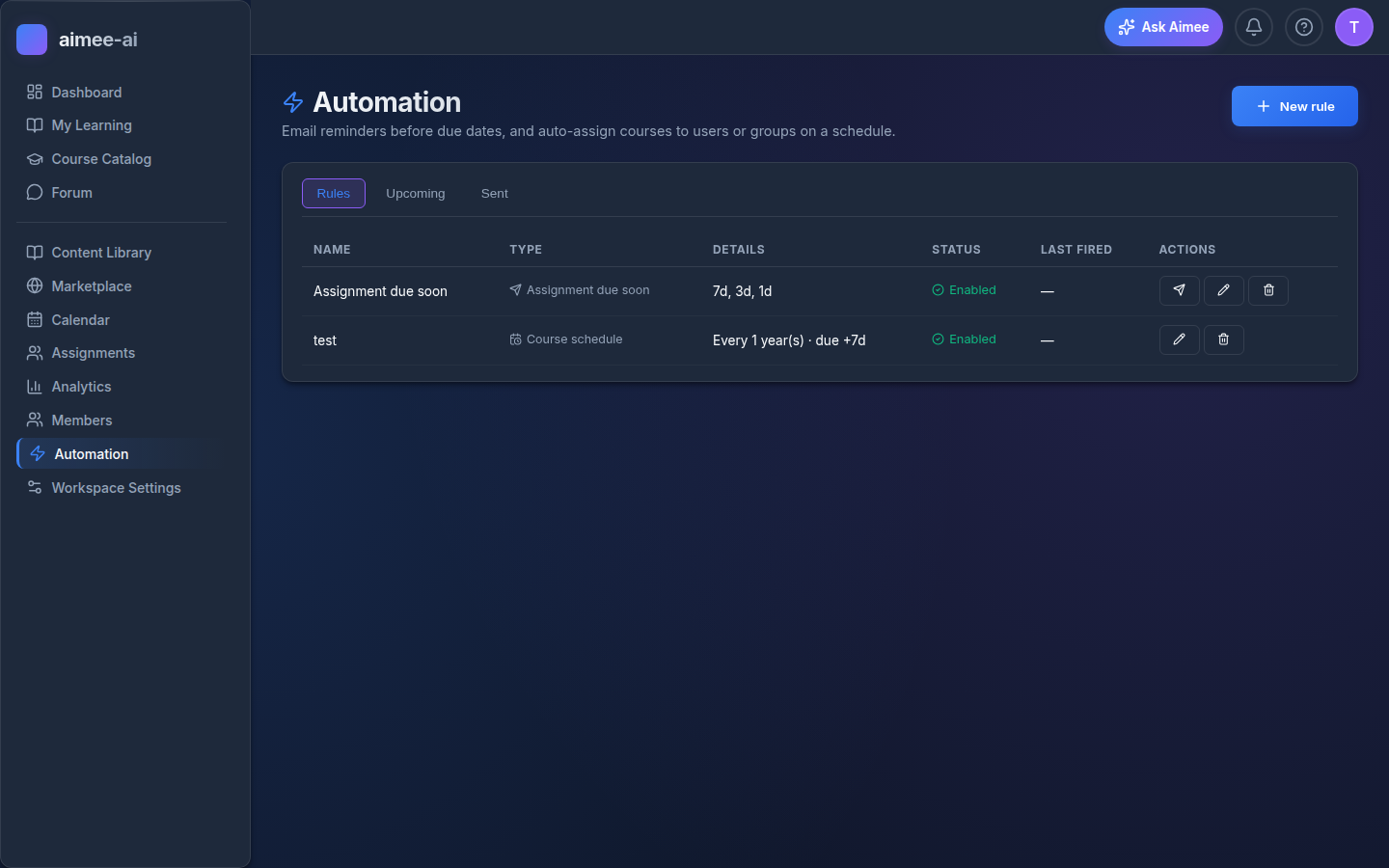
The Rules tab is your library of all automation rules. Each row shows:
- Name - what you call this rule.
- Type - Reminder, Course schedule, or Course backup.
- Details - a compact summary of what the rule does. For a reminder rule
this shows the day offsets (e.g.
7d, 3d, 1d before due). For a course schedule it shows the timing and due-date offset (e.g.Every 1 month(s) · due +7d). For a course backup it shows how many courses it covers, the timing, and how many backups are kept (e.g.3 courses · Every 1 week(s) · keep 5). - Status - whether the rule is currently active.
- Last fired - when this rule most recently ran, or
-if it has never fired. For a course backup, this is the most recent run of the two kinds: a scheduled run or a run that a person started with Run backup now.
From this tab you can:
- Click + New rule to create a reminder, course schedule, or course backup rule.
- Click the paper-plane icon to send a test reminder to your own email (reminder rules only - this icon does not appear on other rows).
- Click the play icon to run a course backup now (course backup rules only, and only for a workspace owner or a trainer). See Running a course backup now.
- Click the pencil icon to edit a rule. Editing opens a full-page editor; use Back or Save changes to return to the list.
- Click the trash icon to delete a rule.
If a course backup rule's most recent run failed (for example, the workspace ran out of storage), its Status column shows a Last run failed note. Open the rule to see the reason and fix it. When a rule backs up several courses and only some fail, the reason reads like "1 of 3 courses failed - ..." so you can see which part of the run needs attention.
When there are no rules yet, the empty state suggests clicking + New rule to get started.
Heads-up about deleting rules that just fired
To protect the audit trail, you cannot delete a reminder rule that has fired in the last 24 hours. Disable it first; you can come back and delete it the next day. Past reminders that the rule sent stay in the Sent tab even after deletion.
Upcoming
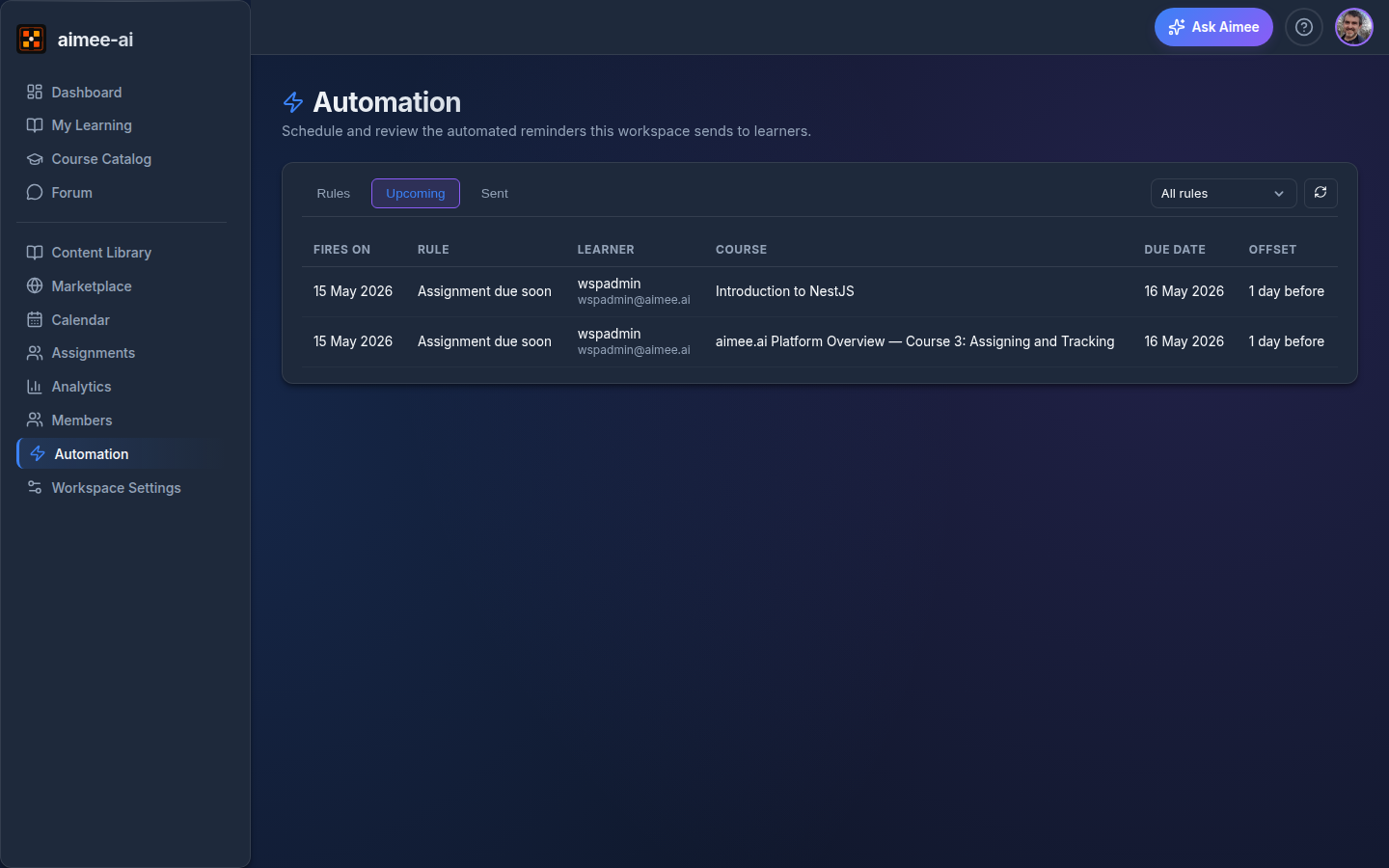
The Upcoming tab shows reminder emails that will be sent over the next 30 days, given the rules and assignments as they look right now.
Each row shows when the reminder will fire, which rule is responsible, the learner who will receive it, the course, the due date, and which offset is matching. Use the rule filter at the top right to narrow the list to one rule at a time.
Tip
Upcoming is computed live every time you open the tab, so changing a due date or disabling a rule is reflected immediately on refresh.
Course schedule rules
Pending course schedule fires do not appear in the Upcoming tab - only reminder emails do. However, pending fires do appear on the Calendar as distinct dashed events so you can see the full schedule before it fires. Assignments that a course schedule has already created also appear on the Calendar, by their due date.
Sent
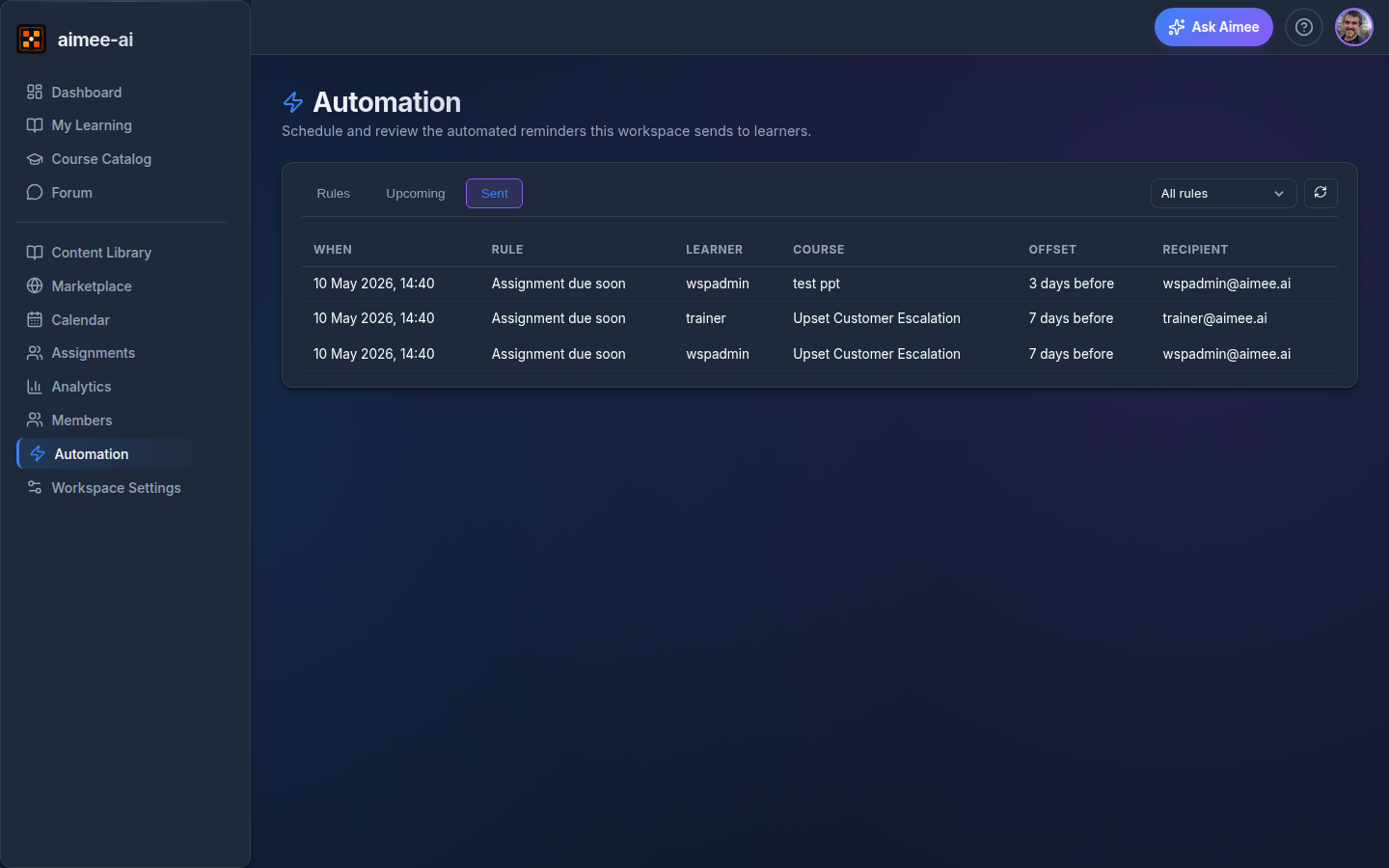
The Sent tab is the audit trail - every reminder email the platform has actually sent in the last 90 days. Each row shows when it was sent, which rule sent it, the learner, the course, the offset, and the email address the message went to.
Runs
The Runs tab shows what your rules did. It lists the 100 most recent runs of the last 90 days, with the newest run first. Each row shows:
- Started - when the run started.
- Rule - the name of the rule. A run stays in the list after you delete its rule.
- Type - course backup, course schedule, or reminder.
- Trigger - Scheduled for a run that the schedule started. Manual and a name for a backup that a person started with the play icon.
- Result - one of the 4 results below.
- Details - what the run did, or why it failed or did nothing.
The 4 results are:
- Running - a backup is in progress. The row changes when the backup ends. You do not have to reload the page.
- Success - the run did its work. For example, it backed up 3 courses or sent 2 emails.
- Skipped - the rule was due, but there was nothing to do. For example, the learner already has the course, or the course has no published version.
- Failed - the run did not complete. The Details column gives the reason.
Use the rule list at the top of the tab to show the runs of 1 rule only.
What the Runs tab does not show
- A reminder rule gets a row only on a day when it sent an email or failed. To see each email, use the Sent tab.
- Test reminders do not appear.
- Runs from before this tab was added do not appear.
Backups
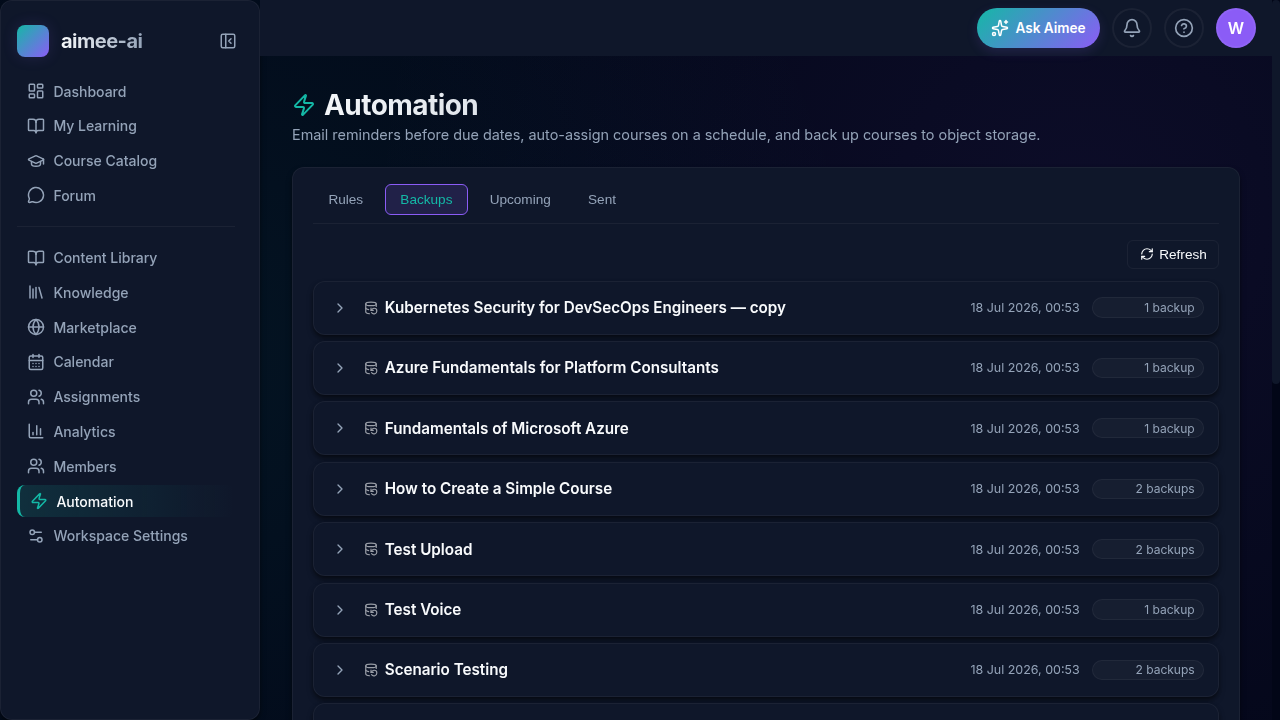
The Backups tab lists every course that has a Course backup rule, plus any course that still has stored backups from a rule that has since been removed - so a backup is never stranded out of sight. Under each course are the backups stored so far, newest first. For each stored backup you can see when it was created and its size, and:
- Download - save a copy of the backup ZIP to your computer.
- Restore - workspace owners only. Restores the backup as described in Restoring a backup below.
- Delete - workspace owners only. Permanently removes that one stored backup and frees the storage it used. See Deleting a backup.
If a course has a backup rule but no backups yet, the tab tells you the next scheduled run will create one.
Creating a new rule
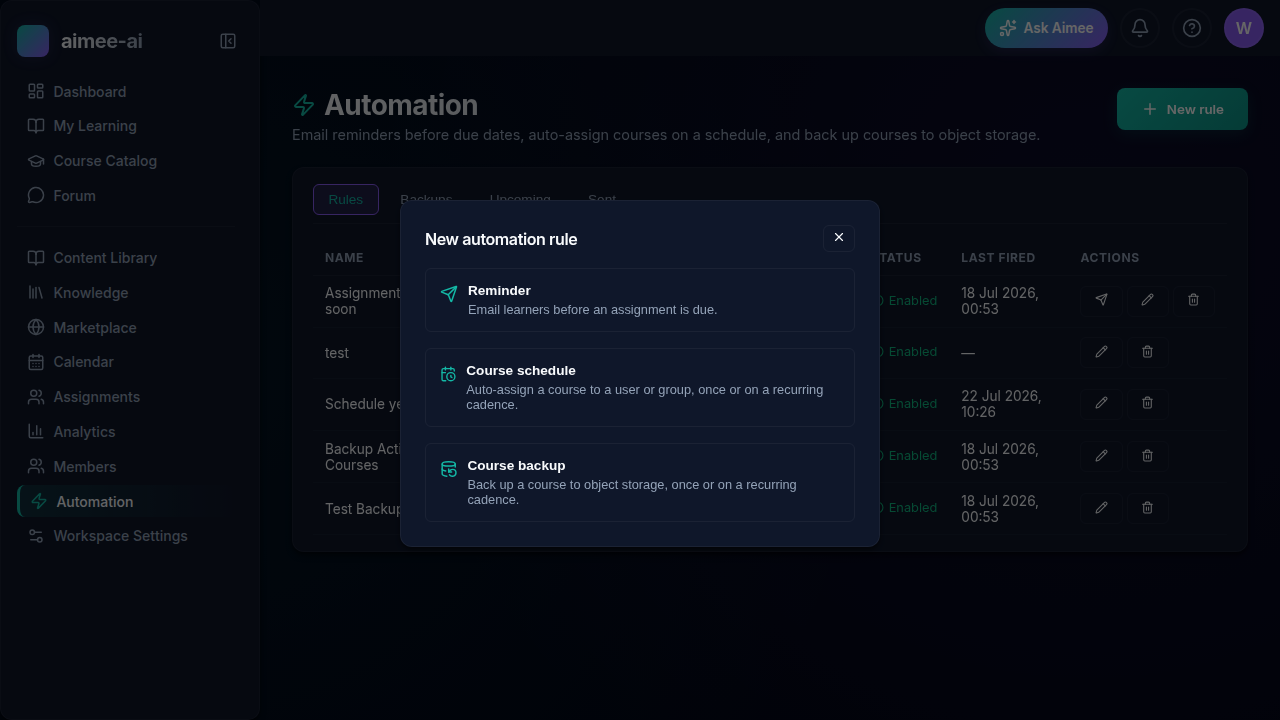
Clicking + New rule opens a small chooser asking you to pick the rule type:
- Reminder - Email learners before an assignment is due.
- Course schedule - Auto-assign a course to a user or group, once or on a recurring cadence.
- Course backup - Back up one or more courses to storage, once or on a recurring cadence.
Pick the type and the matching full-page editor opens.
Reminder rules
Creating or editing a reminder rule
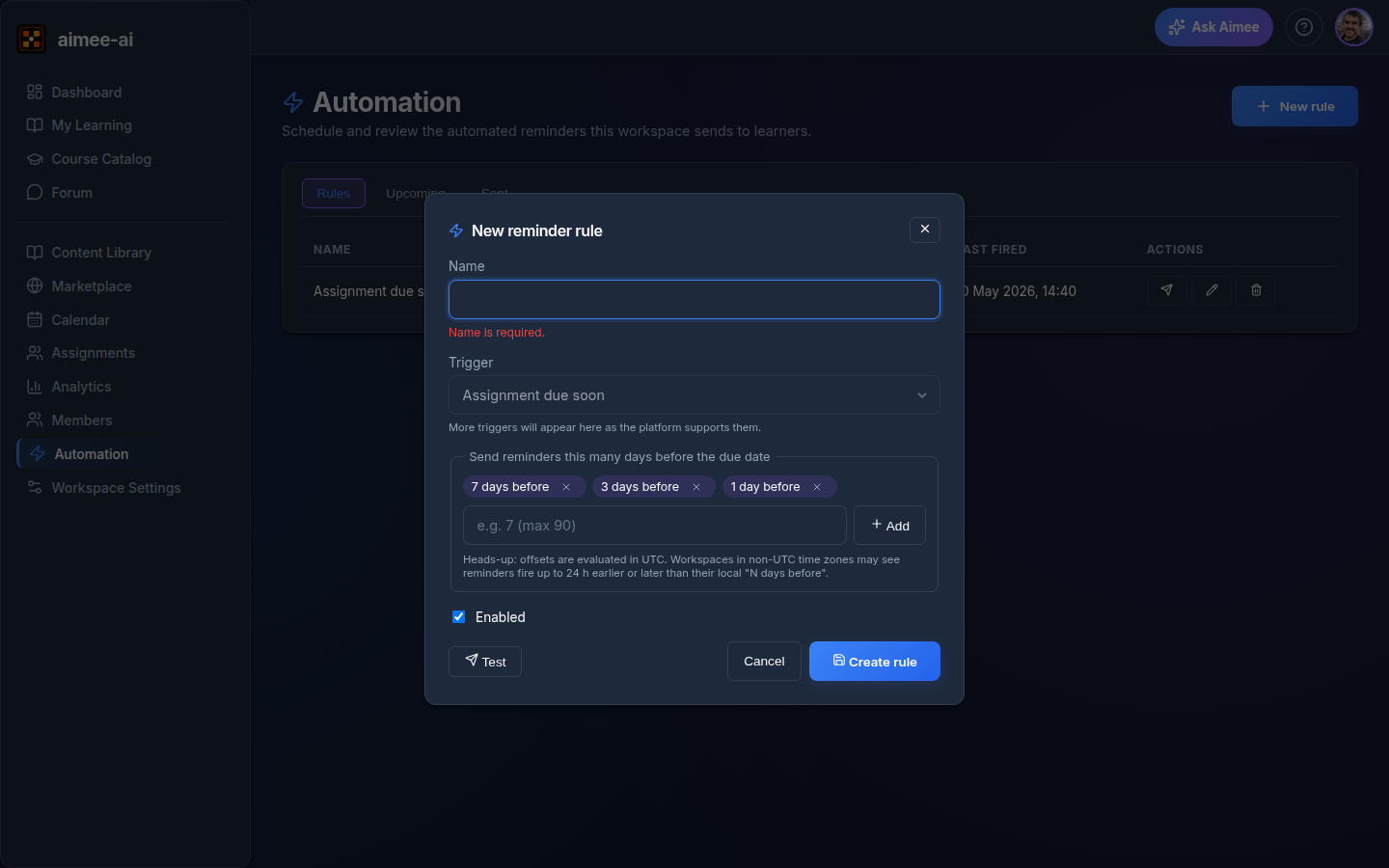
- Name - anything you will recognise later (e.g. "Final reminder"). Required, up to 80 characters.
- Trigger - fixed when the rule is created. To change a trigger, create a new rule and delete the old one.
- Send reminders this many days before the due date - type a whole number (between 0 and 90) and press Add to add it as a chip. Click the little × on a chip to remove it. You can have up to 20 offsets per rule.
- Enabled - when off, the rule stays in your list but stops sending reminders.
Each workspace starts with a default rule named "Assignment due soon" that emails learners 7 days, 3 days, and 1 day before the due date. You can change those numbers, turn it off, add more rules, or delete it entirely.
Testing a reminder rule
Before you flip a rule on for real learners, you can send yourself a test reminder so you can see exactly what the email looks like in your own inbox.
There are two ways to do this:
- Rules tab: click the paper-plane icon on the rule's row.
- Rule editor (Edit mode): click the Test button at the bottom of the editor. The button is unavailable until you save the rule, because the test always reflects the saved version.
The test is sent to your own email address. Test emails are clearly marked:
- The subject line is prefixed with
[TEST]. - A yellow notice at the top of the email body explains that this is a test and that real reminders to learners will look identical without the notice.
Test sends do not appear in the Sent tab. They are purely a sanity-check tool.
Throttle
To keep things tidy, you can send up to five test reminders per minute. If you click faster than that, you will see a "Too many test sends" message - wait a moment and try again.
Disabled rules
You can test a disabled rule. The most useful time to test is right before you flip a new rule on, so the test send works regardless of whether the rule is currently enabled.
Course schedule rules
A Course schedule rule automatically assigns a course to a user or a group at a time you choose. The assignment is created the same way as a manual assignment - group targets expand to one assignment per member, active assignments are not duplicated, and the due date is set automatically.
When a course schedule fires, the assignment always uses the latest published version of the course, so your learners always get the freshest content.
Creating or editing a course schedule rule
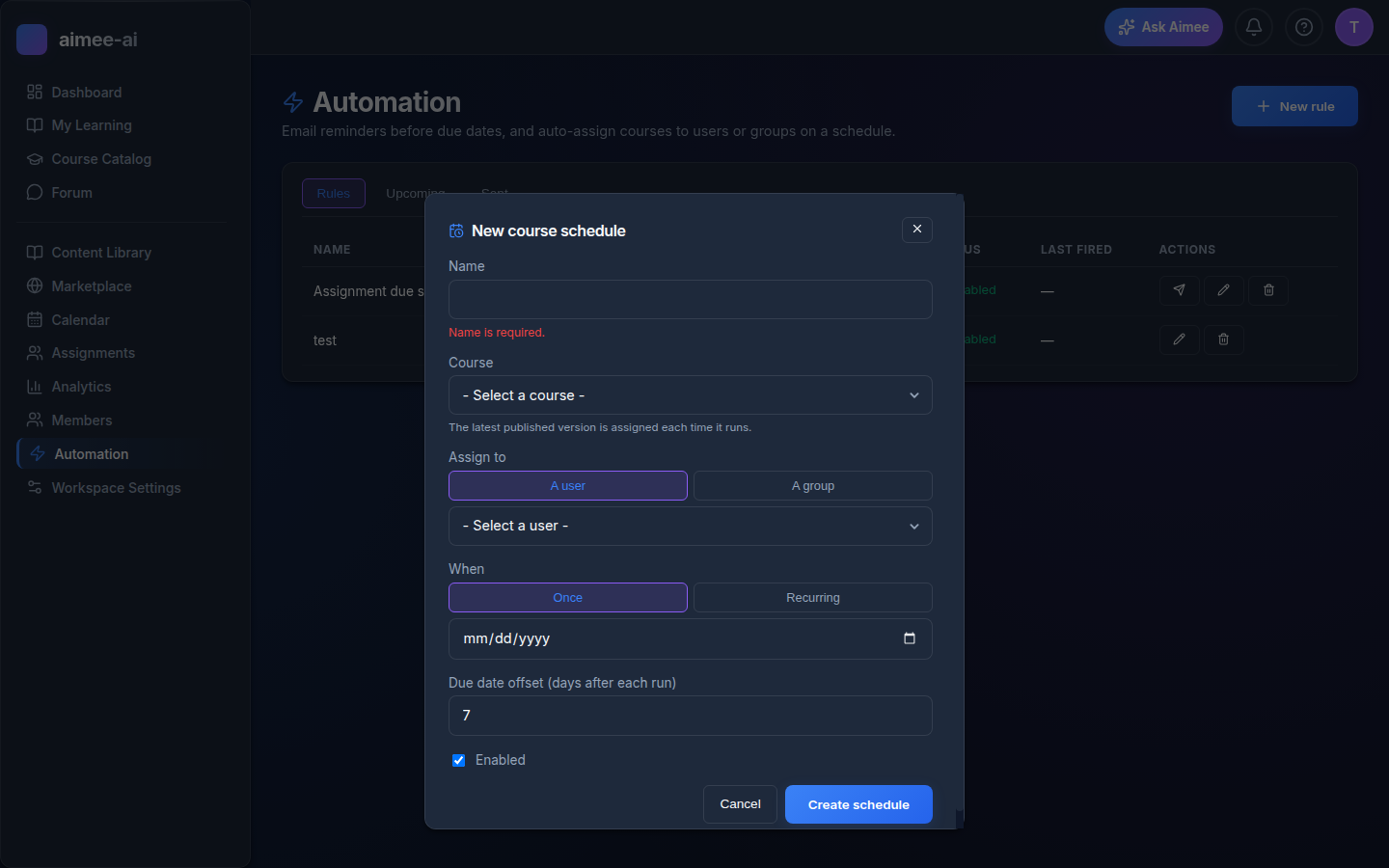
The course schedule editor has four sections:
Name - a label for the rule, up to 80 characters. Required.
Course - choose the course to assign. Only courses that have at least one published version appear in the list. The hint beneath the picker reminds you that the latest published version is used each time the rule runs.
Assign to - choose whether to assign to a user or a group:
- A user - pick any workspace member from the list.
- A group - pick any workspace group from the list, including the Everyone group (which always contains every active workspace member). The assignment expands to one row per group member when it fires.
When - choose the timing:
- Once - pick a date. The rule fires once on that date, then stops.
- Recurring - set a cadence (every N weeks, months, or years) and a start date. The rule fires on the first occurrence on or after the start date, then repeats.
Due date offset (days after each run) - the number of days after the assignment is created that it is due. Default is 7. Set to 0 to make it due on the day it is created.
Enabled - when off, the rule stays in the list but does not fire. You can pause and resume a rule at any time without losing its schedule.
What happens when a course schedule fires
- A course with no published version is skipped until a version is published - the rule does not error, it retries on the next occurrence.
- Learners who already have an active assignment for that course are not re-assigned. The rule picks up learners who have never been assigned, or who completed or abandoned the course.
- The assignments the rule creates appear on the Calendar automatically, shown by their due date.
Recurring onboarding
Combine a recurring Course schedule rule targeting the Everyone group with a low interval (e.g. every 1 month) to automatically onboard new joiners. The Everyone group is maintained for you - new workspace members are added automatically.
Course backup rules
A Course backup rule automatically saves a backup of one or more courses to storage on a schedule you choose. It is the automated version of the manual Backup button on a course - useful for keeping regular, off-course copies you can restore from later.
Creating or editing a course backup rule
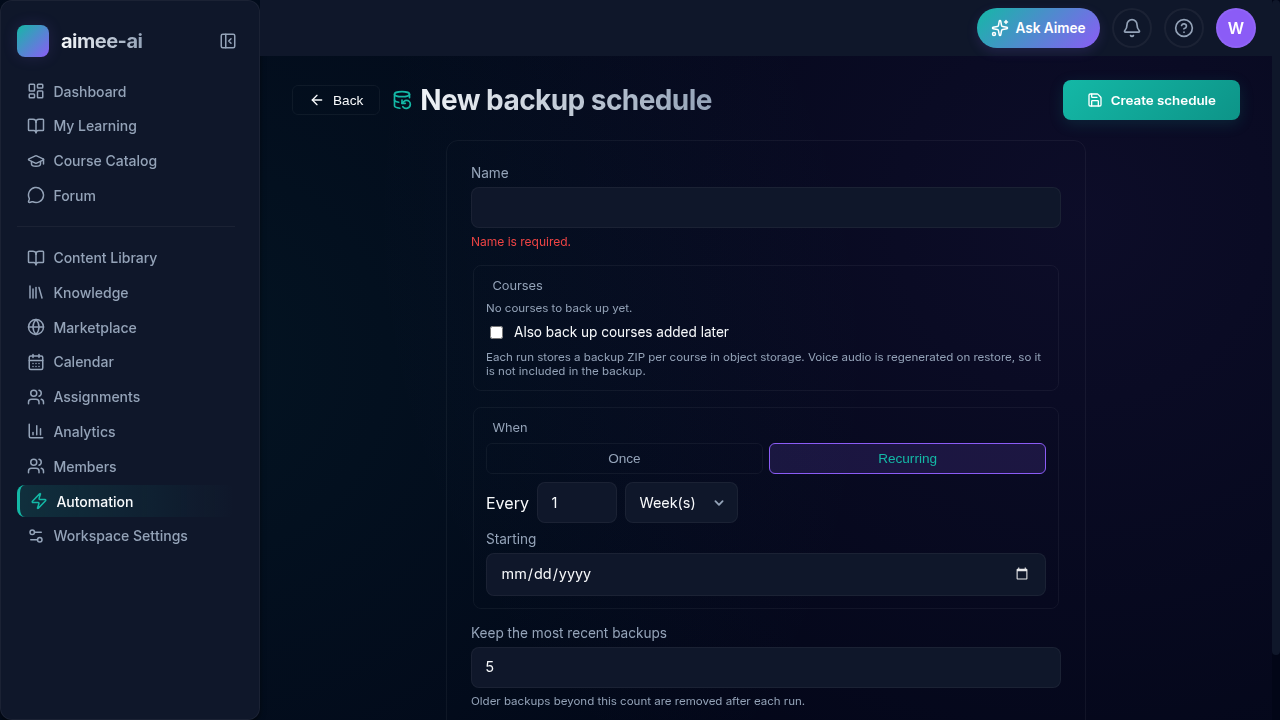
The course backup editor has these fields:
Name - a label for the rule, up to 80 characters. Required.
Courses - build the list of courses to back up. Courses start in the Available list on the left; click a course to move it to the Active list on the right, or use Move all to move every course at once. Only the Active list is backed up, so you can back up everything except a few by moving all and then removing the ones to skip. You must have at least one course in the Active list to save. Only courses that have at least one version appear.
Also back up courses added later - when ticked, the rule also backs up courses created after you saved the rule, on top of the Active list. Leave it off to back up only the courses you explicitly chose.
When - choose the timing:
- Once - pick a date. The rule backs up the course once on that date, then stops.
- Recurring - set a cadence (every N hours, days, weeks, months, or years) and a start date and time. The rule backs up on the first occurrence on or after the start, then repeats. A backup can start up to 15 minutes after its scheduled time.
Frequent backups and retention
An hourly rule that keeps 5 backups holds only the last 5 hours. Increase Keep the most recent backups if you want a longer history. The maximum is 100.
Keep the most recent backups - how many backups to retain for this course. After each run, older backups beyond this number are removed automatically. Default is 5.
Enabled - when off, the rule stays in the list but does not run.
Voice audio and backups
Automated backups do not include rendered voice audio - it is regenerated automatically when a backup is restored. This keeps scheduled backups small and fast. (The manual Backup button still offers the option to include voice.)
Running a course backup now
You can start a course backup at any time. You do not have to wait for the schedule. This is useful before a large edit to a course.
- Open Automation and stay on the Rules tab.
- Find the course backup rule and click the play icon in the Actions column.
- Read the confirmation, then click Run now.
While the backup runs, the Status column shows Running and the play icon is not available. A backup of many courses can take some minutes. You can leave the page, and the backup continues.
When the backup ends, a message above the table tells you the result. The new backups appear in the Backups tab. The run also appears in the Runs tab, with your name.
What to know before you run a backup:
- Who can do this - a workspace owner or a trainer. Other roles do not see the play icon.
- The schedule does not change. The next scheduled backup still runs at its usual time.
- The rule must be enabled. The play icon is not available on a disabled rule. Enable the rule first.
- The limit on stored backups applies. If a course already has the number of backups in Keep the most recent backups, the oldest backup is deleted to make space for the new one.
- One run at a time. You cannot start a second run of a rule while a run is in progress.
- A run that does not end. In rare cases a run stops before it completes, and the rule shows Running for up to 1 hour. After that time you can run the rule again.
What happens when a course backup runs
- Each course in the rule is exported and its backup ZIP is saved to your workspace storage, under that course's backups. Backups count towards your workspace storage usage, so keep an eye on the Keep the most recent backups number if storage is tight.
- Older backups beyond the retention number are removed per course so storage does not grow without bound.
- If a run fails - for example, because the workspace is out of storage, or a course was deleted - the rule records the failure (shown as Last run failed on the Rules tab) and tries again on its next scheduled run. A failure on one course does not stop the rule's other courses, and one failing rule never stops the others. If a rule ends up matching no courses at all (for example, every course it targeted was deleted), it is recorded as a failure so you notice.
Restoring a backup
Restoring is available to workspace owners only, from the Backups tab. Click Restore next to a stored backup. A progress window shows each phase of the restore. When the restore finishes, the restored copy opens in the editor on the Course Content tab.
You can also restore a stored backup from the Content Library: click Restore Course on the Courses tab, choose Backup ZIP, then Choose from stored backups to pick a course and a backup without needing to come here first. See Restoring a course from a backup ZIP.
Restore creates a copy
Restoring a backup creates a new course from the backup - it does not overwrite the existing course. The restored copy opens when the restore finishes, and it is also in your course list. Your current course does not change.
Deleting a backup
Deleting is available to workspace owners only, from the Backups tab. Click Delete next to a stored backup and confirm. The storage it used is freed straight away, and the course's other backups are left alone.
Deleting a backup does not affect the course itself - only the stored copy. It also does not change the rule: the next scheduled run stores a new backup as usual.
Deleting a backup cannot be undone
There is no way to recover a deleted backup. If it is the only stored backup of that course, the confirmation says so - deleting it also removes the course from the Choose from stored backups picker in the Content Library until a scheduled run stores a new one.
A few things to know
- Time zones. Automation rules are evaluated in UTC. A rule set to fire on a particular date may fire up to 24 hours earlier or later than your local midnight. Workspace-level time zones are a future improvement.
- No double reminder sends. If two reminder rules target the same offset (for example, two rules that both send 7 days before the due date), the platform sends only one email per learner per offset. The Sent tab shows which rule was matched first.
- Completed or abandoned assignments. Once an assignment is marked completed or abandoned, it stops generating reminder emails.
- Deleting a course or group. If the course or group referenced by a course schedule rule is deleted, that rule is removed automatically. A deleted course is dropped from any course backup rule that included it, but the rule itself stays and keeps backing up its remaining courses. Assignments already created by a schedule rule are not affected.
- Who can back up and restore. Owners and trainers can create backup rules and download backups; only workspace owners can restore a stored backup.