Learning Paths
A learning path is an ordered set of courses you assign as a single programme. Instead of assigning five onboarding courses one at a time, you group them into a path and assign the path once. You can also make the path sequential, so each course unlocks only when the learner has completed the one before it.
Accessible to: Trainers, Workspace Owners, Admins (building and assigning) · every workspace member (self-enrolling in a path)
When to use a path
Use a learning path when several courses belong together as one programme:
- A new-hire onboarding programme that runs from "Welcome" through to role-specific training.
- A compliance curriculum where later modules assume the earlier ones.
- Any bundle of courses you'd rather assign, track, and share as a single unit.
Where the order matters - later courses build on earlier ones - turn on Enforce Sequential Order so learners take them in sequence. Where it doesn't, leave it off and every course in the path is available at once. If your courses are unrelated and you'd never assign them together, keep them as ordinary courses instead.
Where learning paths live
Learning paths show up in four places, each for a different job:
| Where | What you do there |
|---|---|
| Content Library → Learning Paths tab | Build and edit paths (this page). |
| Course Catalog → Learning Paths | Members browse and self-enrol in a path. See Course Catalog. |
| Assignments → Learning Paths view | Assign a path to a learner and track their progress through it. See Assignments. |
| Marketplace | Lease a whole path from another workspace, or publish your own. See Marketplace. |
Building a learning path
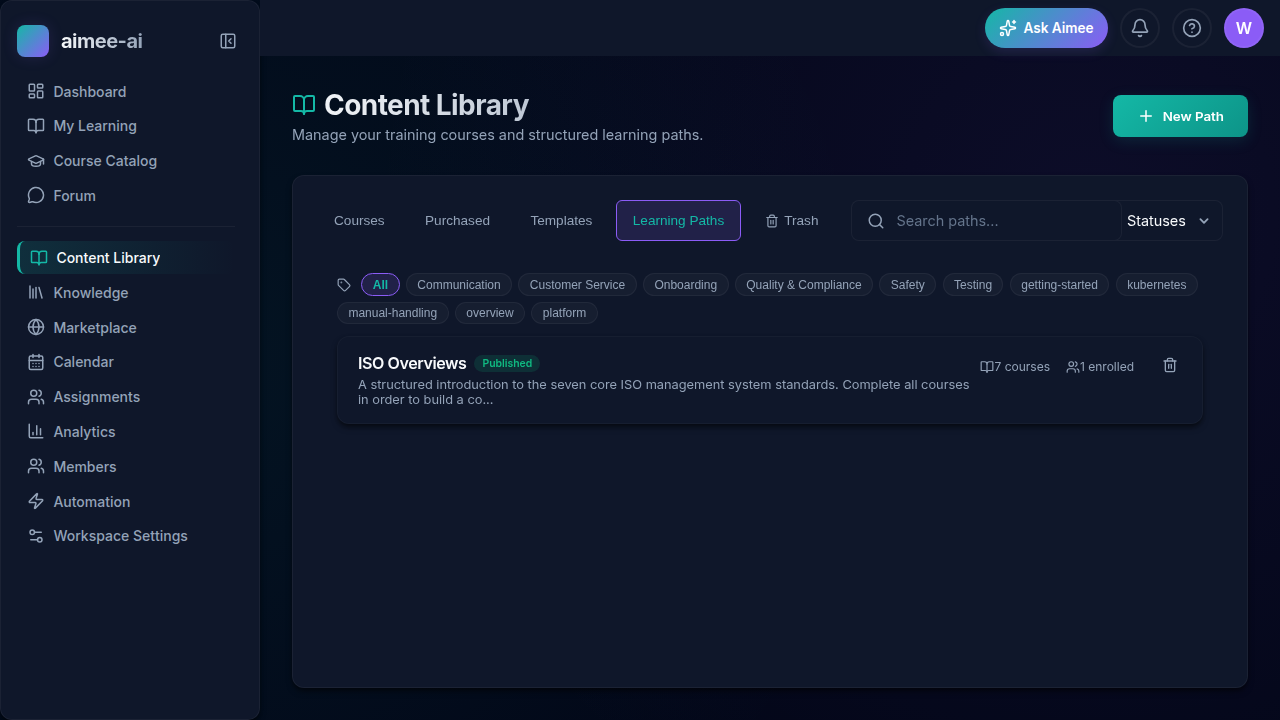
Open Content Library in the sidebar and switch to the Learning Paths tab. Every path in your workspace is listed here, each showing how many courses it contains and how many learners are enrolled.
Create a path
- Click New Path in the top-right.
- Enter a title and click Create.
- The new path opens in the path editor, ready for you to add a description and courses.
The path editor
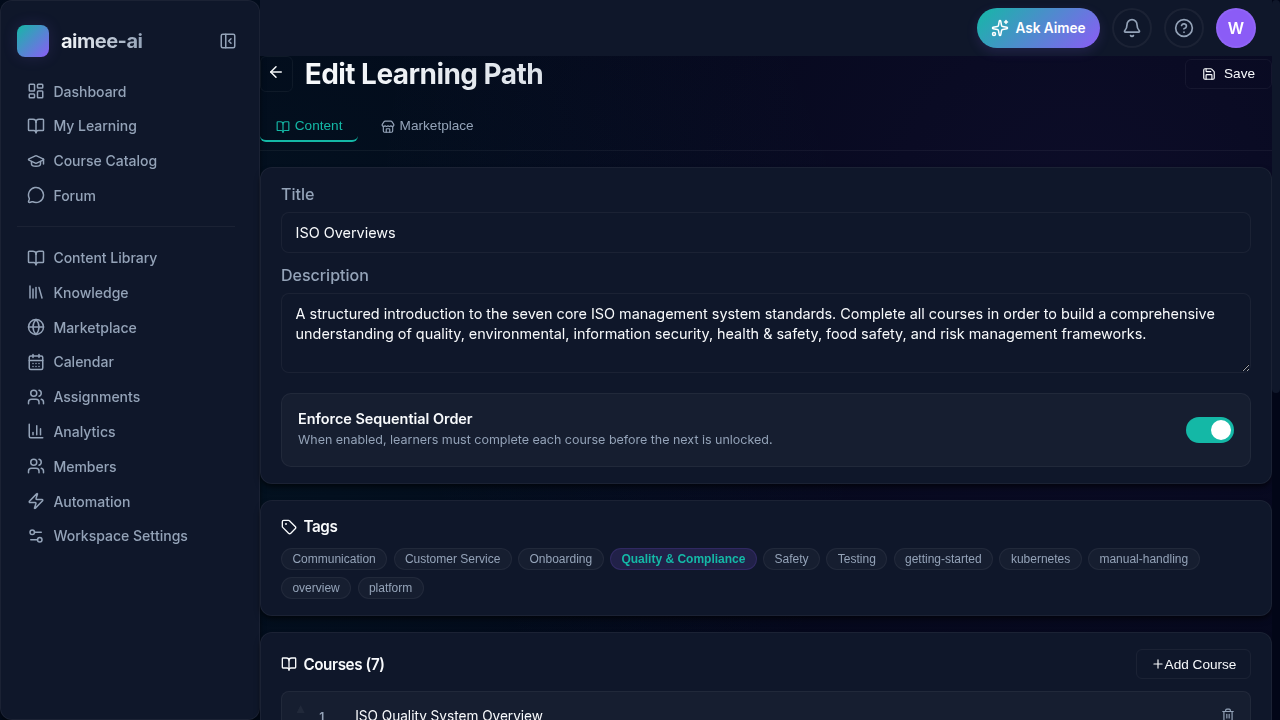
The editor has a Content tab and a Marketplace tab.
On the Content tab you set up everything about the path:
- Title and Description - what the path is called and what it covers. The description is shown to learners in the catalog, so write it for them.
- Tags - pick from your workspace tag list so the path can be filtered in the catalog, the same way courses are tagged.
- Enforce Sequential Order - when on, learners must complete each course before the next one unlocks. Turn it off to let learners take the path's courses in any order they like. The order you set still decides how the courses are numbered and listed either way.
- Courses - the ordered list that makes up the path. Click Add Course to pick a published course to include. Use the up / down arrows on each row to set the order, and Remove to drop a course from the path. The number beside each course is its step number.
- Enrollments - enrol a workspace member straight into the path from here: pick them from the dropdown and click Enroll. Everyone currently enrolled is listed below, so you can see who's on the path at a glance.
Click Save in the header to keep your changes.
Set the order deliberately
Courses are numbered in the order they appear in the list. If you've turned on Enforce Sequential Order, that order is also the order learners must complete them in - a learner can't jump ahead to a later course until they've finished the ones before it.
Assigning a path
There are three ways a learner ends up on a path:
- You enrol them - from the Enrollments section of the path editor, or from the Assignments → Learning Paths view using Assign Learner. See Assignments.
- They self-enrol - a member finds the path in the Course Catalog and enrols themselves.
- They lease it - your workspace acquires the path from the Marketplace, and you then assign it like any path you built.
Enrolling a learner in a path creates an assignment for each course in it. On a sequential path, the first course is available immediately and the rest unlock one at a time as the learner completes each step; on a non-sequential path, every course is available from the start.
What the learner sees
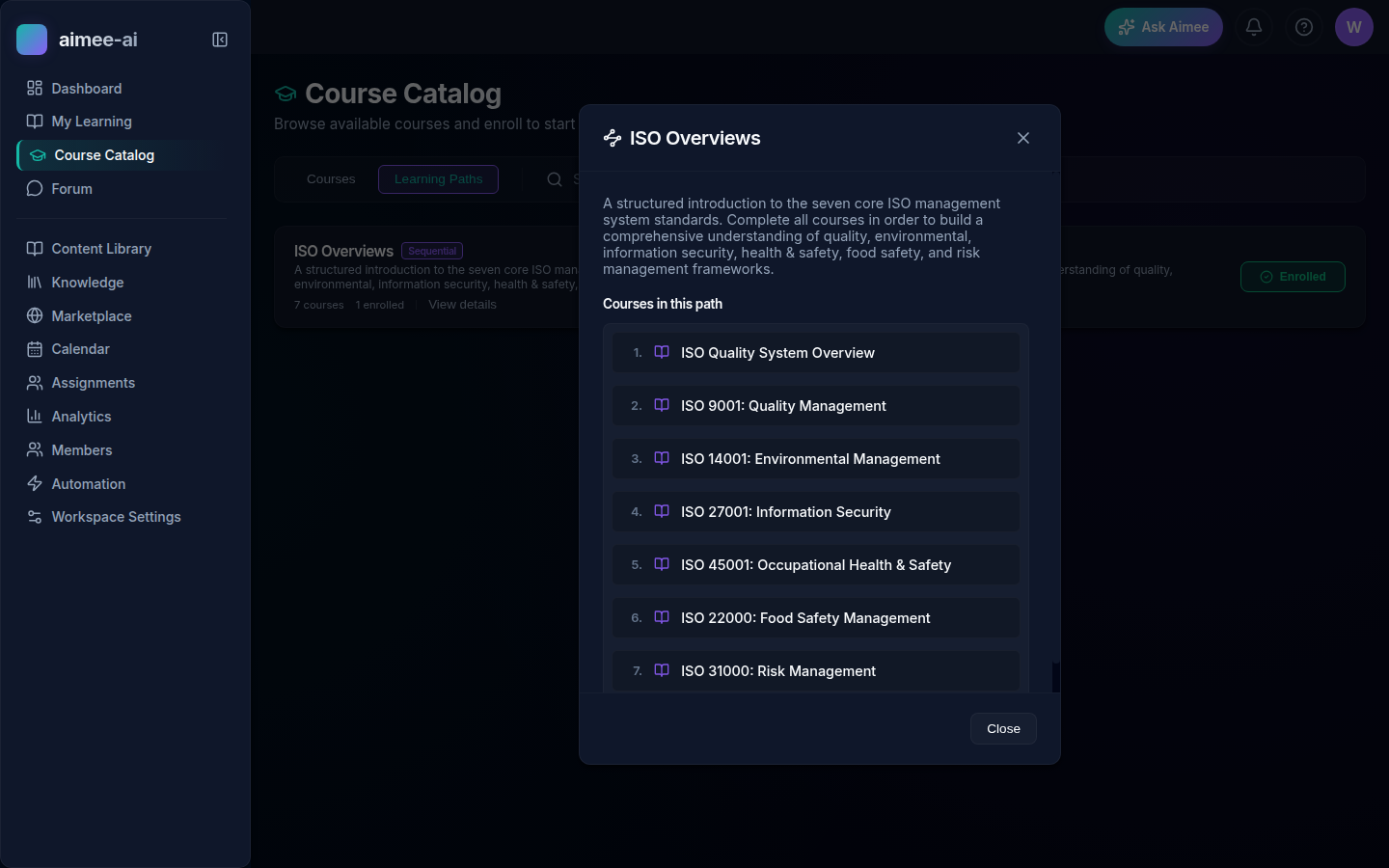
When a learner opens a path in the Course Catalog, they see its description and the full list of courses in order, so they know what the programme involves before they enrol. A single Enrol button signs them up for the whole path.
Once enrolled, the path's courses appear in My Learning alongside their other assignments:
- Each course shows its path name and step number, and path courses stay grouped together in path order.
- On a sequential path, a course that's still locked behind an earlier step shows a lock indicator instead of a Launch button - the learner completes the earlier course first, and the next one unlocks automatically.
- Paths the learner has finished show as Retake in the catalog; paths they're partway through show as Enrolled.
See Learner Portal for how learners launch and work through the individual courses.
Reviewer approval and sequential paths
On a sequential path, if a course requires reviewer approval to complete, the next course does not unlock until a reviewer signs off - a completion waiting for review holds up the rest of the path. See Scoring & Rubrics and the Reviewer guide.
Sharing a path on the Marketplace
To let other workspaces use a path you've built, open it in the path editor, switch to the Marketplace tab, and turn on publishing - the same flow as publishing a course. Other workspaces can then lease the whole path, courses and order included, from their Marketplace.
Related
- Course Catalog - how learners discover and self-enrol in paths
- Assignments - assigning a path and tracking progress through it
- Course Management - the Content Library and course lifecycle
- Marketplace - leasing and publishing paths
- Learner Portal - working through a path's courses