Assignments
Assignments connect learners to courses. When a trainer assigns a course, the learner sees it in their portal and can launch the simulation.
Accessible to: Trainers, Workspace Owners, Admins
Assignments page
Navigate to Assignments in the sidebar to view all assignments in the workspace. The page has two views you can switch between with the toolbar:
- Courses - individual course assignments. This is the default view.
- Learning Paths - enrolments in multi-course learning paths.
Courses view
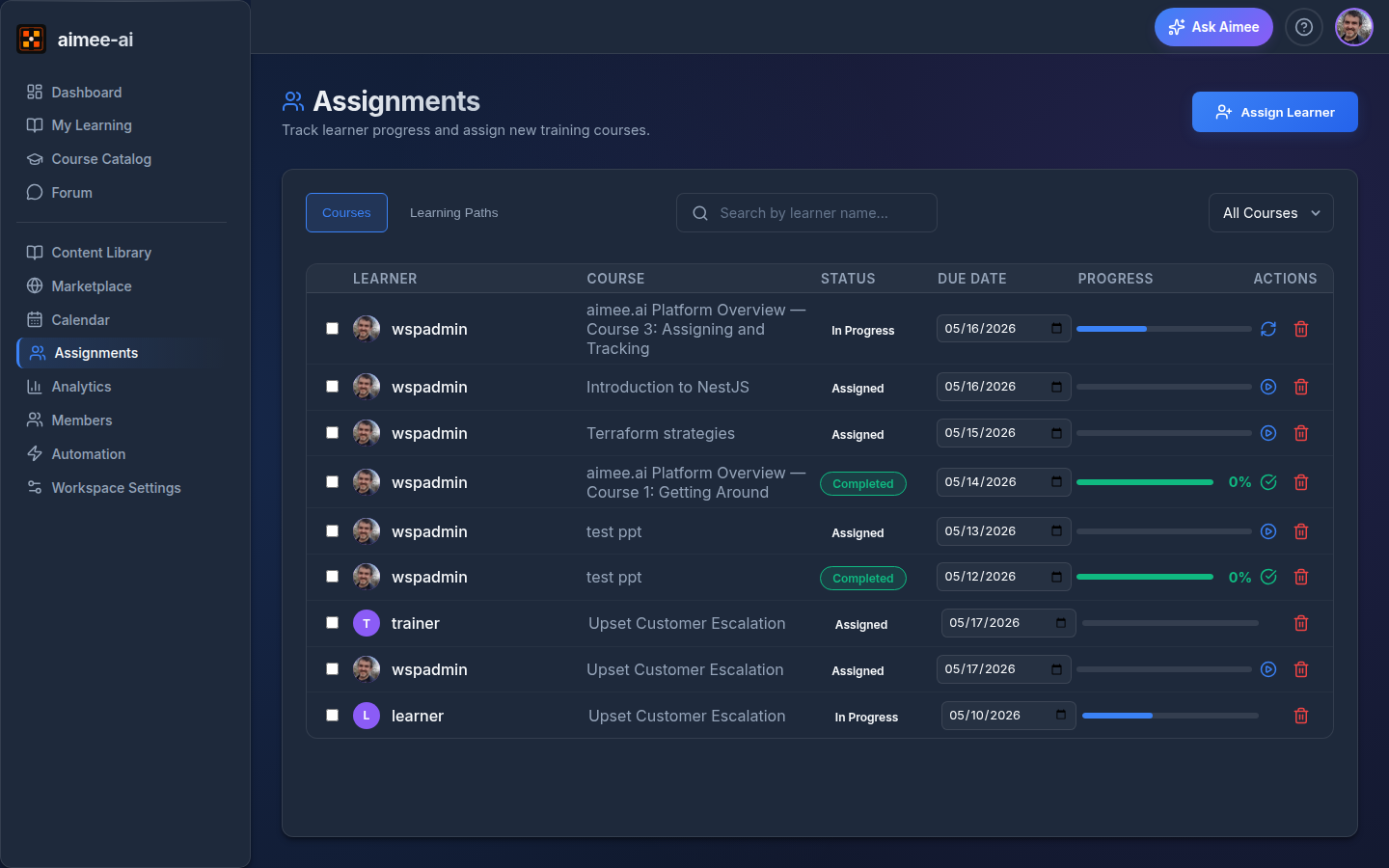
The assignment table shows:
| Column | Description |
|---|---|
| Learner | Assigned learner's name (or group name for group assignments) |
| Course | Name of the assigned course |
| Status | assigned, in progress, awaiting review, completed, abandoned |
| Due Date | When the assignment is due (blank if no due date set) |
| Progress | Visual progress bar |
| Actions | Launch, resume, view results, or delete |
Use the search bar to find assignments by learner name.
Learning Paths view
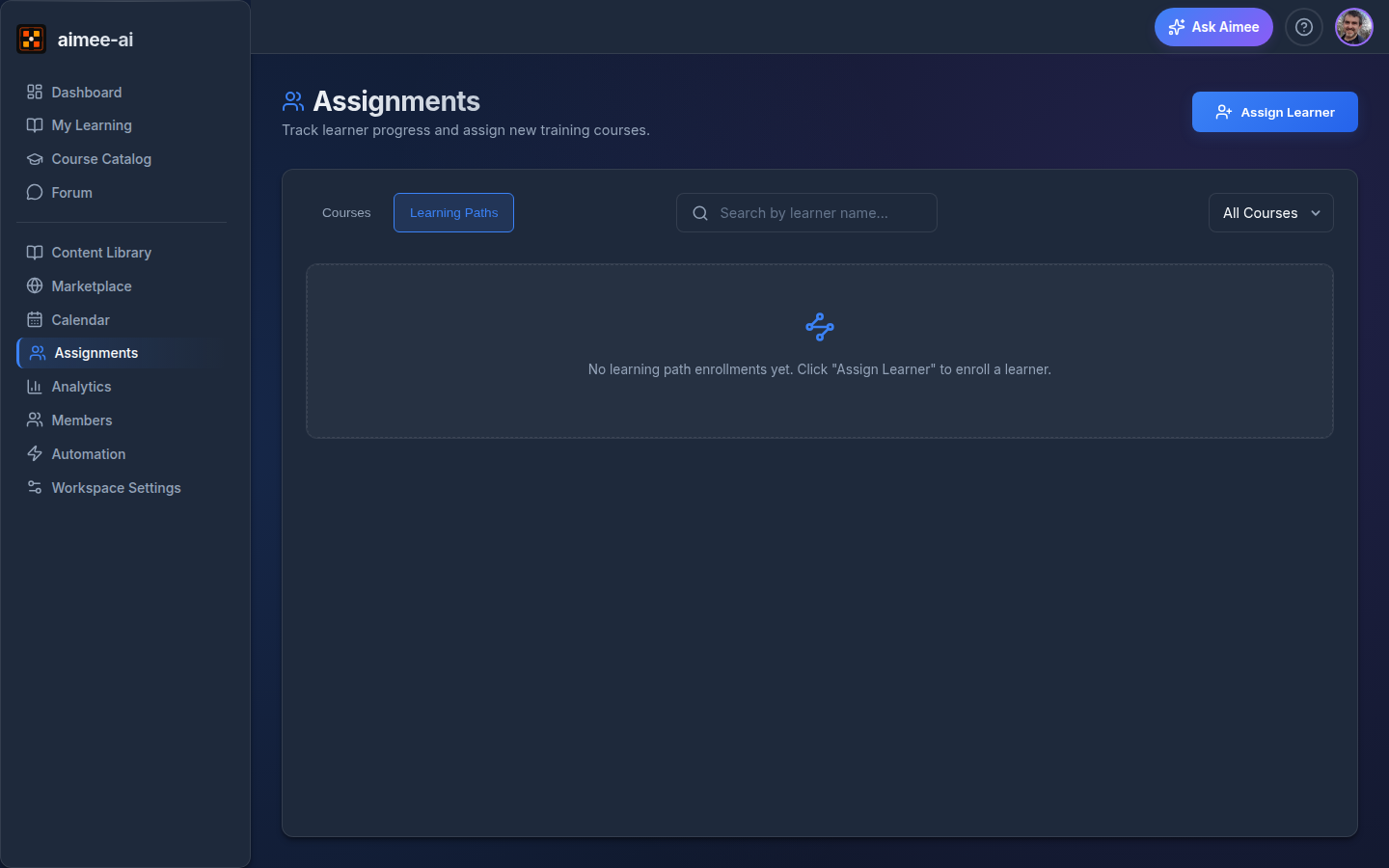
Switch to the Learning Paths view to manage learners enrolled in a path. Each row shows the learner, the path, their progress through the path's courses, and an action menu to remove the enrolment. Use Assign Learner in this view to enrol a learner in a path.
Creating an assignment
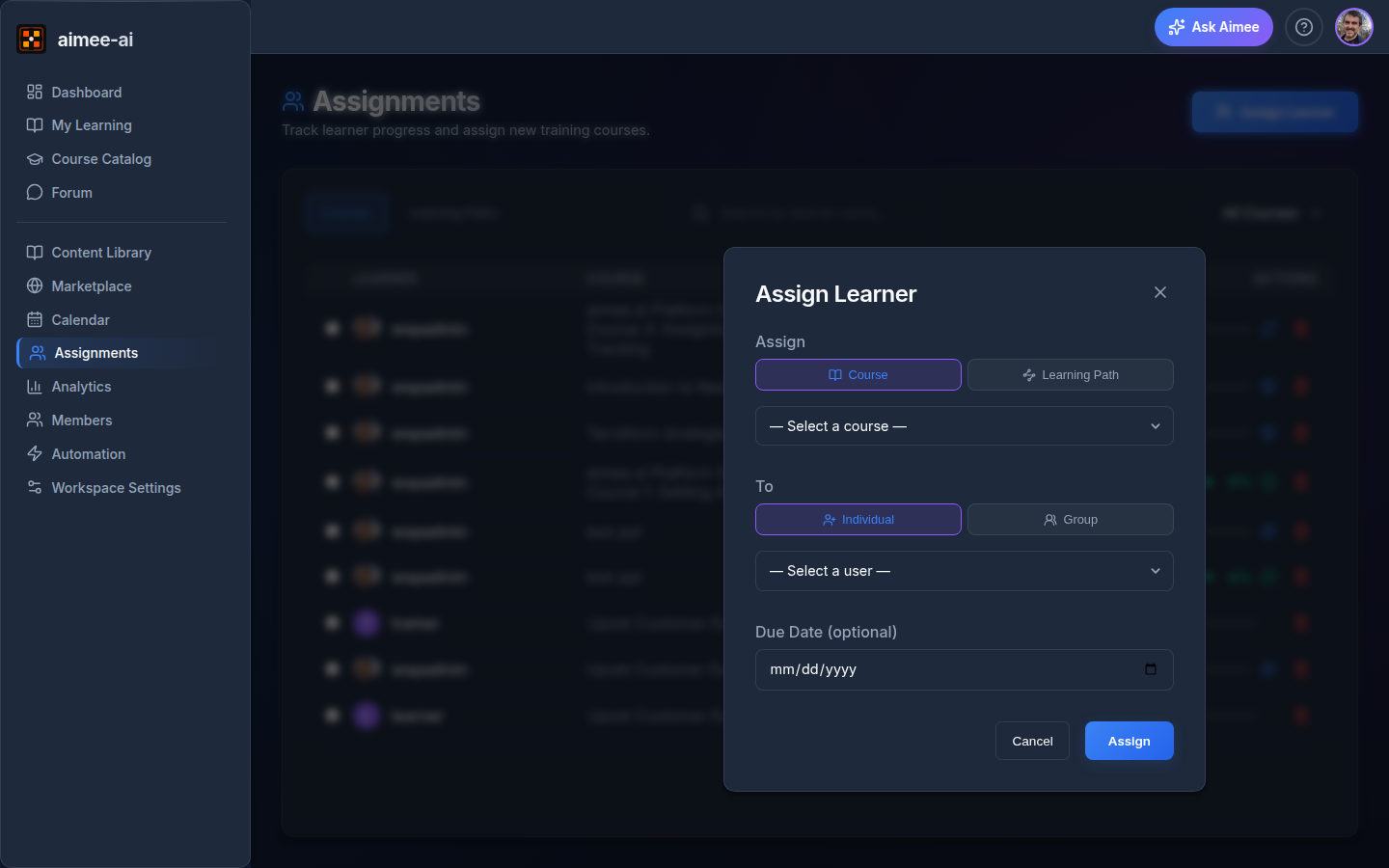
- Click Assign Learner in the top-right corner
- Select a course from the dropdown (only published versions appear)
- Choose an assignment mode:
Select a single learner from the dropdown. One assignment is created.
Select a group from the dropdown. One assignment is created for every member of the group.
- Optionally set a due date
- Click Assign
Group assignments
Assigning to a group creates individual assignments for each group member at the time of assignment. Members added to the group later will not automatically receive the assignment.
Duplicate prevention
You cannot assign the same course to a user who already has an active assignment for it. If you assign a group and some members already have the assignment, only new members will receive it.
Assignment statuses
| Status | Meaning |
|---|---|
| assigned | Learner has been assigned but hasn't started |
| in progress | Learner has launched at least one session |
| awaiting review | Learner has finished, and a reviewer has to approve before it counts as complete. Only happens on courses with Require reviewer approval switched on |
| completed | Learner has completed and been scored |
| abandoned | Assignment was abandoned |
Awaiting review is not completed
An assignment waiting on a reviewer does not count towards completion figures and does not unlock the next step of a learning path. Reviewers clear the queue from Analytics → Reviews. Reminders are never sent for these - the learner has already done their part.
Launching simulations
Only the assigned learner can see the Launch and Resume buttons for their assignment. Workspace owners and trainers managing the assignment list cannot launch simulations on behalf of other users.
Managing assignments
Moving a learner onto a newer version
Published course versions are locked - if you've assigned a learner version 1 of a course and later publish version 2, the learner keeps seeing version 1. To switch them onto the newest published version:
- Open the Dashboard and use the Course Updates Available panel to pick off affected learners one at a time, or move everyone in one go with Switch all.
- Or, from the learner's own Pending Assignments list, click the new-version indicator on the row to upgrade that assignment in place.
Completed assignments are never switched - their record stays on the version they finished.
See Course Management for the full walkthrough.
Deleting assignments
Workspace Owners and Trainers can delete assignments:
- Click the trash icon (🗑️) next to any assignment
- A confirmation dialog will appear showing what will be deleted
- Click Delete to confirm
Destructive action
Deleting an assignment permanently removes the assignment and all associated session data. This cannot be undone.
Bulk deletion
To delete multiple assignments at once:
- Use the checkboxes on the left side of each assignment row to select items
- A red Delete (N) button appears in the toolbar showing the count
- Click it to open the confirmation dialog
- Confirm to delete all selected assignments
Related
- Learning Paths - assigning a multi-course programme as a single enrolment
- Groups - organize learners for bulk assignment
- Courses - creating content to assign
- Scoring & Rubrics - how assignments are scored