Course Management
Course Management is about the lifecycle of your training content - how you organise courses in your workspace, work on them as drafts, publish versions, duplicate them, start them from templates, and move learners onto newer versions when you improve a course.
Accessible to: Trainers, Workspace Owners, Admins
For step-by-step guidance on editing a single course (content blocks, narration, rubric, learner brief), see Courses.
The Content Library
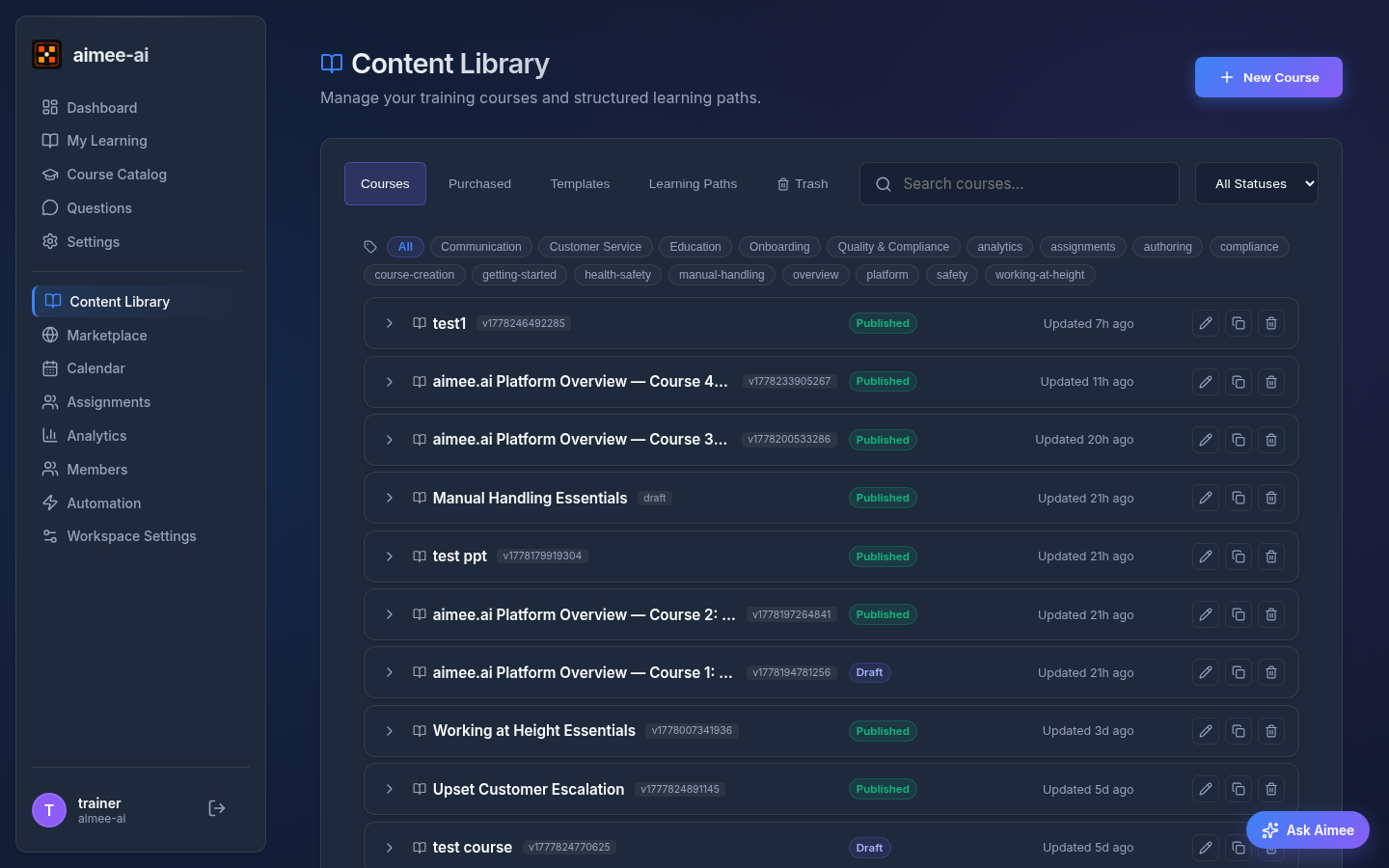
All of your workspace's courses live in the Content Library, reachable from Content Library in the sidebar. The library has five tabs:
| Tab | What it shows |
|---|---|
| Courses | Courses your workspace has created. This is where day-to-day authoring happens. |
| Purchased | Courses your workspace has leased or bought from the marketplace. These are read-only - you assign them to learners, but you don't edit them. |
| Templates | Reusable course starting points your workspace has saved or generated. |
| Learning Paths | Curated sequences of courses you can assign as a single programme. |
| Trash | Courses you've moved to the trash. They're hidden from learners and from assignment but stay restorable until they're permanently deleted. |
Each tab has its own search box, and the Courses tab also has a status filter so you can see only Drafts or only Published courses at a glance.
Drafts and published versions
Every course has two states a trainer needs to understand:
- A Published version is locked. Learners who are assigned it always see the same content, so a published version cannot be edited directly.
- A Draft is your private working copy. You can edit a draft as much as you like without affecting learners who are currently working on the published version.
When you open a course and make a change, Aimee creates a draft automatically if one does not already exist. The editor shows the draft; the published version stays untouched in the background.
Publishing a draft
- Open the course and finish your edits.
- Click Publish in the course editor.
- Enter a version label (for example,
v1.1orv2.0-final). - Confirm.
The draft becomes the new published version. Learners you assign from this point see the new content; learners already working through an earlier version keep seeing the version they started on until you move them (see Moving learners to the latest version).
Discarding a draft
If you want to throw away your unpublished changes and go back to the last published version:
- Open the course.
- Click Discard Draft in the editor.
- Confirm.
The editor returns to the last published version. If you change your mind, click Undo on the message that appears, or open the Recovery tab to restore the draft - it stays available for one day. Starting to edit the course again removes the discarded draft immediately.
Discard Draft only appears when there's something to discard
If your draft matches the published version exactly - or the course has never been published - the Discard Draft action is hidden. There's nothing to revert to.
Getting AI feedback on a draft
While you have a draft open, the editor shows an AI Review tab. Click Run AI review and Aimee returns:
- A course summary - what's working, what isn't, and the top three priorities to address.
- Per-slide cards with concrete suggestions, each tagged Must-fix, Should-fix, or Nice-to-have.
The review covers four dimensions: pedagogy and learning design, content clarity, structure and flow, and quiz quality.
Acting on a suggestion
Every per-slide suggestion carries its own actions:
- Open slide takes you straight to that slide's editor, so you never have to hunt for it on the content board.
- Fix with AI opens the same slide with the AI rewrite prompt already filled in with the suggestion. You still see a before-and-after preview and decide whether to accept it, and the slide is only changed when you save. Once you do, the suggestion is ticked off for you.
- Done and Dismiss let you clear a suggestion by hand - Done when you've made the change yourself, Dismiss when you disagree with it or it doesn't apply. Either way it moves into a Handled list at the foot of the card, and you can put it back with Undo.
A top priority that names a specific slide is a link to that slide too.
Fix with AI isn't offered everywhere
It appears only on ordinary content slides. Knowledge checks, quizzes, roleplays, and media blocks get Open slide instead - the AI rewrite only writes slide text, so it has nothing useful to say about a block made of questions or media. If your workspace has AI slide rewriting turned off in Settings, Fix with AI doesn't appear at all.
The latest review is saved against your draft, along with what you've marked handled. Working through the suggestions naturally edits the draft, so the tab will tell you the course has changed since the review ran - that's expected progress, not a problem. Hit Re-run review whenever you want a fresh read.
Each re-run is a genuinely fresh read, so Aimee will often make the same point in different words. Your triage still carries over, per slide: if you handled everything on a slide and haven't edited it since, that slide stays quiet on the next run, however the new wording comes out. Two things bring a slide back into the live list - editing it, or having left some of its suggestions unhandled, which means you weren't finished with it. That's also why a slide you fixed with Fix with AI comes back live: the slide changed, so you get to see whether the fix did the job.
Available on drafts only
AI Review is available to Owner and Trainer roles, and only when a draft is open. Published versions are immutable, so reviewing them isn't useful. There is a per-workspace daily limit on how many reviews can be run.
Creating a course
From the Courses tab of the Content Library, click New Course. The course wizard opens and asks how you want to start. Choose a starting point and click Next:
| Starting point | When to use it |
|---|---|
| Generate with AI | You have a topic in mind and want Aimee to draft slides, questions, and narration from a few answers about your audience. Enter a title and click Next. |
| Start with a blank course | You want to build the content block by block yourself. Enter a title and click Create course. |
The new course opens in the editor as a draft. Fill in the learner brief, adjust the content blocks, tune the rubric, and then Publish when you're ready.
If you want to start from one of your saved templates instead, use the template editor - see Creating a course from a template below.
Duplicating a course
If you want to build a new course that's similar to one you've already made, you can duplicate it instead of starting from scratch.
- Go to the Courses tab in the Content Library.
- Find the course you want to copy.
- Click the Duplicate course icon on the row.
- Aimee creates a fresh draft copy of the course and opens it in the editor so you can edit the title, tweak the content, and publish when you're ready.
The duplicate is a draft
A duplicated course always starts as a Draft with no published version yet. It won't appear to learners until you publish it. This lets you rework the content without any risk of it being assigned by accident.
The original course is not changed in any way.
Backing up and restoring a course
If you need to move a course to another workspace - or take an offline backup before a big edit - you can export the entire course as a single ZIP file and restore it elsewhere.
Workspace owners only
Backup and restore are available to workspace owners only. Trainers and admins can still duplicate courses inside the workspace, but they cannot export them.
Backing up a course
- Go to the Courses tab in the Content Library.
- Find the course you want to back up.
- Click the Export icon on the row (the download arrow, just to the left of the Duplicate course icon). The Export Course window opens with a format choice.
- Choose Backup and click Download Backup. Your browser downloads a
.zipfile with the course title in its name.
The ZIP captures the latest published version of the course (or the current draft, if the course has never been published). It contains:
- All slides, modules, questions, and the rubric.
- Slide source files (PDFs, thumbnails) and any images attached to slides.
- Tags and AI-generation provenance.
- Voice narration audio for every successfully-rendered language on the course (English plus any other languages your workspace has voice generated in), along with the translated scripts and the voice identity that produced each clip. Any recorded or uploaded voiceovers (see Voice Narration) travel with the backup too, along with which source - AI or recorded - learners currently hear.
If a slide failed to generate voice on the source course, that slide's audio is left out of the ZIP - the importing workspace falls back to regenerating it from the saved script. Very large backups (typically courses with a lot of narration, images, or video) can hit a soft size guard. If that happens the download fails with a message that names both the projected backup size and the current limit - turn off Include voiceovers in the export window if the course has a lot of narration across several languages, or trim down heavy images and video if those are the larger share of the course.
Restoring a course from a backup ZIP
- Open the Courses tab in the Content Library.
- Click Restore Course at the top of the page.
- Choose Backup ZIP.
- Choose where the backup is coming from:
- Upload a file - pick a
.zipfile you already downloaded (from a manual backup, or from someone else). - Choose from stored backups - pick from this workspace's automated backups (see Course backup rules) without needing a file on your computer at all. Select which course's backups to browse, then pick a stored backup by date.
- Upload a file - pick a
- If you picked a file from your computer, an upload bar shows the percentage as it transfers. Large courses can take a few minutes - leave the window open until it finishes.
- A progress modal then shows each phase as Aimee validates the file, uploads the slide assets, and recreates the course. When it finishes, the new draft opens in the editor on the Course Content tab.
A backup ZIP can be up to 400 MB - the same limit that applies when you export one, so any course you can back up can be restored. If you pick a larger file, Aimee tells you the size and the limit straight away rather than letting the upload run and fail.
The restored course always starts as a Draft in your workspace, with marketplace/lease state cleared so it's a fresh, private course you can edit and publish when you're ready. If the backup file shipped with rendered voice audio, those clips play immediately - no re-rendering is needed. Slides whose audio wasn't in the ZIP (because the original failed to render or the export skipped voice) regenerate English narration in the background, the same way a freshly-imported course does.
Choose from stored backups only lists eligible courses
Only courses that still exist in your workspace (not trashed or leased/purchased from elsewhere) and have at least one stored automated backup appear in the course picker. If no course qualifies yet, set up a course backup rule under Automation, or use Upload a file instead. A course also drops out of this picker if you delete its last remaining backup - it reappears once a scheduled run stores a new one.
If the backup contains voice for a language your workspace hasn't enabled yet, the import still succeeds and the audio lands in storage, but those clips stay silent until the language is turned on under Workspace Settings -> Voiceover languages. Enable the language and the existing audio plays right away - no re-render needed.
What can't be backed up
Courses you've leased or purchased from another workspace can't be backed up - back up the source course in its origin workspace instead. The Workspace Branding Intro is also excluded; it's workspace-level infrastructure, not a portable course.
Exporting a course as a SCORM package
If you want to deliver a course through another learning platform - Moodle, Cornerstone, SuccessFactors, Docebo, or any other SCORM-compatible LMS - you can export it as a SCORM package. Unlike a backup (which is for bringing a course back into Aimee), a SCORM package is a self-contained player another LMS runs on its own and tracks completion and quiz scores against.
Workspace owners only
SCORM export is available to workspace owners, the same as course backup.
- Go to the Courses tab in the Content Library.
- Click the Export icon on the course row, then choose SCORM in the Export Course window.
- Click Download SCORM. Your browser downloads a
.zipfile.
The download contains two ready-to-upload packages - one for SCORM 1.2 and one for SCORM 2004 - so you can pick whichever your target LMS accepts. Each package carries the latest published version of the course (or the current draft if it has never been published), the course slides, images and video, and a lightweight player. As a learner works through it, the hosting LMS receives their progress, completion, and quiz score (measured against the course pass mark). If the course has a question pool, the package ends with a Final assessment page that holds the pool questions.
Interactive activities in a SCORM package
AI roleplays and learner file-upload activities need Aimee's live platform to run, so in an exported package they appear as a short placeholder note instead. Every other slide type - text, images, video, quizzes, matching, accordions, charts, and so on - is fully reproduced. This means any course can be exported; only those two activity types are shown as placeholders.
Leased or purchased courses and the Workspace Branding Intro can't be exported as SCORM, the same as for backups.
Importing a SCORM package
If you have a SCORM package - your own course exported earlier, or one you got from somewhere else - you can bring it in as a new course.
Workspace owners only
SCORM import is available to workspace owners, the same as course backup and export.
- Open the Courses tab in the Content Library.
- Click Restore Course at the top of the page.
- Choose SCORM package.
- Pick the
.zipfile. An upload bar shows the percentage as it transfers, then a progress window follows while Aimee reads the package and builds the course. When it finishes, the new course opens on the Course Content tab.
SCORM packages can be up to 400 MB, the same limit as a backup ZIP. A larger file is refused straight away with the size and the limit, rather than failing part-way through.
The imported course always starts as a Draft, ready for you to review and publish. If Aimee already has a course with the same title, the imported one gets a slightly different name so nothing is overwritten.
Aimee reliably reconstructs anything it exported itself - text, images, video, quizzes, matching, accordions, charts, and every other slide type. A Final assessment page from an Aimee package goes back into the course's question pool, not into a slide. If part of a package came from somewhere else and Aimee can't fully recognise it, that slide still comes through with its text content, but is marked with a needs review notice so you know to check it. A summary after import tells you if any slides needed this treatment.
What can't be imported
A file that isn't a valid SCORM package, or one that's missing files it references, is rejected with a clear error - nothing partial is created.
Trashing and restoring courses
When you no longer need a course, you can move it to the Trash tab instead of deleting it outright. Courses in Trash are hidden from learners and from new assignments, but they stay restorable until they're permanently deleted.
Moving a course to Trash
- Open the Courses or Purchased tab of the Content Library.
- Click the trash icon on the row of the course you want to remove.
- Confirm.
If a course is referenced by an active Learning Path, Aimee will refuse to move it to Trash and tell you which paths to remove it from first.
Restoring a course
- Open the Trash tab.
- Find the course you want to bring back. The row shows when it was deleted, who deleted it, and how many days remain before it's purged automatically.
- Click Restore.
The course returns to its original tab - Courses for content your workspace authored, Purchased for marketplace content. If the original title is already in use by another course, Aimee restores it under a new name and tells you what it picked.
Permanently deleting
Workspace owners and admins can wipe a course permanently:
- Click Delete forever on a row in Trash to remove a single course.
- Click Empty Trash in the toolbar to remove every course in Trash at once.
A confirmation dialog explains what will be removed; once confirmed the course and all its session data are gone for good.
Automatic purge
Courses in Trash are permanently deleted after the workspace's retention window without further confirmation. The row's days-left indicator turns amber when the purge is three days away.
Course templates
A template is a reusable starting point for a course - a skeleton of slides, a default rubric, and a learner brief that you can spin up into a full course in one click. Templates live on the Templates tab of the Content Library.
Creating a course from a template
- Open the Templates tab of the Content Library.
- Click a template to open it.
- In the template editor, click Save as new course.
- A new draft course is created from the template so you can edit it and publish when you're ready.
Saving an existing course as a template
If you've built a course you'd like to reuse as a starting point for future ones, you can turn it into a template directly from the course editor:
- Open the course and click Save as template in the header.
- Give the template a name - it's pre-filled with "Course title (template)" but you can rename it.
- If the course has both a draft and a published version, pick which one should become the template: the Draft captures your latest in-progress edits; the Published version matches what learners currently see.
- Click Save as template. Aimee creates the template, opens it in the template editor, and leaves your original course untouched.
The template shows up on the Templates tab right away. Any images in the source course are reused automatically - saving as a template never regenerates them.
A template keeps the Image, Video, YouTube and Resource blocks of the course. A new course from the template gets its own copy of each image and each resource file. A video from the workspace video library stays 1 file that the courses share. If a file is no longer in the workspace, the new course does not get that block.
Leased and purchased courses
Courses you've leased or purchased from another workspace cannot be saved as templates. The Save as template button is hidden on those courses.
Regenerating a template with AI
If a template isn't quite what you need, you can ask Aimee to rewrite it:
- Open the template.
- Click Regenerate with AI.
- Describe what you'd like changed - for example: "Make this template focus on first-line managers handling performance conversations, and shorten it to eight slides."
- Review the proposed rewrite and either accept it or adjust your instructions and try again.
When you accept a regenerate, Aimee also refreshes any AI-generated images in the template so they match the new content, so you don't end up with an updated script paired with old visuals.
Templates vs. courses
Regenerating a template changes the template itself, not any course you've already created from it. Existing courses keep whatever content they had when they were created.
Moving learners to the latest version
Because published versions are locked, a learner who is already working through a course keeps seeing the version they were assigned even after you publish something new. That's intentional - mid-course content changes would be confusing. When you're ready to move a learner onto the latest version, Aimee makes it easy.
- Open your Dashboard.
- Find the Course Updates Available panel. It lists each learner who is currently on an older version of a course than the one you've most recently published, along with their assigned version label and the latest version label.
- Click Switch to latest on a row to move that learner onto the newest version, or click Switch all at the top of the panel to move every listed learner at once.
Learners who have already completed a course are not listed - their records stay on the version they completed.
Finish before you switch
If you want a cohort to finish on the version they started on, wait until they're done before switching. The updated version will still be there whenever you're ready.
Purchased courses
Courses on the Purchased tab came from the marketplace. They behave a little differently from courses you've authored:
- They are read-only - you can't change their content, rubric, or learner brief.
- They assign to learners just like your own courses.
- They do not appear on the Courses tab, which is reserved for content your workspace authors.
Related
- Courses - building and editing a single course
- Course Catalog - how learners discover and self-enrol in published courses
- Assignments - assigning a published course to a learner or a group
- Scoring & Rubrics - rubric configuration
- Trainer role guide - the full trainer workflow