Notifications & Integrations
Aimee.ai can send real-time notifications to your team's chat channels when important events happen - such as a learner completing an assignment or a new course being published.
Looking for the bell in the top bar?
This page is about sending alerts out to Slack, Teams and CRM webhooks. For the notifications you see inside Aimee.ai - forum mentions and service announcements - see Your Notifications.
Accessible to: Workspace Owners and Admins
Supported Providers
| Provider | Format | How It Works |
|---|---|---|
| Microsoft Teams | Adaptive Card v1.4 | Rich cards with facts, scores, and action buttons delivered via Incoming Webhook |
| Slack | Block Kit | Structured messages with headers, fields, and buttons delivered via Incoming Webhook |
| Webhook (Custom) | JSON + HMAC | Raw JSON payload with X-Aimee-Signature HMAC-SHA256 header for verification |
Supported Events
| Event | Trigger | Information Included |
|---|---|---|
| Assignment Completed | Learner finishes a scored session | Learner name, course title, score, pass/fail, debrief link |
| Assignment Created | Admin assigns a course to a learner | Learner name, course title, due date |
| Course Published | Admin publishes a new course version | Course title, version label, block count |
Setting Up a Notification Channel
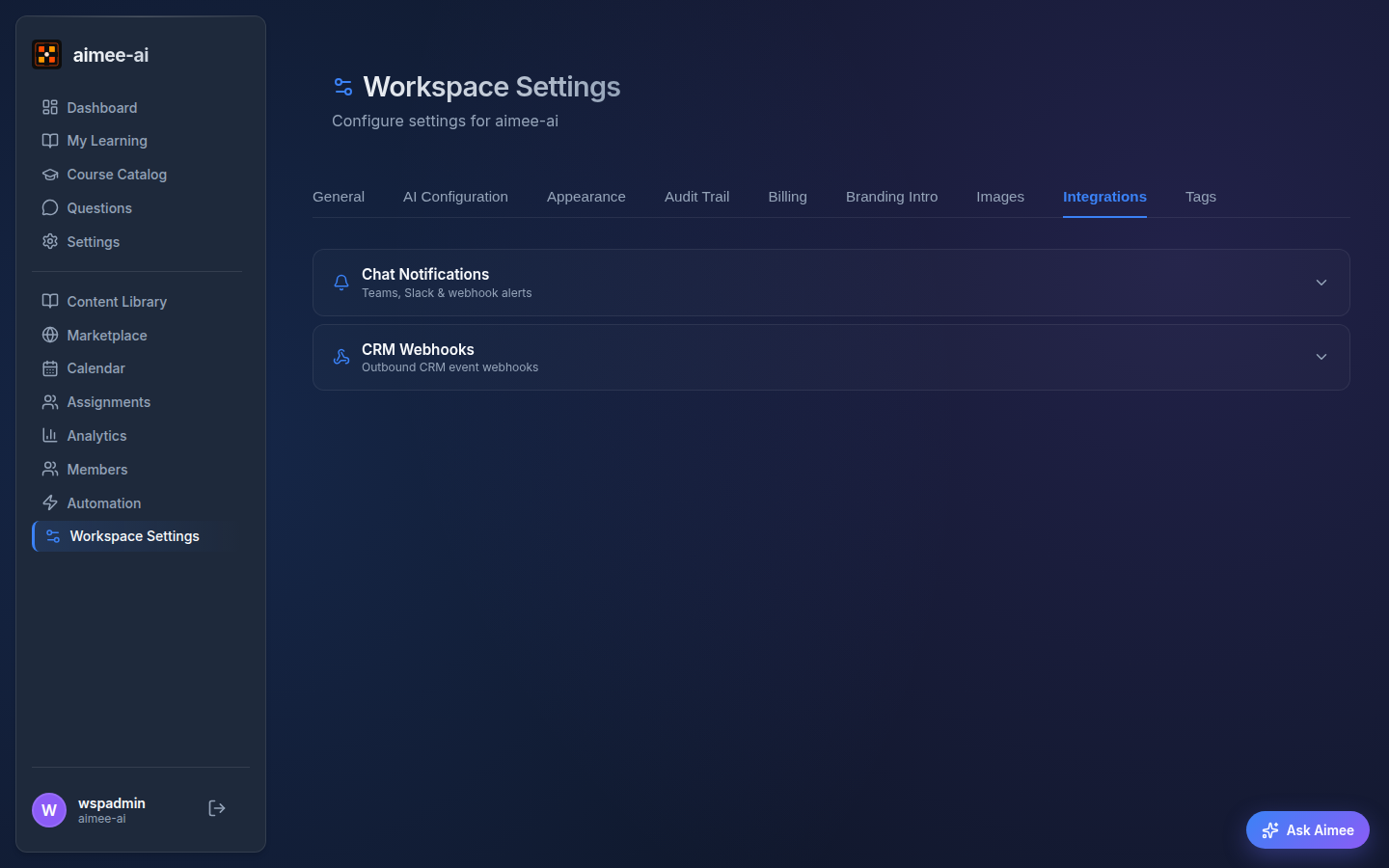
Navigate to Settings → Integrations → Chat Notifications.
Microsoft Teams
- In Microsoft Teams, go to the target channel and click Manage Channel
- Open Connectors → Incoming Webhook → Configure
- Give the webhook a name and copy the generated webhook URL
- In Aimee.ai, click Add Channel → select Microsoft Teams
- Paste the webhook URL and give it a name (e.g. "Training Alerts")
- Click Add Channel
Slack
- In Slack, open Apps → Incoming Webhooks
- Click Add to Slack and choose the channel notifications should post to
- Copy the generated webhook URL
- In Aimee.ai, click Add Channel → select Slack
- Paste the webhook URL and click Add Channel
Custom Webhook
- Set up an HTTP endpoint that accepts POST requests
- In Aimee.ai, click Add Channel → select Webhook (Custom)
- Paste your endpoint URL and click Add Channel
Webhook Security
Custom webhooks include an X-Aimee-Signature header containing an HMAC-SHA256 signature of the request body. Use the webhook secret (shown when creating the connection) to verify the signature and confirm the request came from Aimee.ai.
Event Filtering
By default, a channel receives all events. To subscribe to specific events only:
- When adding a channel, select the events you want from the toggle buttons
- Leave all deselected to receive everything
Managing Channels
Each channel in the list shows:
- Provider icon and name
- Webhook URL (truncated)
- Event badges - which events are subscribed (if filtered)
Available Actions
| Action | Description |
|---|---|
| Toggle (green/grey switch) | Enable or disable the channel without deleting it |
| Test | Send a sample notification to verify the webhook is working |
| Delete (trash icon) | Permanently remove the channel |
Card Simulator
The built-in Card Simulator lets you preview exactly how notifications will appear in each provider - without sending any real messages.
- In the Chat Notifications panel, find the Card Simulator section
- Select a provider (Teams, Slack, or Webhook)
- Select an event to preview
- See a visual rendering of the card
Tip
Use the simulator to verify your setup before going live. The Teams preview matches Adaptive Card Designer, and the Slack preview matches Block Kit Builder.
Delivery & Reliability
All notifications are queued for reliable delivery:
- 5 delivery attempts with exponential backoff (30s, 60s, 2m, 4m, 8m)
- Each delivery attempt is logged in the integration events audit trail
- Failed deliveries do not block platform operations (fire-and-forget)
CRM Webhooks
In addition to chat notifications, the CRM Webhooks section (also under Integrations) allows you to send raw event data to external CRM systems. These use HMAC-signed JSON payloads and are useful for triggering automated workflows in tools like HubSpot, Salesforce, or custom platforms.
See the API Documentation link in the sidebar for the full webhook payload schema.
Related
- Workspace Settings - general workspace configuration
- Assignments - how assignments work
- Scoring & Rubrics - how scoring triggers notifications
- Your Notifications - the in-app bell and service announcements
- Security & Permissions - access control